
If you have multiple timesheet templates, and your reporter has finished their term on Template A and can be moved to Template B, here is the process you'll follow.
CAUTION: Confirm that all timesheets have been approved before moving your reporter to a new template. Once a template is switched, automatic blackout dates are applied to the previous template.
-
On the left, in your Mission Control, click Reporters, Admins, & Sites.
-
On the right, click Manage reporter accounts.
-
Click on the name of the reporter you would like to update.
-
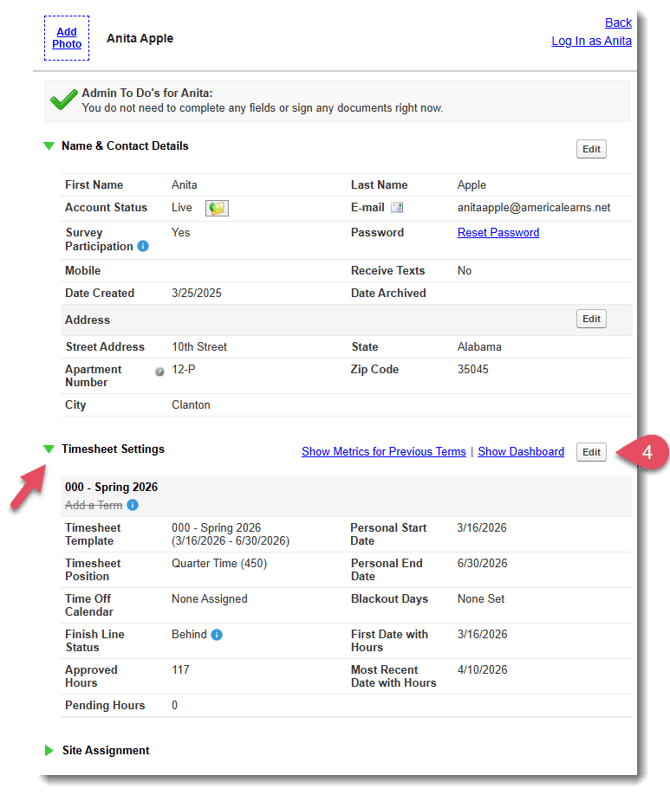
Find the Timesheets Settings panel, and click the Edit button.
-
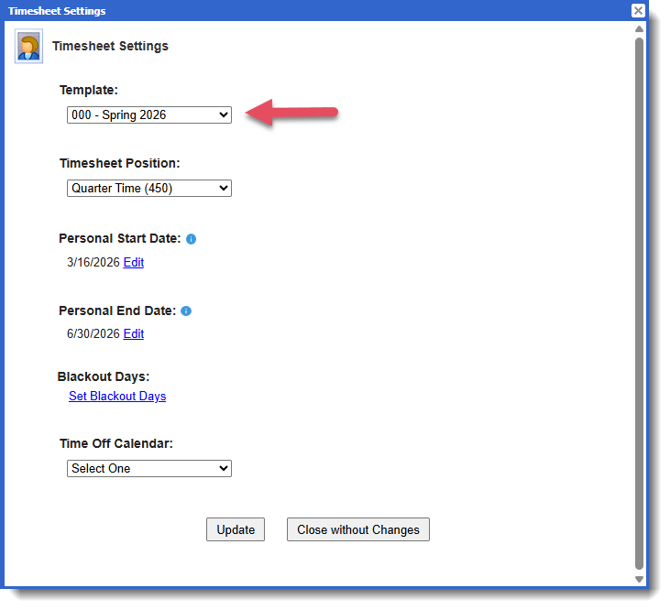
A pop-up window will open. From the dropdown, choose the new timesheet template you want to assign to this reporter.
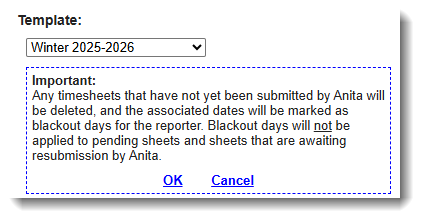
- You’ll see a message explaining what will happen to any data saved on unsubmitted timesheets in the current template. The reporter will no longer be able to submit timesheets on the old template after the change. Click OK to continue.
- You'll be prompted to update the other Timesheet Settings for the new template assignment, including Timesheet Position, Personal Start Date, Personal End Date, and Time Off Calendar.
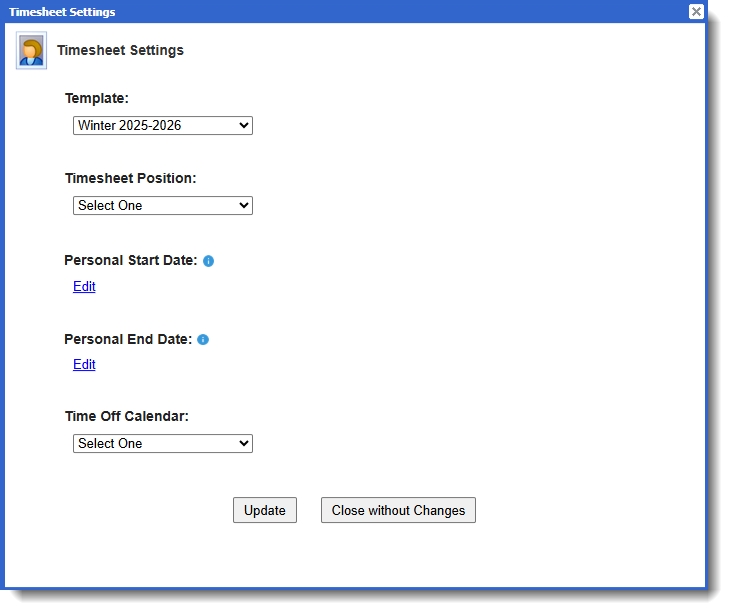
- Click Update to save.