
Temporarily Hiding Subcategories
IMPORTANT: Please only do this when you are confident that timesheets with time allocated to subcategories you are hiding will not need to be returned for edits.
To temporarily hide subcategories you will need to update a template by following these steps:
-
On the left, in your Mission Control, click Timesheets.
-
On the right, click Create & manage timesheet templates.
-
On the right, select the template that you’d like to update.
-
Find the section of the template called Time Allocation Categories and find the category under which you would like to hide subcategories. Click Edit.
-
Find the subcategory you would like to hide temporarily and click Hide on Template.
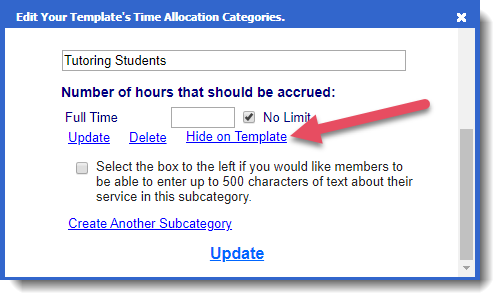
You will see this pop-up message (click OK):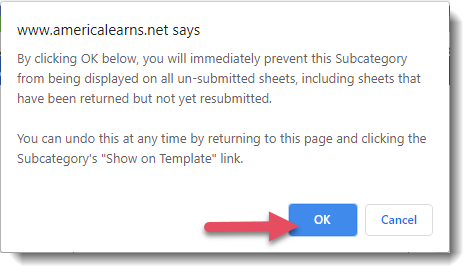
-
Once you're done click Update to save your changes.
Restoring Hidden Subcategories
To restore hidden subcategories you will need to update a template by following these steps:
-
On the left, in your Mission Control, click Timesheets.
-
On the right, click Create & manage time sheet templates.
-
On the right, select the template that you’d like to update.
-
Find the section of the template called Time Allocation Categories and find the category under which you would like to hide subcategories. Click Edit.
-
Find the subcategory you would like to restore and click Show on Template.
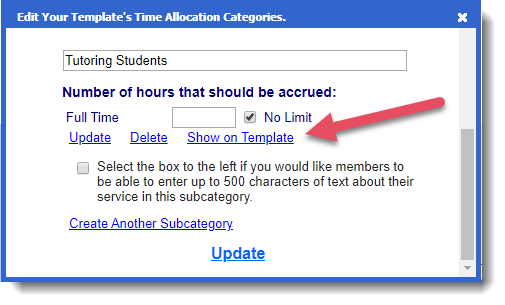
You will see this pop-up message (click OK):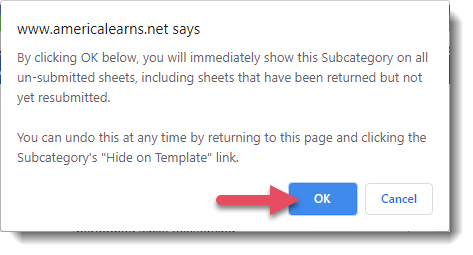
-
Once you're done click Update to save your changes.