
Next, you’ll want to review and make decisions about your Group. In this next section you’ll learn how to:
- Name your Group Identifiers;
- Determine who will enroll your Identifiers (admin or reporters);
- Create instructions for enrolling Identifiers;
- Determine the order of enrollment Fields;
- Give permissions for reporters to connect and disconnect from Identifiers; and,
- Enable/disable profiles.
Walkthrough
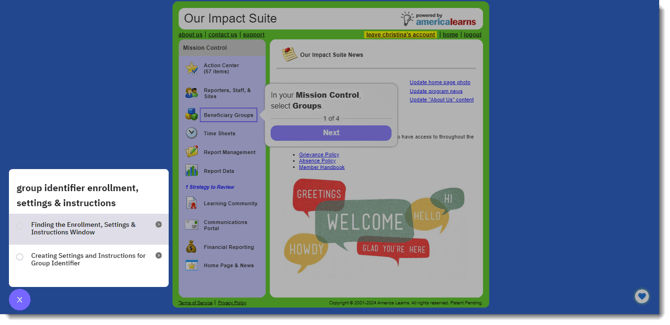
Finding the Enrollment, Settings & Instructions Window
-
On the left, in your Mission Control, select Groups.
-
Find the section called Manage Groups and use the drop-down to choose the group you’d like to work on.
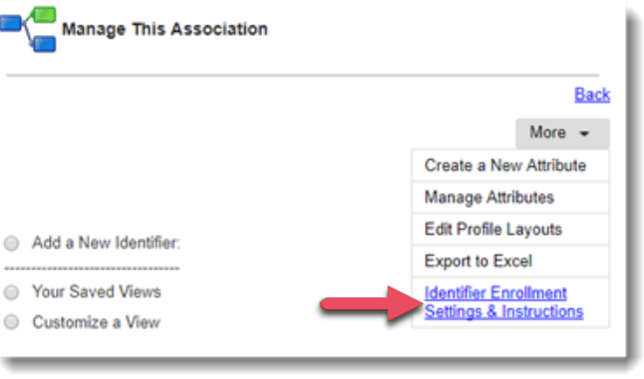
- On the top-right, use the More menu to click Identifier Enrollment Settings & Instructions.
Creating Settings and Instructions for Group Identifier
-
On the left, in your Mission Control, select Groups.
-
Find the section called Manage Our Groups and use the drop-down to choose the group you’d like to work on.
- On the top-right, use the More menu to click Identifier Enrollment Settings & Instructions.
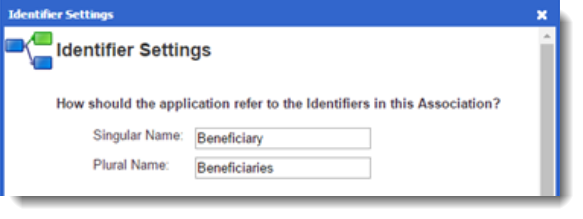
- A window will open.
- First, decide how the Impact Suite should refer to your Identifiers (e.g., clients, students, classrooms, projects).
- Choose who should enroll the Identifiers for this Association.
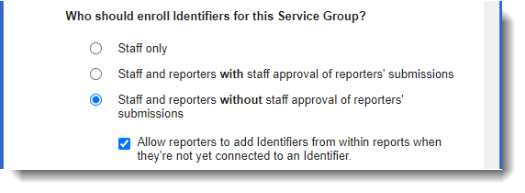
The selected option has the following benefits:
- Gives reporters the ability to immediately survey on Identifiers through their surveys and profiles; and
- Allows reporters to add new Identifiers from within their surveys.
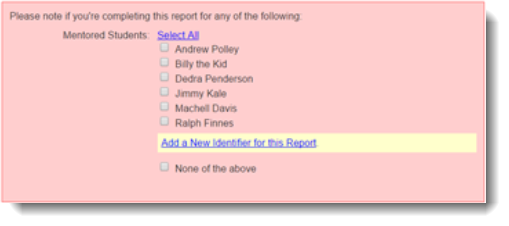
- Next, decide if you would like to able to enroll new identifiers from your reporters' profiles.
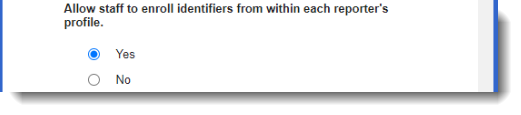
This option will turn on a special icon in each reporter's profile that will allow you to add new identifiers. Like this: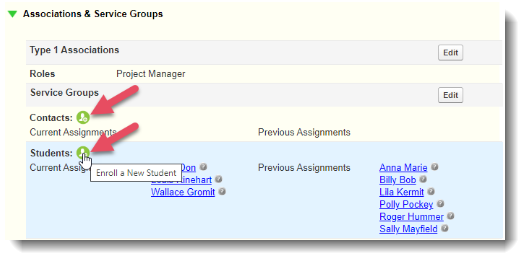
- Now, create the instructions that admin and reporters see when they create Identifiers for this Association.
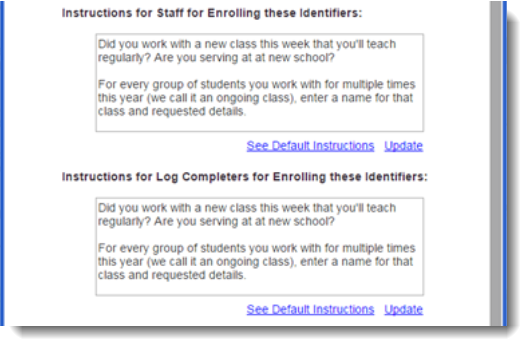
IMPORTANT: If you need your reporters to enroll Identifier names using a particular format (e.g., first initial of the first name followed by specific numbers), be sure to list those details in these instructions, along with an example.
If you will ask Reporters to enter Field data for this Association’s Identifiers, be sure to provide detailed guidance on your expectations here.
Now, set whether reporters will have an ability to connect themselves to pre-existing Identifiers and/or whether reporters will be able to disconnect Identifiers from their account – with or without pre-approval.
(See the article: Reviewing Connection/Disconnection Requests.)
Connection: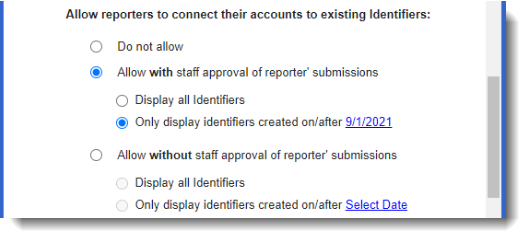
Disconnection: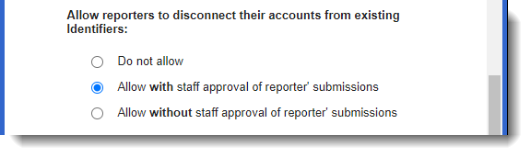
If you choose to allow reporters to connect, you will see options to: Display all identifiers, or Only display identifiers created on/after a certain date. (This will be important if you have identifiers enrolled year over year.)
Additionally, if you choose to allow reporters to connect, you will see an additional section which allows you to show which Fields reporters will see when browsing available Identifiers.
If you have not yet created Fields you will need to return to this window once you have done so.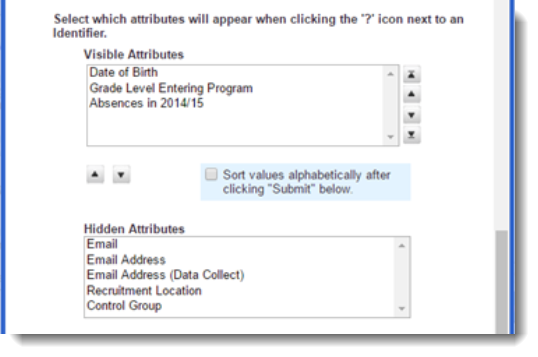
- Lastly, let the Impact Suite know if want your Reporters to be able to see their own Identifiers’ profiles.
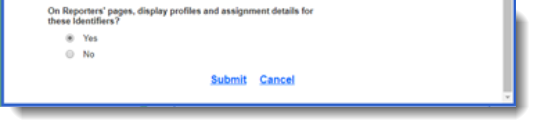
- Click Submit.