Getting Emails when Reporters Submit Surveys
Take a look at this quick review video:
For all other admins and supervisors, you'll need to update the permission in their admin role:
-
On the left, in your Mission Control, click the Reporters, Admins, & Sites.
-
On the right, click Manage admin roles.
-
Click on the role you would like to update.
-
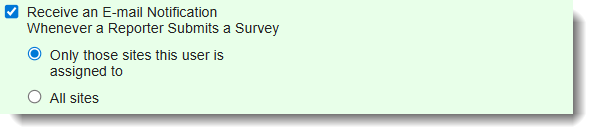
Find the section called Survey Management & Data Access and check this permission (and the scope of receipt appropriate for the role - all sites or just assigned sites):
-
Scroll to the bottom of the page and click Update.
For managers (main administrators):
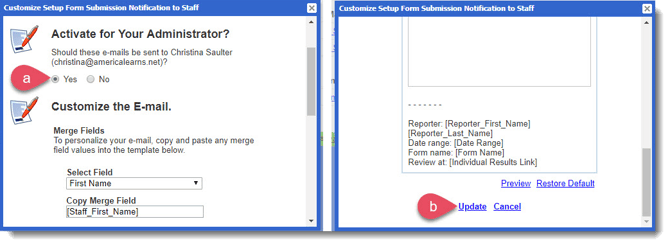
- Follow these steps to update the automated survey submission email to send to your manager (main administrator).
- On the left, in your Mission Control, click Communications Portal.
- On the right, use the More drop-down menu and select Customize Messaging.
- Find the message in the Survey panel and click to open the Survey Submissions Notification to Admins.
- If your manager (main administrator) should receive these messages, click Yes.
-
- To save your changes click Update.