
Generating a Report of the responses in your signNow Template
Did you send out a document for your reporters to sign that you'd like to see what the responses were?
For example: You'd like to see which individuals said yes or no to consenting to a media release.
You can quickly and easily generate a CSV report (an Excel sheet) from your signNow account to see all the responses for a particular template. Here are the steps:
- To begin, navigate on your browser to signNow.com and in the top right corner, select Login.
- Login in with the signNow email and password sent to you by America Learns.
- In the menu options on the left, select Templates.
- Identify from the list of templates which one you'd like to use to generate the report:
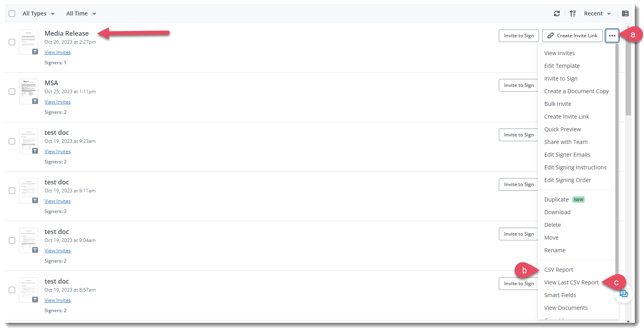
- Select the three dots (...) on the right of the template of your choice.
- From the drop-down menu, select CSV Report. You will see this pop-up in the top right corner:
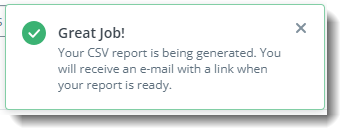 Note: Since we use a generic email (your_program_name@americalearns.net) to set up your signNow account, you will not receive a copy of this report in your email.
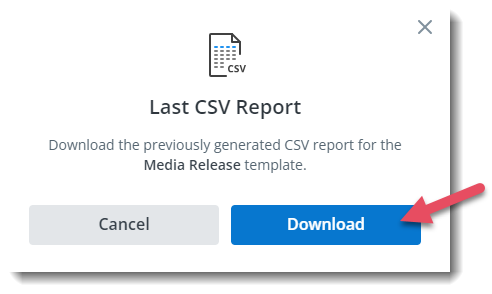
 - Select View Last CSV Report and select Download when the pop-up appears to have the report instantly download to your computer
- Select the three dots (...) on the right of the template of your choice.
- In the Downloads folder on your computer, you'll find a zip file folder. You'll need to extract the files in order to be able to edit them. To do that:
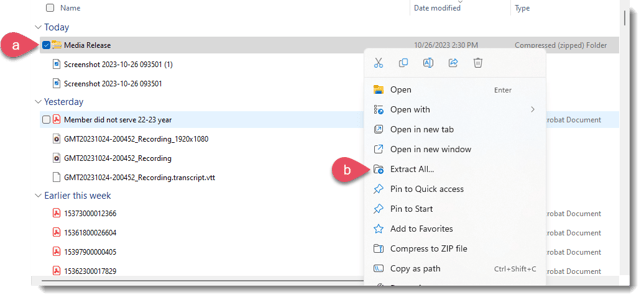
- Right-click the zipped file folder
- Select Extract All...
- When this window pops up, select Extract
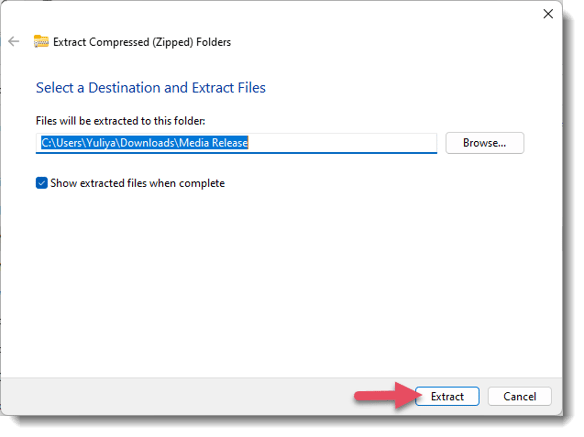
- Right-click the zipped file folder
- Now that you have extracted the files, you'll notice that the folder contains 2 CSV and 2 PDF files:
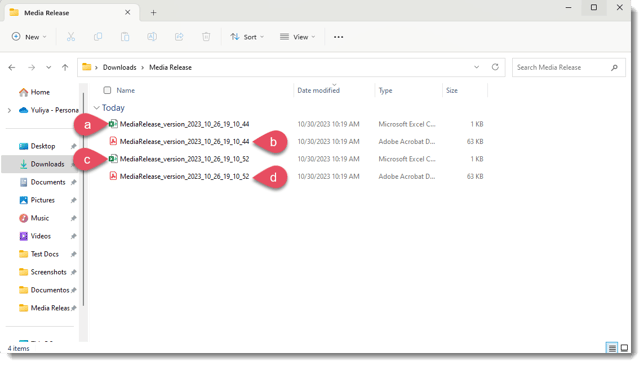
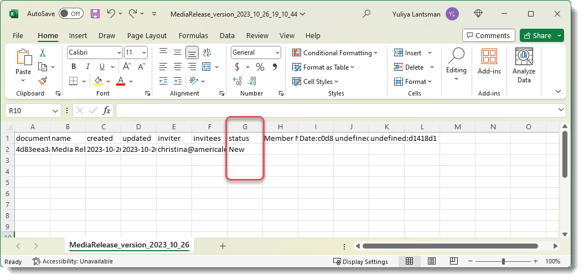
- One of the CSV files will have a single record in it, and under the status column it will say New. This CSV file is referencing your original template and you can disregard it.
- The PDF with the matching file name can also be disregarded.
- The other CSV file will contain the records of the document signers and their responses.
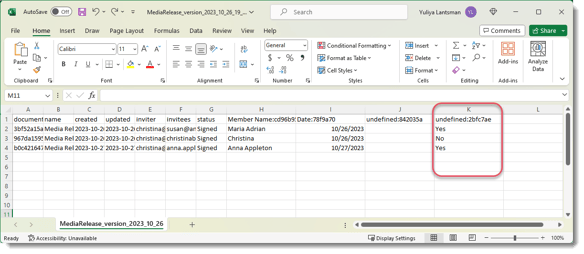
Note: You'll notice that the columns will be labeled with random sequences of letters and numbers, so it may not be clear what part of the document each column is referencing. - The PDF file will show your original template with the random sequence of letters and numbers mapped to correspond with how they appear as columns on the CSV report.
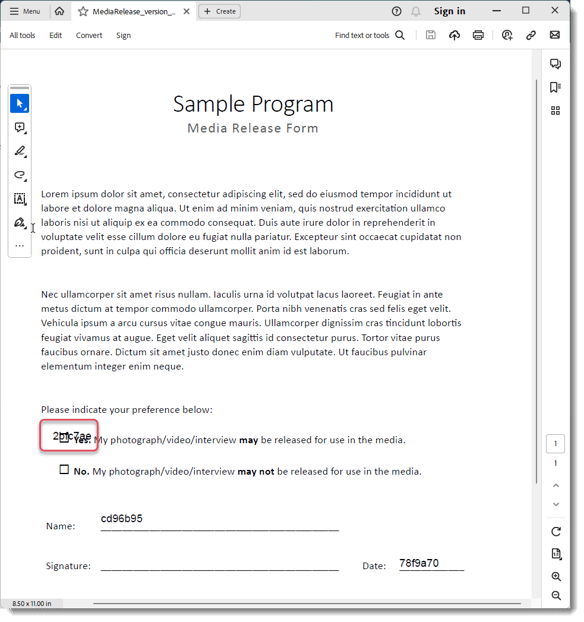
Note: Make sure you're selecting the PDF file that matches the name of the CSV report with the response records.
- One of the CSV files will have a single record in it, and under the status column it will say New. This CSV file is referencing your original template and you can disregard it.
That's it! You can use this method to generate reports and have a quick view of how your document signers responded to each field in your signNow template.