

Navigate to The Timesheet Template
To get there, follow these steps:
- On the left, in your Mission Control, click Timesheets.
- On the right, click Create & manage timesheet templates.
- At the bottom, select the template that you’d like to update.
- Expand the section of the template called The Basics.
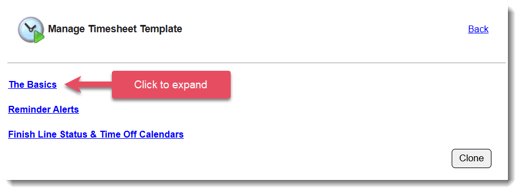
- Update the panels Active Timesheet Positions and Time Off Reasons.
Review Active Timesheet Positions
First, double-check that Timesheet Positions are accurately assigned to your timesheet template by scrolling to the Active Timesheet Positions panel.
- Find the Active Timesheet Positions, click the Edit link.
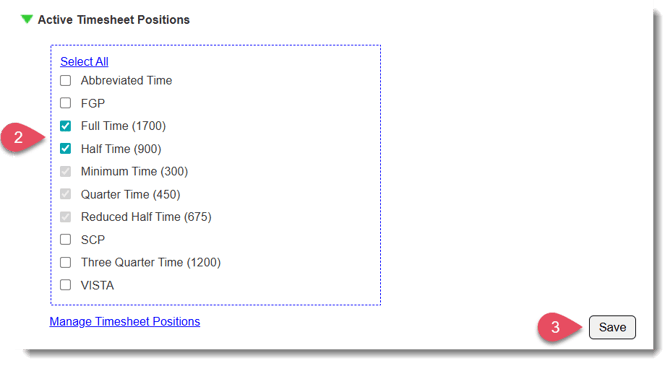
- Select the Timesheet Positions relevant to this timesheet template.
- Click Save.
TIP: If you need to change or edit your Timesheet Positions, use the Manage Timesheet Positions link. This page will open in a new tab.
Review Time Off Reasons
Next, let's review and update your Time Off Reasons.
Time Off Reasons are used in two ways: (1) reporters use them to explain why they did not serve on a given day, and/or (2) admins use them when creating entries in the Time Off Calendar within the Timesheet Template.
- In the pop-up box that’s displayed, you'll see your current Time Off Reasons displayed:
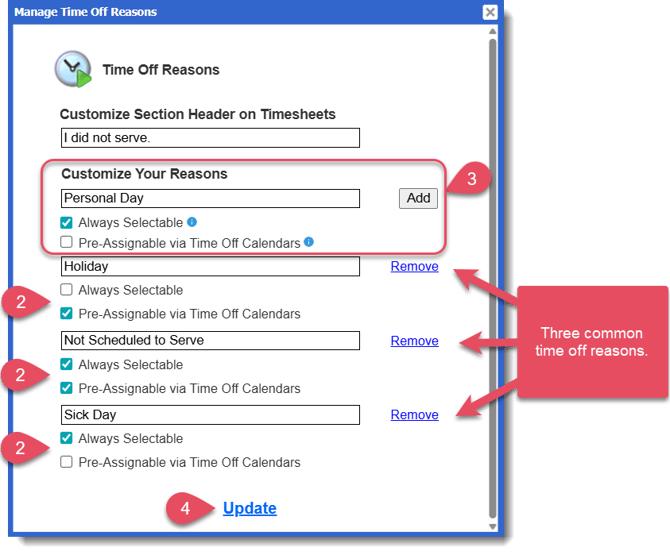
- For each time off reason, review the settings of whether it is:
- Always Selectable - This reason will appear as an option for reporters to select when filling out their timesheets.
- Pre-Assignable via Time Off Calendars - This reason can be used when creating a Time Off Calendar as part of the Timesheet Template setup (best for time off reasons you can anticipate in advance).
Based on the Time Off Calendar assigned to each reporter, these days will automatically appear as time off when they go to complete their timesheets. However, reporters can override this if they end up serving on those days.
Learn more about Time Off Calendars here. - Both - This reason will be available both as a selectable option on timesheets and for scheduling anticipated time off in the Time Off Calendar.
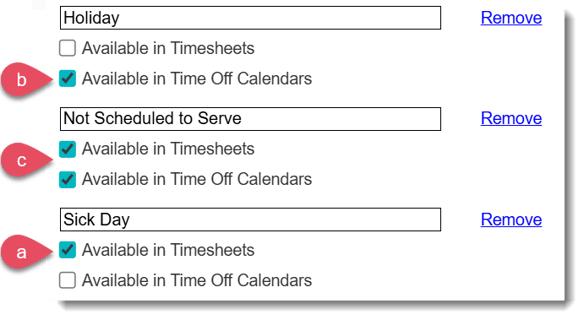
- Always Selectable - This reason will appear as an option for reporters to select when filling out their timesheets.
- Add an unlimited number of additional reasons and
- Click Update at the bottom of the pop-up window to save your changes.
NOTE: Edits to time off reason settings take effect immediately for any unsubmitted timesheets.