Need to create a Timesheet Template from scratch? Checkout this article.
Video Support: Finish Line Status Overview
Walkthrough: Enable Finish Line Status
Enable Finish Line Status
IMPORTANT: Finish Line Status is only intended to be used for reporters with a set number of Goal Hours in a defined timeframe or term. It should not be used for reporters without these requirements.
To enable Finish Line Status in your existing Timesheet Template:
- On the left, in your Mission Control, click Timesheets.
- On the right, select Create & manage timesheet templates.
- At the bottom of the page, under Manage & Clone Existing Templates, click the template you'd like to edit.
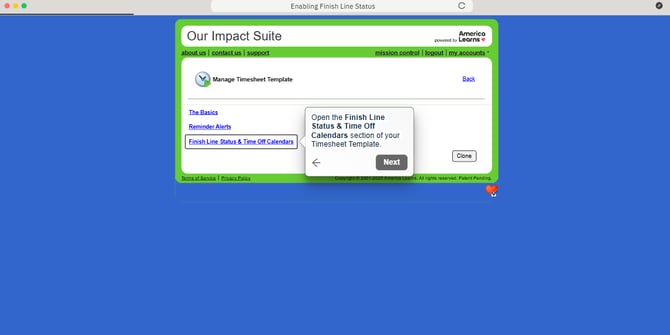
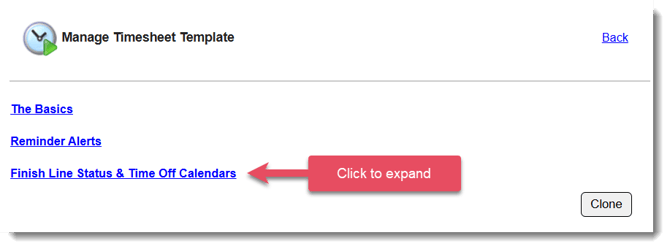
- Click Finish Line Status & Time Off Calendars.
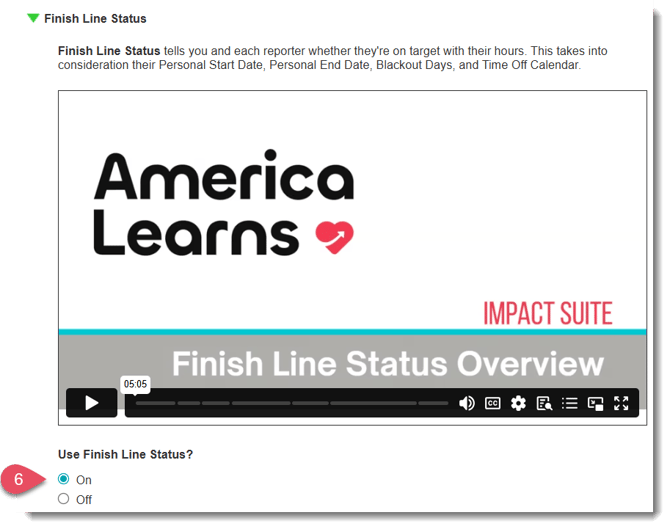
- Open the Finish Line Status section.
- Select On under Use Finish Line Status?
- Under Monitor Finish Line Status using: decide whether you'd like to use Submitted Time or Approved Time to monitor Finish Line Status.
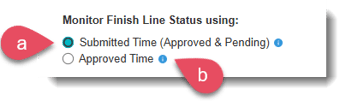
- Submitted Time (Approved + Pending) - Finish Line Status updates automatically when a reporter submits a timesheet, providing reporters with the most current view of their status and daily/weekly goals.
- Approved Time - Finish Line Status updates only after a reporter's timesheet is fully approved, which may delay the information shown reporters about their status and daily/weekly goals.
Need help deciding whether to use Submitted or Approved time? Jump to this section of the article.
- Submitted Time (Approved + Pending) - Finish Line Status updates automatically when a reporter submits a timesheet, providing reporters with the most current view of their status and daily/weekly goals.
- Select the Timesheet Position(s) you'd like to monitor with Finish Line Status.
NOTE: Timesheet positions with 0 Goal Hours will not be selectable to be monitored. Finish Line Status is only intended to be used for reporters with a set number of Goal Hours in a defined timeframe or term.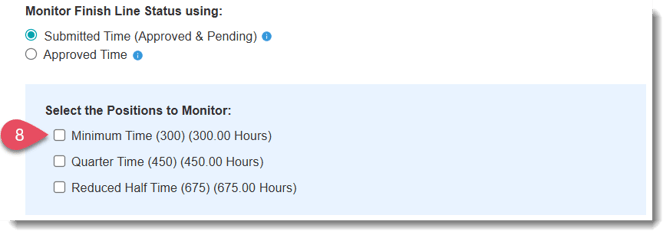
- For each Timesheet Position, you can customize when reporters will see the Ahead or Really Behind status. A higher percentage means there's more flexibility — a larger gap is allowed between their Target Hours and Daily Goal before the status changes.
Need help deciding what percentage to use for Ahead and Really Behind status? Jump to this section of the article.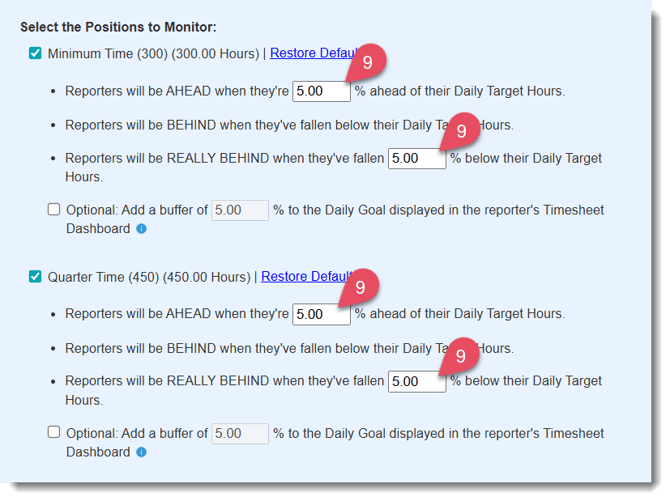
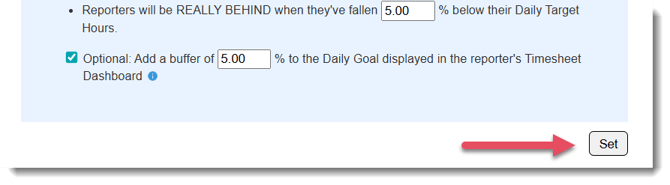
- For each Timesheet Position, you can add a custom buffer to the Daily Goal shown on the reporter’s Timesheet Dashboard. This buffer does not increase the total Goal Hours.
This optional feature encourages reporters to serve a small amount of additional time each day, helping them "bank" time if they need to take an unplanned sick, personal, or vacation day (not already listed on their Personal Time Off Calendar).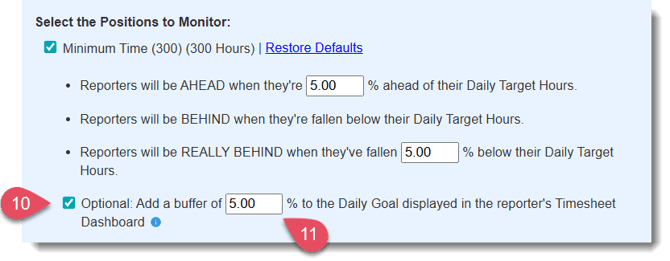
- For each Timesheet Position, you can customize how aggressive the buffer is. A higher percentage means a more ambitious buffer — reporters will be encouraged to serve more hours per day.
Need help deciding on how to configure your buffer settings? Jump to this section of the article. - Click Save to finish.
NOTE: You can make changes to Finish Line Status settings at any time. Updates will take effect immediately.
Using Submitted vs Approved Time
Next, decide whether you'd like to use Submitted Time or Approved Time to monitor Finish Line Status. Under Monitor Finish Line Status using: select either:
- Submitted Time (Approved + Pending) - Finish Line Status updates automatically when a reporter submits a timesheet, providing reporters with the most current view of their status and daily/weekly goals.
- Approved Time - Finish Line Status updates only after a reporter's timesheet is fully approved, which may delay the information shown reporters about their status and daily/weekly goals.
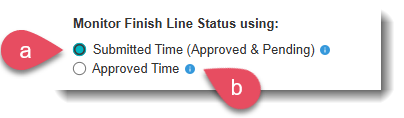
We recommend using Submitted Time (Approved & Pending). With this method, Finish Line updates automatically each time a reporter submits a timesheet, giving them the most current view of their progress.
Alternatively, you can use Approved Time, but this approach has limitations. Because Finish Line updates only after timesheets are fully approved, reporters may see delays in their status updates if Supervisors or Directors don’t review timesheets promptly.
Choosing the right monitoring option is critical for ensuring reporters receive timely, accurate feedback on their progress.
Determine "Ahead" and "Really Behind" Percentage
You can customize when reporters will see the Ahead or Really Behind status. A higher percentage means a larger gap is allowed between their Daily Target Hours and their Daily Goal before the status changes.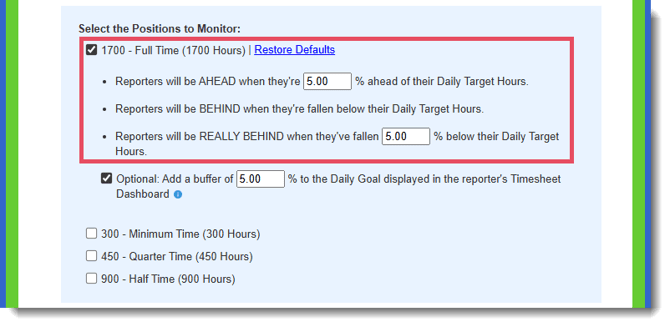
Daily Target Hours are calculated individually for each reporter, which is why Ahead and Really Behind are based on a percentage instead of a flat number. Daily Target Hours are the average number of hours a reporter needs to serve each Available Day to complete their Goal Hours by the end of their Term. This calculation uses the reporter’s personal Timesheet Settings -- including their Timesheet Template, Timesheet Position, Personal Start Date and End Date, Blackout Days, and Personal Time Off Calendar. It does not factor in the hours the reporter has actually submitted on timesheets.
The Daily Goal is the number of hours a reporter is expected to serve each Available Day moving forward, as shown on the Timesheet Dashboard. It updates based on the hours the reporter has already submitted, the date the dashboard is being viewed, and the reporter’s personal Timesheet Settings.
-
Ahead: A reporter is considered Ahead when their Daily Goal is a set percentage less than their Daily Target Hours.
For example, if a reporter’s Daily Target Hours are 10 and the Ahead threshold is set to 5%, they will see an Ahead status once their Daily Goal goes below 9.5 hours. If the threshold is increased to 10%, they will not see an Ahead status until their Daily Goal reaches 9 hours or less. -
On Track: A reporter is On Track when they are serving at a pace that keeps them aligned with their Daily Target Hours. In other words, they are neither Ahead nor Behind but progressing at the expected rate to complete their Goal Hours by their Personal End Date.
For example, if a reporter’s Daily Target Hours are 10 and the Ahead threshold is set to 5%, they will see an On Track while their Daily Goal is between 9.5 and 10 hours. If the threshold is increased to 10%, they will see an On Track status while their Daily Goal is between 9 and 10 hours . -
Behind: A reporter is considered Behind once they have fallen below their Daily Target Hours but have not yet reached the threshold for Really Behind.
For example, if a reporter’s Daily Target Hours are 10 and the Really Behind threshold is set to 5%, they will see a Behind while their Daily Goal is between 10 and 10.5 hours. If the threshold is increased to 10%, they will see a Behind status while their Daily Goal is between 10 and 11 hours . -
Really Behind: A reporter is considered Really Behind when their Daily Goal is a set percentage more than their Daily Target Hours.
For example, if a reporter’s Daily Target Hours are 10 and the Really Behind threshold is set to 5%, they will see a Really Behind status once their Daily Goal goes above 10.5 hours. If the threshold is increased to 10%, they will not see a Really Behind status until their Daily Goal reaches 11 hours or more.
TIP: That's a lot of math! If you’re not sure where to start, begin with the default thresholds (Ahead = 5%, Really Behind = 5%) and adjust later based on your program’s needs.
Use a Buffer
You can add a buffer to the Daily Goal displayed in the reporter’s Timesheet Dashboard.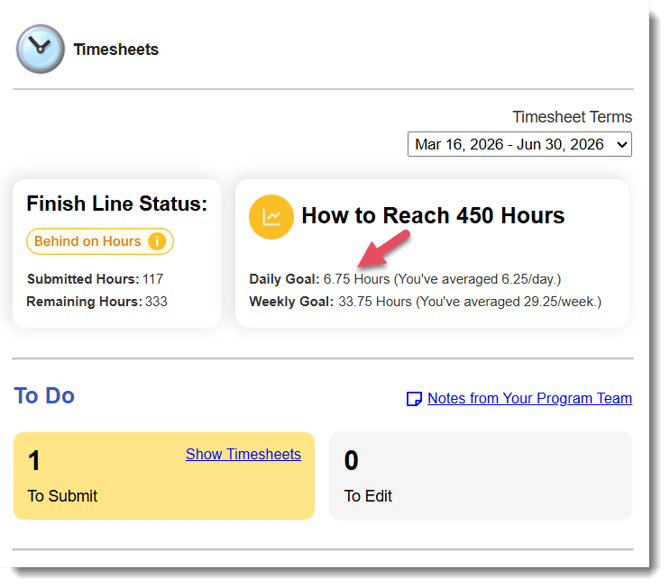
A Buffer is an optional and adjustable setting in Finish Line Status that adds extra time to a reporter’s Daily Goal. When you increase the buffer percentage, the system raises the Daily Goal shown to the reporter, encouraging them to serve a bit more each day. This extra cushion helps offset unplanned absences (such as sick, vacation, or personal days) and increases the likelihood of successfully completing Goal Hours. A higher percentage creates a more ambitious buffer — reporters will be encouraged to serve more hours per day.
For example, if a reporter’s Daily Goal is 10 hours, adding a 5% buffer will show 10.5 hours on their Timesheet Dashboard. If the buffer is set to 10%, their Daily Goal will display as 11 hours.
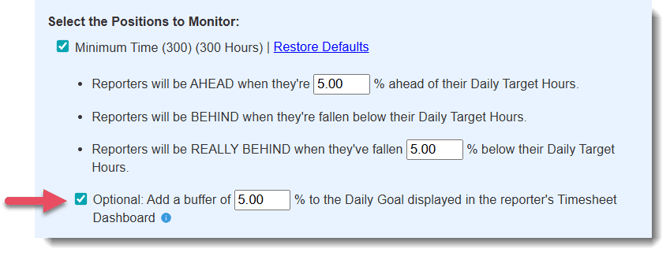
IMPORTANT: The buffer does not increase the total Goal Hours requirement. It simply adjusts the daily target upward slightly, giving reporters a better chance to meet their overall Goal Hours.
Save Your Finish Line Settings
Once you've completed all of the steps above, you're ready to save your Finish Line Settings.
Simply, click the Set button.