.png?width=205&height=42&name=Back%20to%20Checklist%20(FINAL).png)
Video Walkthrough
Navigating to Your 'Export Excel' Account
In the Youth Service Corps (Grantees) Impact Suite, you’ll have a staff-level account (Role: Grantee Staff) to export your monthly grant activity report and quarterly narrative report data to Excel.
Let's get a refresher on how to get there.
To log in directly to your Grantee Staff account, choose this path.
- Head to either the general login page or Youth Service Corps (Grantees) Impact Suite.
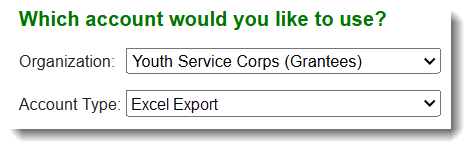
- When asked, choose the Account Type: Export Excel.
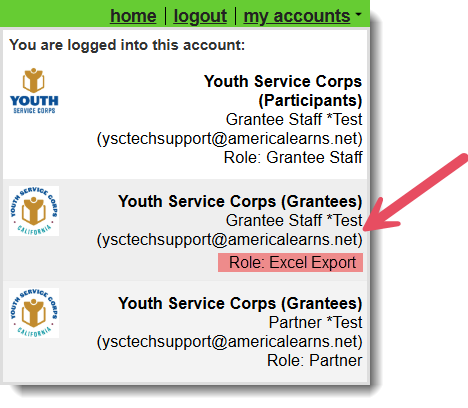
If you are already logged in, you can get to your Grantee Staff account on the Youth Service Corps (Grantees) Impact Suite using the 'my accounts' drop-down menu. Here:
Exporting Monthly & Quarterly Report Data
After completing at least one monthly report, you will be able to export your monthly report data to Excel.
Here are the steps:
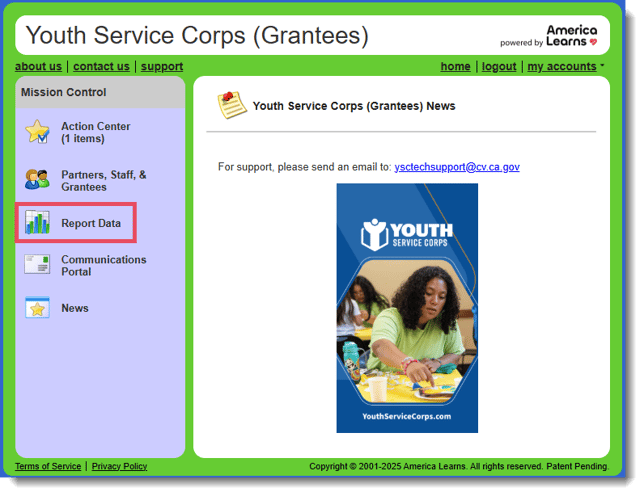
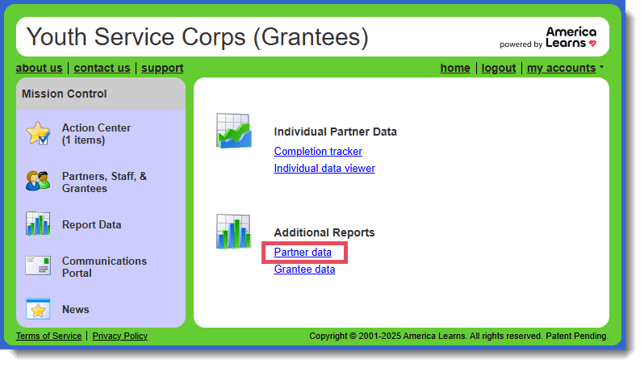
- On the left, in your Mission Control, click Report Data.
- On the right, click Partner data.
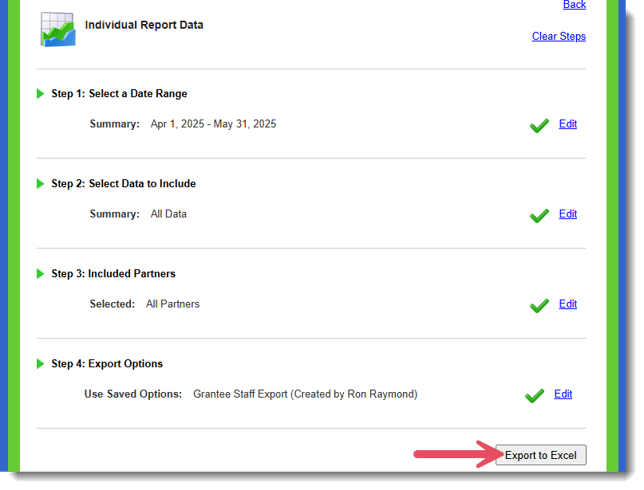
- Step 1: Select a Date Range - Unless you are looking for a specific month's data, use the 'From' drop-down to select the old date range. (The 'To' date range will be the most currently submitted period.)
Click Set.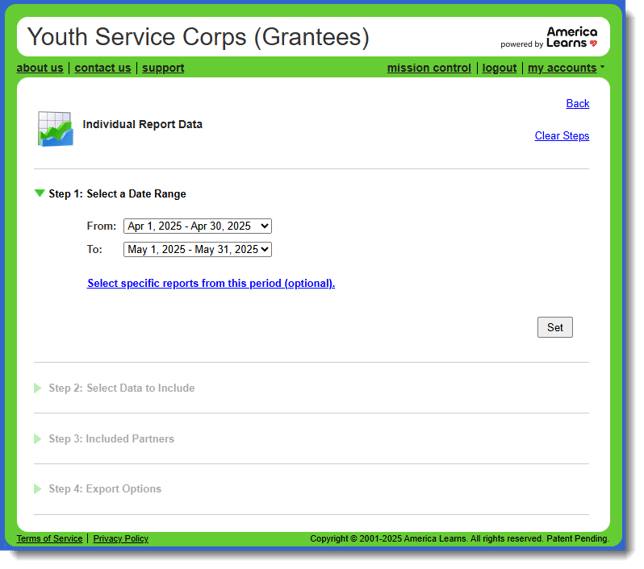
- Step 2: Select Data to Include - You'll likely want to select 'All Data,' but optionally, you can use 'Customize' to select individual questions.
Click Set.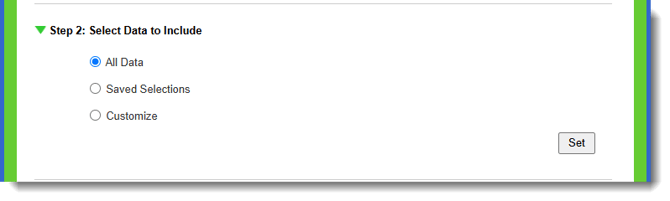
- Step 3: Included Partners - All Partners will export all of the data for any Grantee you are assigned to, or you can pick the partners you'd like to include.
Click Set.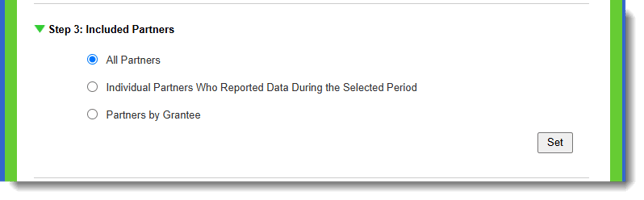
- Step 4: Export Options
- Select Use a Saved Export Option.
- Then, select Grantee Staff Export (Created by Ron Raymond).
 Click Set.
- Once all steps are complete, click Export to Excel.
- A pop-up window will appear (ensure pop-ups aren't being blocked in your browswer).
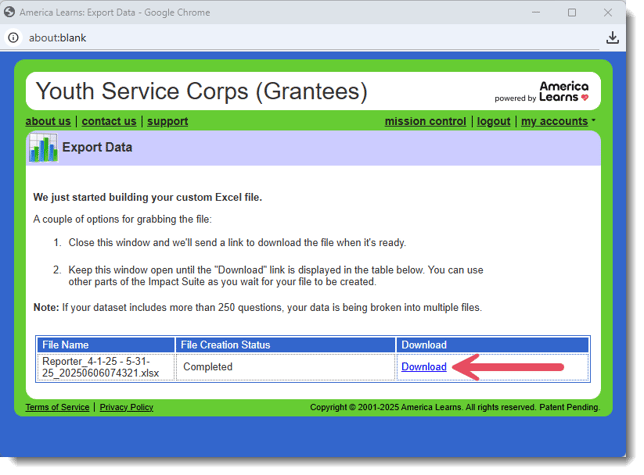
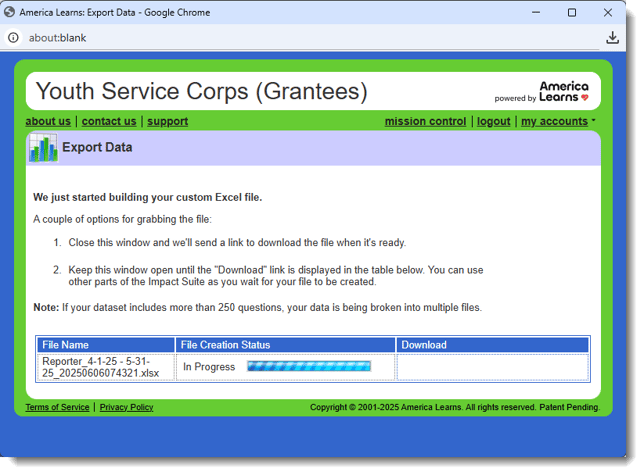 You can wait for the Download link to appear, or close the window and a link to the report will be emailed to you.