Overview
With Umbrella Data export, you can:
- See all your data for each umbrella item in a single Excel workbook;
- Save your selected data selections and export preferences; and
- Share those saved options with others on your team.
Admin Role Permissions Needed to Save Selections and Export Options
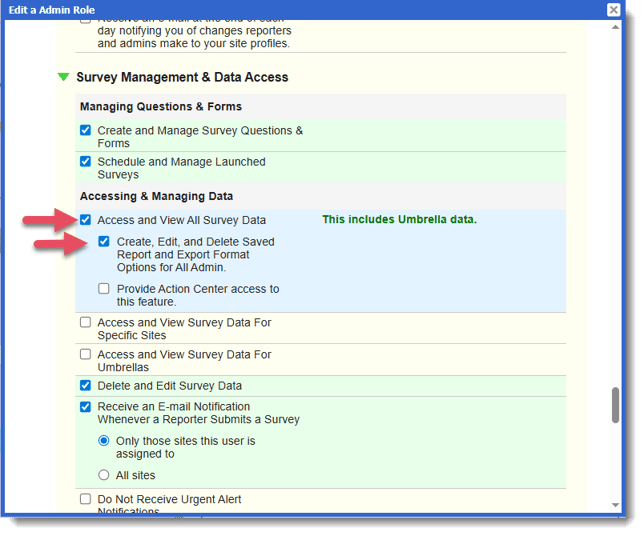
To save report selections and export options, admins need a role with permission to "Create, Edit, and Delete Saved Report and Export Format Options for All Admin."
Update staff roles that need this ability by following these steps:
- On the left, in your Mission Control, click Reporters, Admins, & Sites.
- On the right, under Manage Admins, click Manage admin roles.
- Find the staff role you need to update and click the Edit link.
- When the window opens, scroll to the section called Survey Management & Data Access.
- Admins who can save selections and export options will need to have the permission "Access and View All Report Data" AND the new permission "Create, Edit, and Delete Saved Report and Export Format Options for All Admin."
- Click Update to save your changes.
Access the Umbrella Data Export
1. On the left, in your Mission Control, click Survey Data.
2. On the right, under Additional Reports, click Umbrella Data.
Step 1: What would you like to do?
In this step choose to export data or view data on-screen.
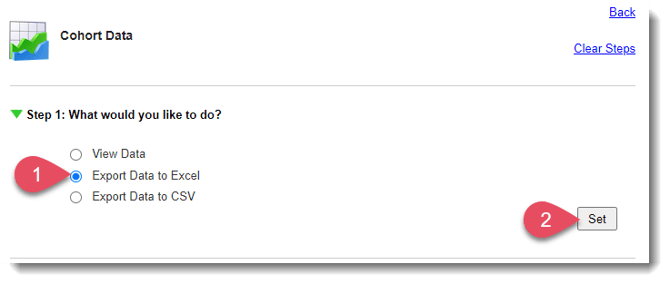
- Choose Export Data to Excel.
- To move to the next step, click Set.
(Need to View Data on-screen? Check out this article.)
Step 2: Select an Umbrella Item(s) with Survey Data
In this step, choose the Umbrella items to include in the export.
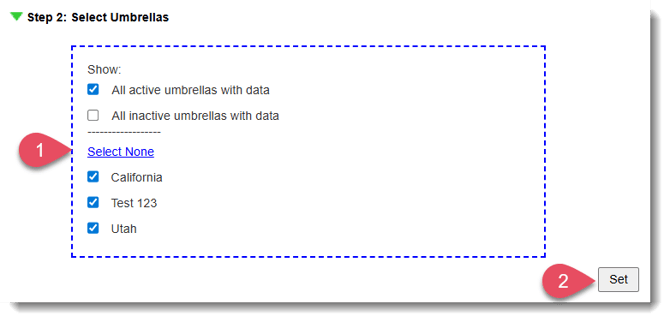
- Select a Umbrella item(s).
- Click Set to save your selections.
Step 3: Select a Date Range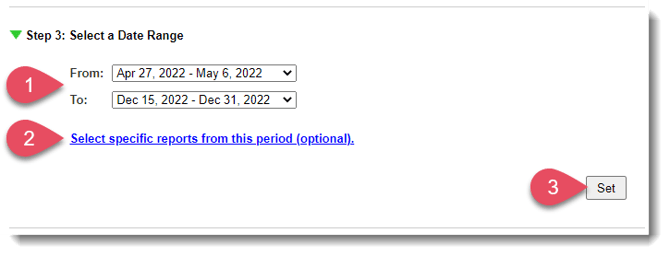
- Use the drop-down menus to select your start (From) and end dates (To).
- If you need to export data from specific reports during a given period of time, enter that time in the To and From menus, and then select the specific reports by clicking Select specific reports from this period (optional).
- To move to the next step, click Set.
Step 4: Select Data to Include
Here's where you'll select the specific data points to include.
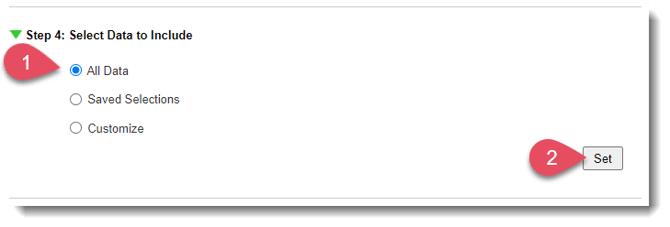
- Options
- All Data: Includes all data for each of the reports you selected.
-
- Saved Selections: Includes a saved, customized selection of data. (See: Saved Selections below.)
-
- Customize: Choose individual data points.
When you customize the data to include, you’ll see an option at the bottom to save your selection, like this: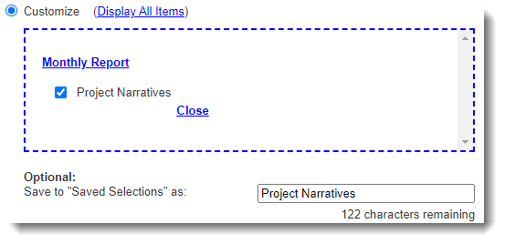
- Customize: Choose individual data points.
- Click Set to save your selections.
Step 5: Export Options
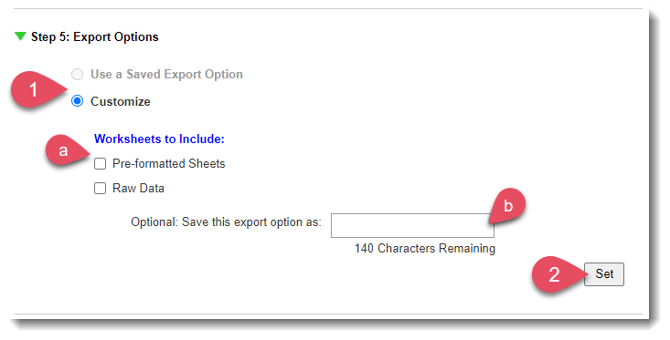
Here's where you'll tell the application how to format your data in the spreadsheet. You can use pre-formatted templates, export raw data, or select a saved option that someone in your organization has already created.
- Options:
- Use a Saved Export Option: Includes previously-saved formats, if any. (See Optional: Save this Export Option As below.)
-
- Customize: Pick and choose from the available worksheets and options.
- Pre-formatted Worksheets: (See Pre-formatted Sheets below.)
- Pre-formatted Sheets
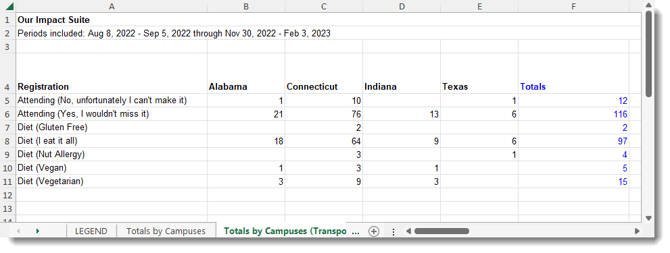
- Totals (Umbrella Items are Rows)
- Totals (Umbrella Items are Columns)
- Raw Data
- Pre-formatted Sheets
- Pre-formatted Worksheets: (See Pre-formatted Sheets below.)
- Customize: Pick and choose from the available worksheets and options.
- Click Set to save your selections.
- Once each step has a green check mark, click Export to Excel.
- A window will appear, showing you the progress of the export.
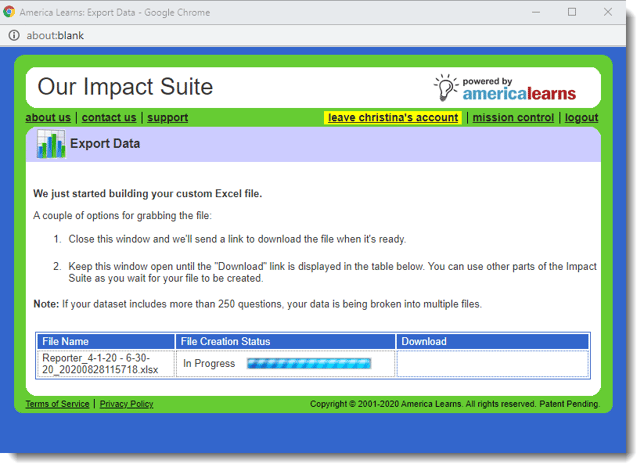 Keep the window open until the file is ready, or close the window and wait for a download link to show up via e-mail.
Raw Data
For Raw Report Data, select which metadata to include from the Available Columns table (see this article for definitions of each column variable), using the down arrow to place each column type in the Selected Columns table.
In the Selected Columns table, on the right, use the up/down buttons to set the order in which the columns will be displayed in your export file.
***Use the checkbox to Include quantitative & time series data with zero values.
Saved Selections
[You must have the correct staff role permissions to perform these actions.]
The Saved Selections option allows you to decide which staff members will have access to the selection (Just you, All staff with access to this section, You and staff by role).
Additionally, you can make Saved Selections available in other report types: Site, Program-wide, Association, Group, and Umbrella Reports.
Use a Saved Export Option
[You must have the correct staff role permissions to perform these actions.]
The Save this export option section allows you to decide who these options should be available to (Just you, All staff with access to this section, or You and staff by role).
Additionally, you can make Saved Export Options available in other reports: Site, Program-wide, Association, Group, and Umbrella Reports.
Included Worksheets
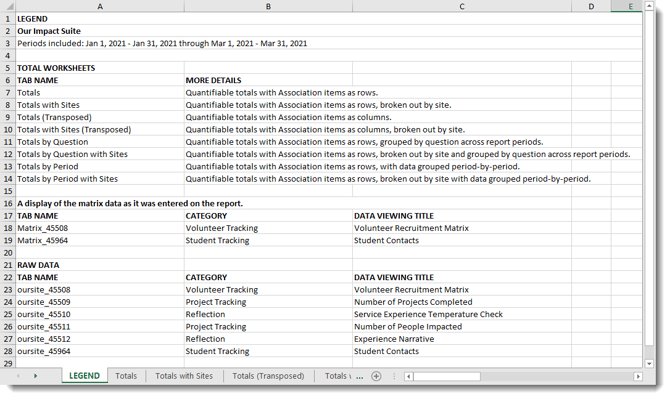
A Legend, which includes definitions of each worksheet type.