
Exporting Limited Timesheet Data (to Excel)
To view and export limited timesheet data from your reporter profiles to excel:
- On the left-hand side of your Mission Control, click Reporters, Admins, & Sites.
- On the right, click Manage reporter accounts.
- Towards the top-right, use the More drop-down menu to select Export Reporters.
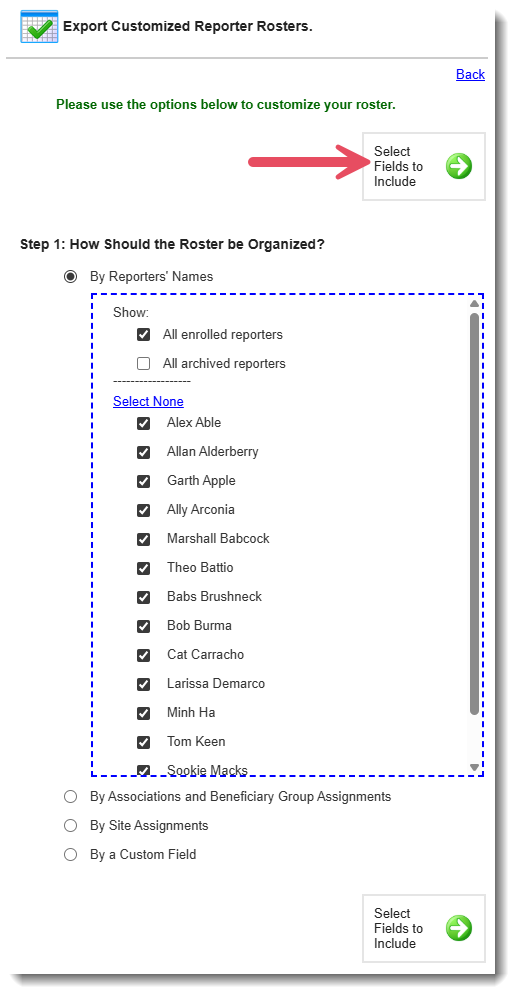
- Choose how you’d like to organize your roster.
- Then the right, click the Select Fields to Include button.
- Open the Timesheets Settings panel.
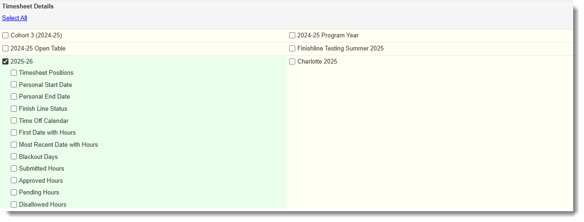
- In the Timesheet Details subpanel, choose the timesheet template (Current or Past) setting fields you would like to include.
- Choose the timesheet setting fields you would like to include:
- Timesheet Positions
- Personal Start Date
- Personal End Date
- Finish Line Status
- Time Off Calendar
- First Date with Hours
- Most Recent Date with Hours
- Blackout Days
- Submitted Hours
- Approved Hours
- Pending Hours
- Disallowed Hours
- Click the Export to Excel button:

- Download your survey from the pop-up window. (Be sure your web browser’s settings allow pop-ups from the americalearns.net domain.)
- To view how to run filters on this data: see the expanded version of this article here.