
.png?width=205&height=42&name=Back%20to%20Checklist%20(FINAL).png)
Exit (Archive) YSC Policy
Archiving participants at the appropriate time is a critical step in managing your Impact Suite. Whether a participant:
- Completes their Term and is not returning,
- Completes their Term and is returning for a new Term, or
- Exits before their contracted Term End Date
Archiving ensures your data stays clean and accurate. It also helps prevent confusion during reporting, supports timely Certificate of Completion delivery, and keeps our system running efficiently for current and future participants.
Grantees are expected to archive participants within three business days of their service completion. Timely archiving helps ensure that data remains accurate, Certificates of Completion are issued without delay, and your Impact Suite reflects only currently serving participants. Staying on top of this process also supports compliance and smooth program operations.
Step 1: Export Participant Profile Details
The first step in exiting participants using Excel is to export the relevant participant data from the Impact Suite. At a minimum, your export must include each participant’s First Name, Last Name, and Email Address—these fields allow the system to match each row to an existing profile accurately. Be sure to also include the fields for any additional data points you plan to update. Including these headers ensures the system can correctly identify and apply your updates during the upload process.
Here are the steps:
-
On the left, in your Mission Control, click Participants, Staff, & Service Sites.
-
On the right, click Manage participant accounts.
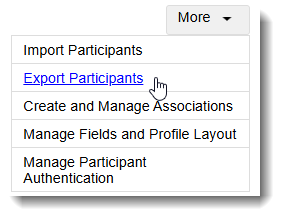
- Towards the top-right, use the More drop-down menu to select Export Participants.
- Organize Participants By Participants' Name.
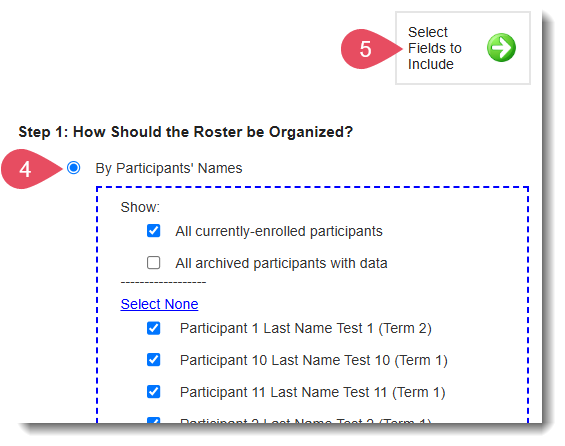
- On the right, click the Select Fields to Include button.
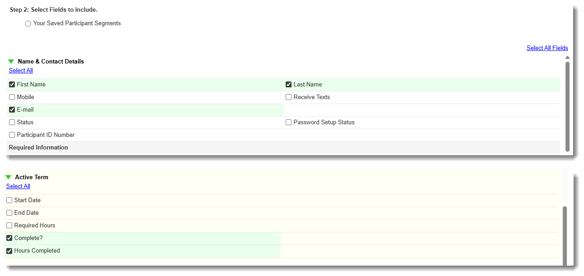
- Next, choose these fields:
-
Name & Contact Details: First Name
-
Name & Contact Details: Last Name
-
Name & Contact Details: E-mail
-
Active Term: Complete?
-
Active Term: Hours Completed
-
- As you add fields, you’ll notice that the preview table at the bottom of the page will adjust to display the new information.
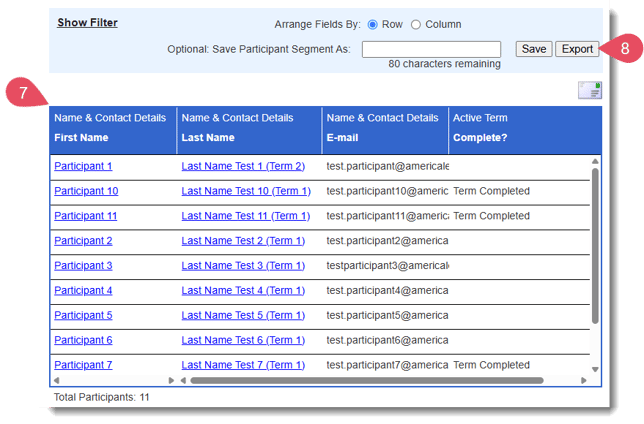
- Click the Export to Excel button. Open the Excel export.
Step 2: Prepare the Excel Worksheet for Upload
Once you’ve exported your participant data, the next step is to enter any new or updated information directly into the Excel worksheet. Carefully review your entries to ensure all changes are accurate and formatted correctly. Before uploading, it’s essential to clean your worksheet.
Here are the steps:
- In the open Excel worksheet, enter any new or updated data for each included participant.
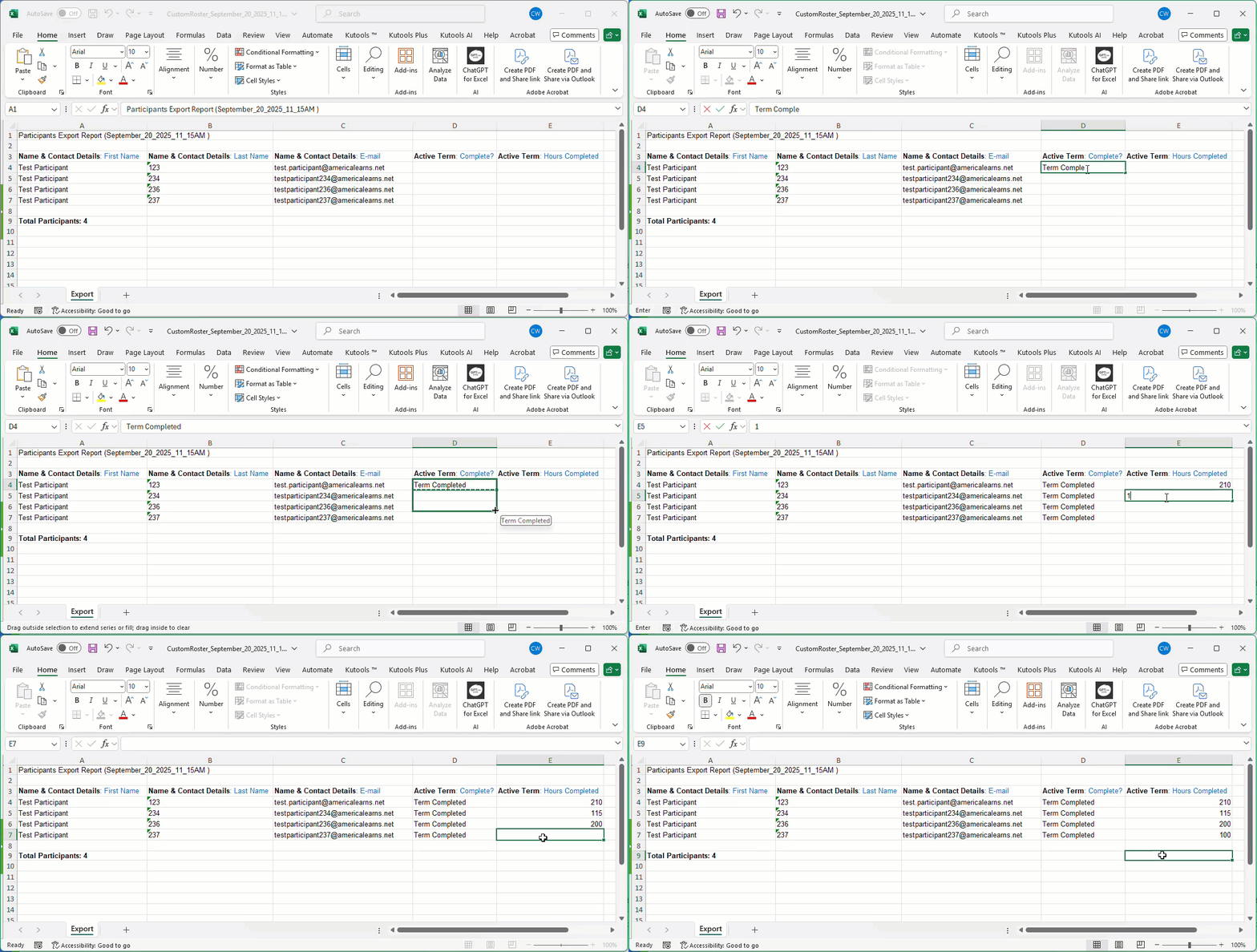
- Next, clean the worksheet:
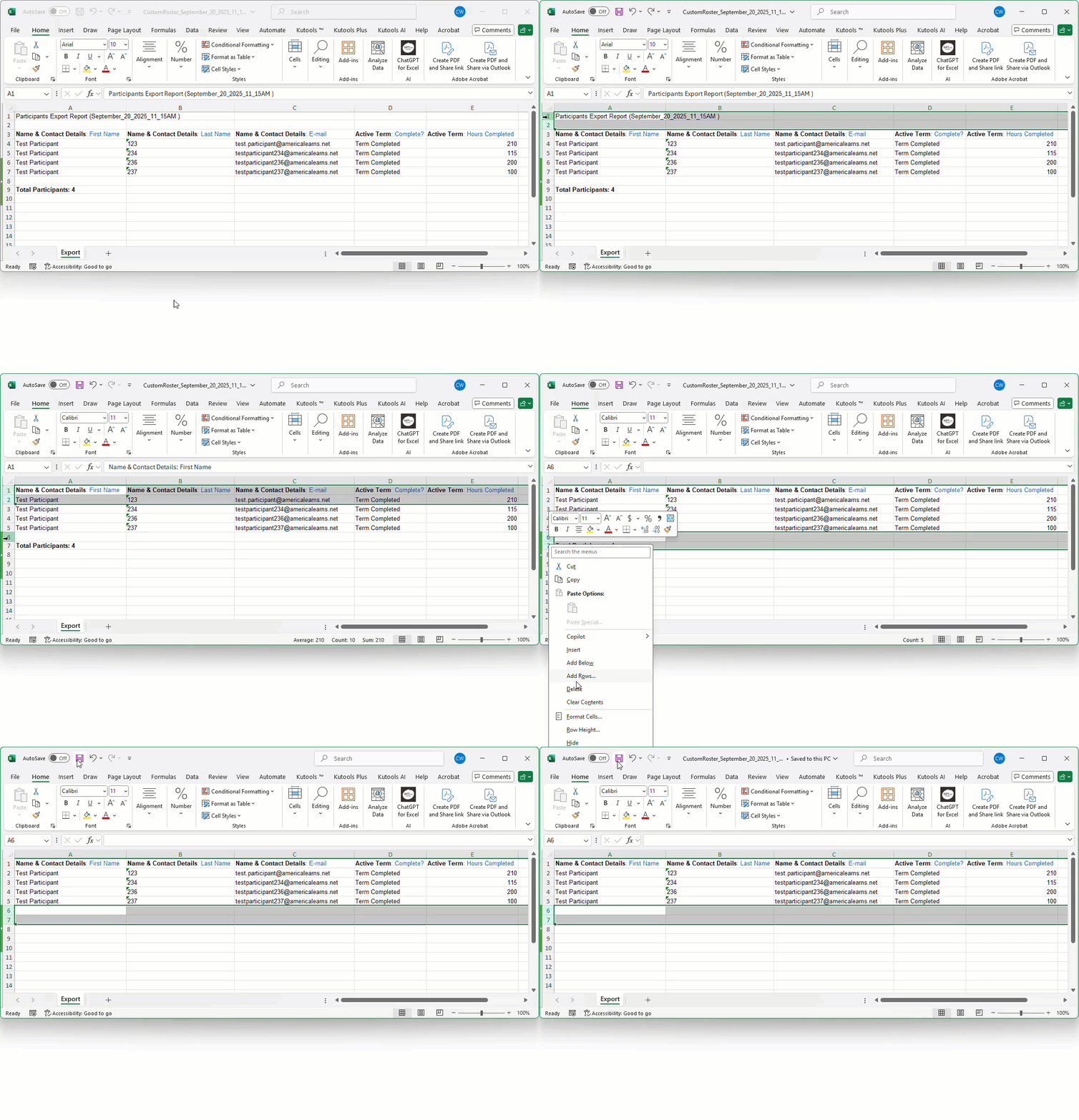
- Delete the top two rows. (Row 1 will now be the headers for each field.)
- Delete the bottom two rows (including the Totals Row).
- Save the worksheet to your device.
Step 3: Import Your Updates
With your Excel file updated and cleaned, you’re ready to import your changes into the Impact Suite. In this step, you’ll upload your file, review a preview of your updates, and confirm that everything looks correct before applying the changes. The system will guide you through each step to help ensure your data is imported accurately.
Here are the steps:
- On the left, in your Mission Control, click Participants, Staff, & Service Sites.
- On the right, click Manage participant accounts.
- On the right, in the More menu, select the Import Participants option.
- At the top of the page, under the Step 1, select Update Existing Participants.
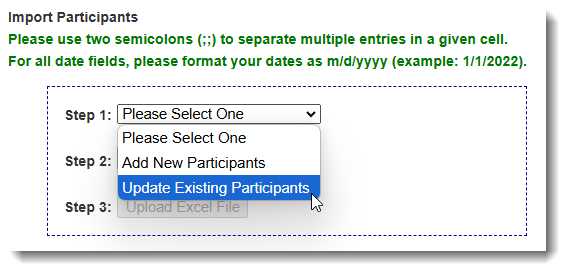
- In Step 2, select your file by clicking the Choose File button.
- In Step 3, click Upload Excel File.
- Next, map your fields to the fields available in your Impact Suite.
- Once you have mapped your fields, click the Preview Import button to move to the next step.
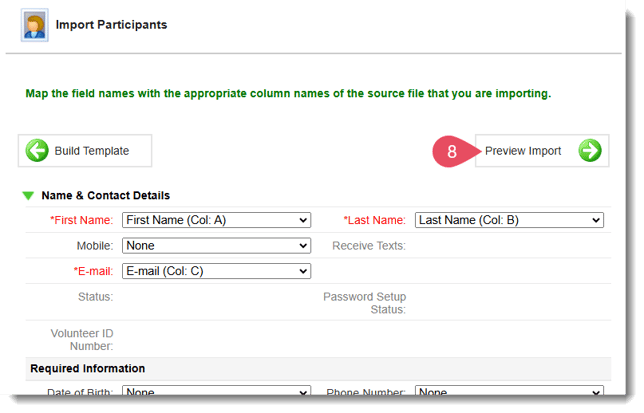 Note: if there are Excel columns or Impact Suite fields that you have not mapped, you will get a message like this from the system: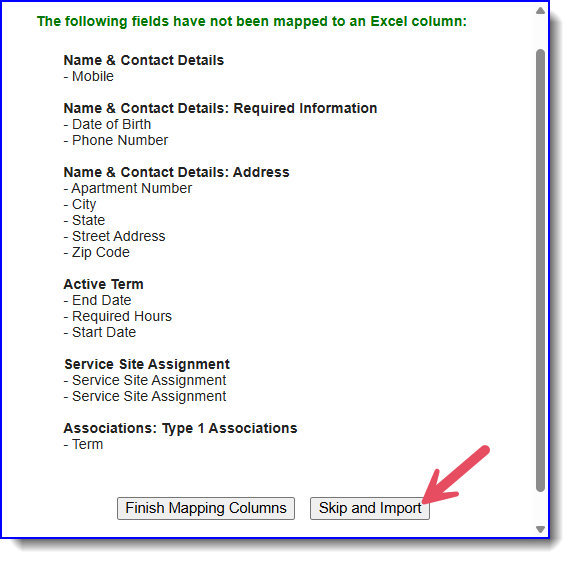
- If errors are found, check out this article on Common Import Errors for help.
If no errors are found, you will have a chance to Preview Import.
This is a good opportunity to make sure you have properly mapped your template. If you find issues, you can use the Map Fields back button to correct any mistakes.
Click Perform Import.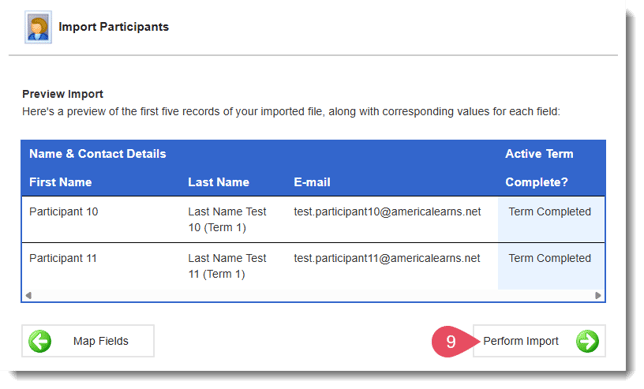
- Next, let the Impact Suite know that you would like to Update duplicates with Excel data.
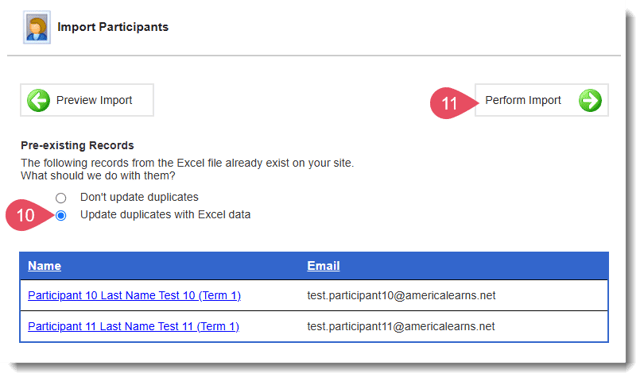
- Finally, click Perform Import to finalize your enrollment.
Once complete, you'll get a message like this one.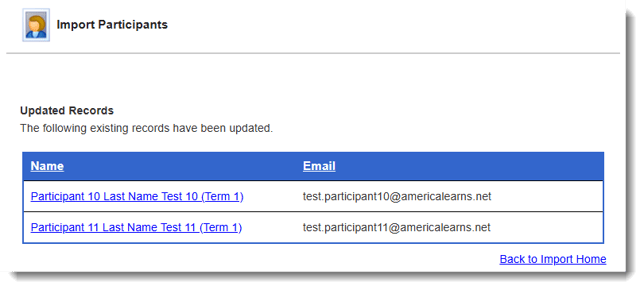
Step 4: Archive Participants (En Masse)
Here’s what you need to know.
- On the left, in your Mission Control, click Participants, Staff, & Service Sites.
- On the right, click Manage participant accounts,
-
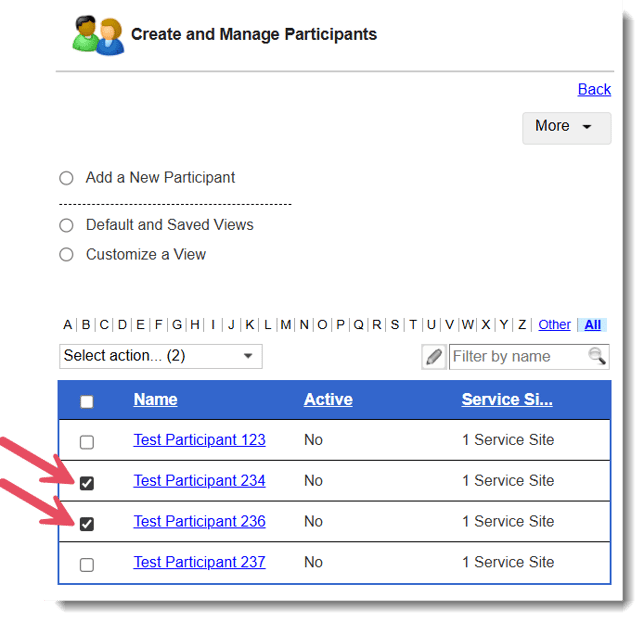
Select the checkboxes alongside those reporters whose accounts you’d like to archive.
-
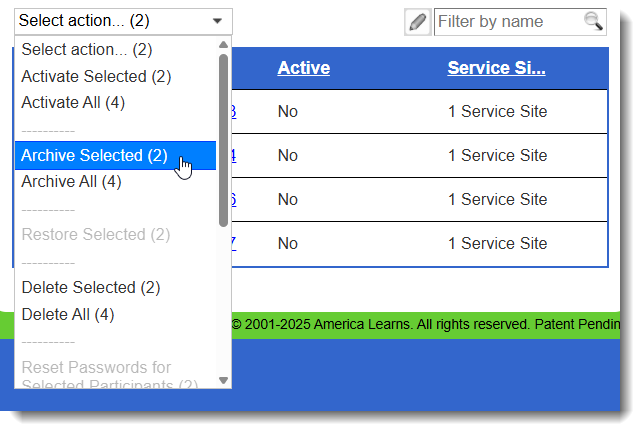
In the “Select action” drop-down menu at the top, you’ll see a number to the right of the “Archive Selected”. That number confirms the total number of reporters that you have selected to archive.
-
When you're done, you'll receive a confirmation message at the top of the screen!