
Need to Make Fields Mandatory Before Enrolling Folks?
Check out this article for more info: making fields required for the reporter enrollment process
Walkthrough
Video Resource
Enroll Reporters One-by-One
To enroll reporters one at a time:
- On the left, in your Mission Control, click Reporters, Admins, & Sites.
- On the right, click Manage reporter accounts.
- On the top of the page, select Add a New Reporter, and enter the name and e-mail address of a reporter.
- If you want the reporter to receive an e-mail with instructions for setting up their password and account immediately, leave the checkbox at the bottom of the form selected (Send the password setup e-mail now). Otherwise, uncheck the box. (You can send this later.)
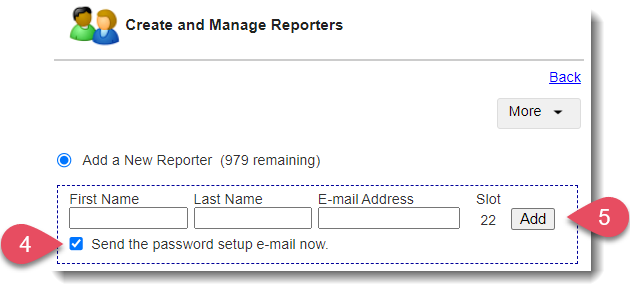
- Click Add to create the account.
NOTE: Want to require more information beyond name and email? (For example, their site and timesheet templatw assignment!) Check out this article to learn how! - The new reporters you have added will appear in the table below. Here is a quick overview of the Account Status column:
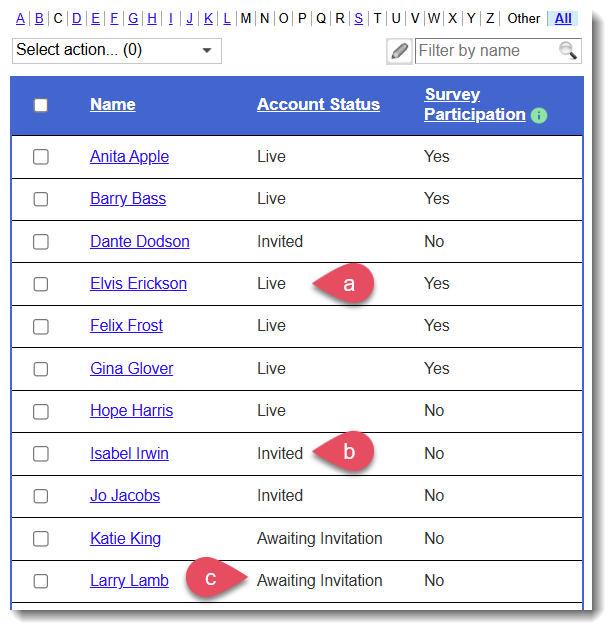
- Live - the reporter has logged in and is active in their account.
- Invited - admin has sent a Welcome/Password Setup E-mail to reporter, but they have not yet logged in and activated their account.
- Awaiting Invitation - the admin chose not to send a Welcome/Password Setup E-mail to reporter when creating their account.
NOTE: If you'd like to send the Welcome/Password Setup Email now, follow these steps: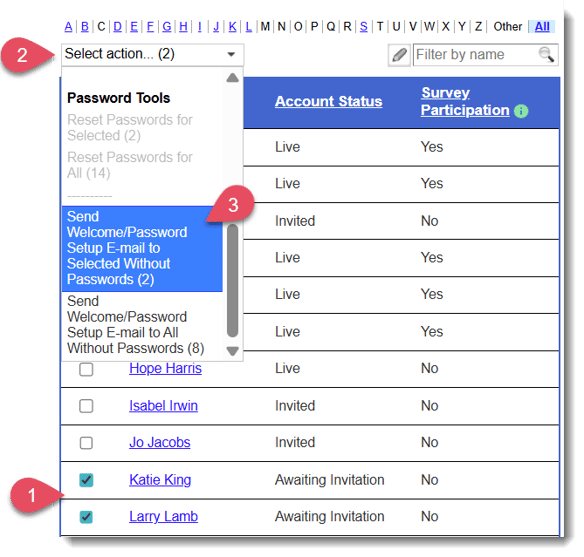
- Select the names of the reporters.
- Click the Select action menu.
- Scroll to the bottom and choose Send Welcome/Password Setup E-mail to Selected Without Passwords (#).
- Select the names of the reporters.
- Live - the reporter has logged in and is active in their account.
Enroll Reporters Using Excel (En Masse)
You can enroll your reporters in the Impact Suite en masse using a custom Excel template (see this article).