

Enroll Fellows One-by-One
To enroll fellows one at a time:
- On the left, in your Mission Control, click Fellows, Staff, & Community Host Partners.
- On the right, click Manage fellow accounts.
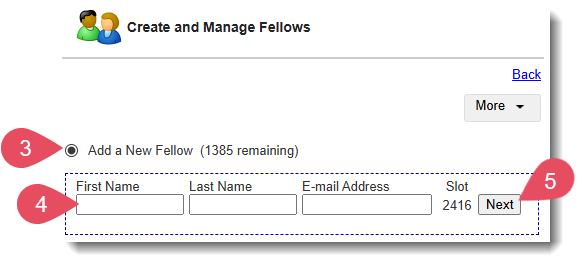
- On the top of the page, select Add a New Fellow.
- Enter the Fellow's First Name, Last Name, and E-mail Address.
- Click Next.
- A window will open. Enter all the required information.
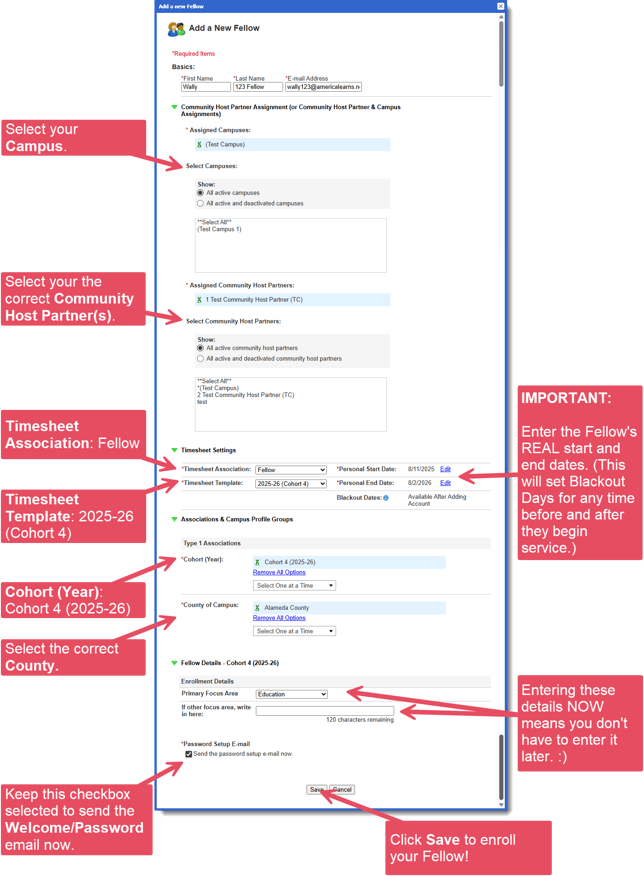
- If you want the Fellow to receive an e-mail with instructions for setting up their password and account immediately, leave the checkbox at the bottom of the form selected (Send the password setup e-mail now).
Otherwise, uncheck the box. (You can send this later.) - Click Save to enroll the Fellow.
Enroll Fellows Using Excel (En Masse)
You may enroll your fellows in the Impact Suite all at once using a custom Excel template (see this article).