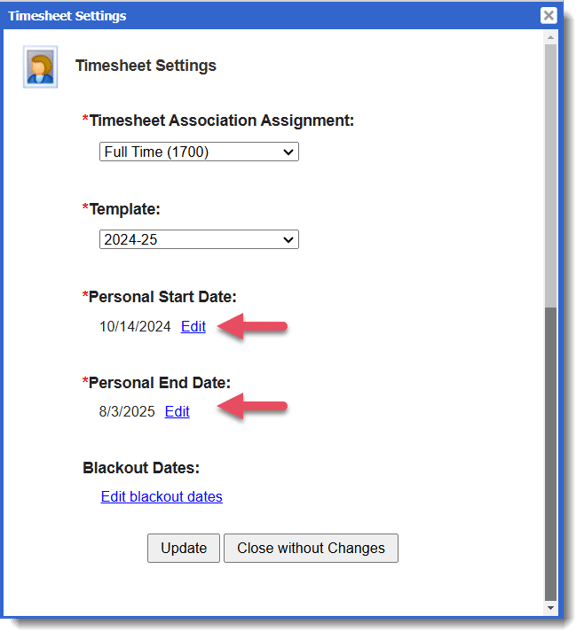
At times, you may need to adjust blackout periods for individual reporters.
Here’s how:
-
On the left, in your Mission Control, click Reporters, Admins, & Sites.
-
On the right, click Manage reporter accounts.
-
Click on the name of the reporter you would like to update.
-
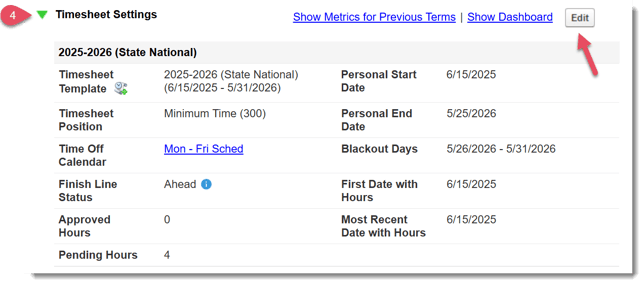
Find the Timesheets Settings panel like the one in the following image, and click the green arrow to open:
-
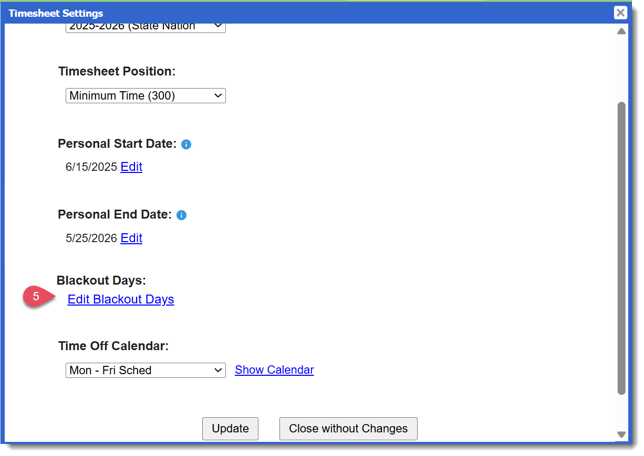
Click the Edit button. In the pop-up window that opens, click Edit blackout dates.
-
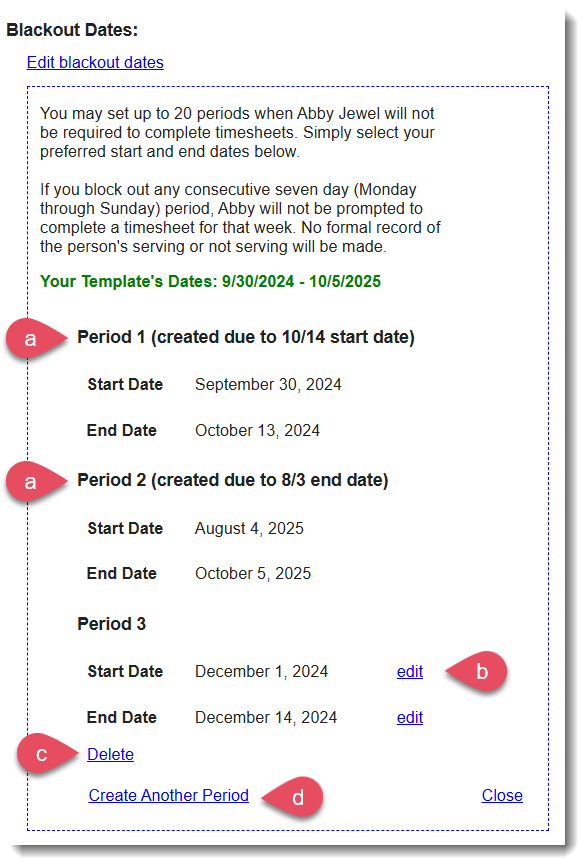
You'll see the Blackout Dates section displayed, that may look something like this:
-
These are the auto blackout periods created by making adjustments to the reporter's Personal Start and Personal End dates. If you need to make adjustments to these periods, Close this section and make the update to these sections instead:
-
Select Edit next to the date you'd like to adjust for any existing blackout periods
(This option will only be available for blackout periods not tied to the reporter's Personal Start and/or Personal End Date) -
Select Delete next to the blackout period
(This option will only be available for blackout periods not tied to the reporter's Personal Start and/or Personal End Date) -
Select Create Another Period to create a new blackout period
NOTE: You can enter up to 20 total blackout periods per reporter
-
-
Once the edits have been made, click Update.