Editing and Updating Questions
To manage, edit, or make an update to an existing question:
-
On the left, in your Mission Control, click Survey Management; and then
-
On the right, click Create and manage questions.
-
On the left, under Our Categories & Questions, select the category with the question you want to edit or update.
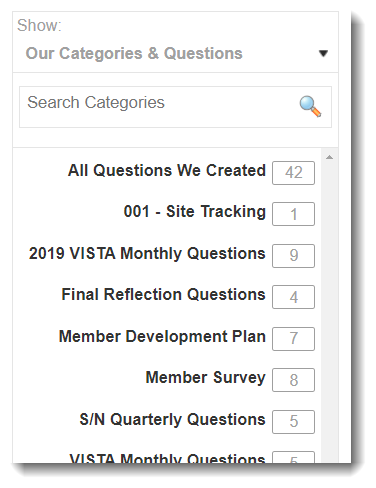
All questions within that category will appear on the right. -
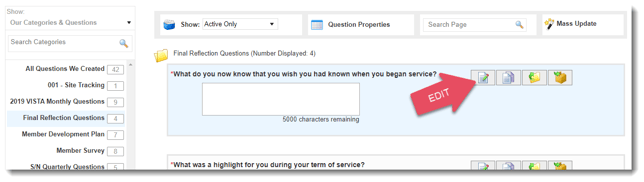
Find the question you would like to edit and use the Edit button to open the question and make changes.
-
Once the question opens, you can change the text in the Main Text, Highlighted Text, Special Text Directly Above Response Area (optional), and the Subquestion Text (required) fields.
-
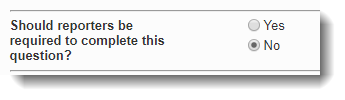
You will also be able to change the state of a question to required or not, using this section for each main question and subquestion:
-
Once you're satisfied with your changes, scroll to the bottom and click Edit this Question.
Moving Subquestions
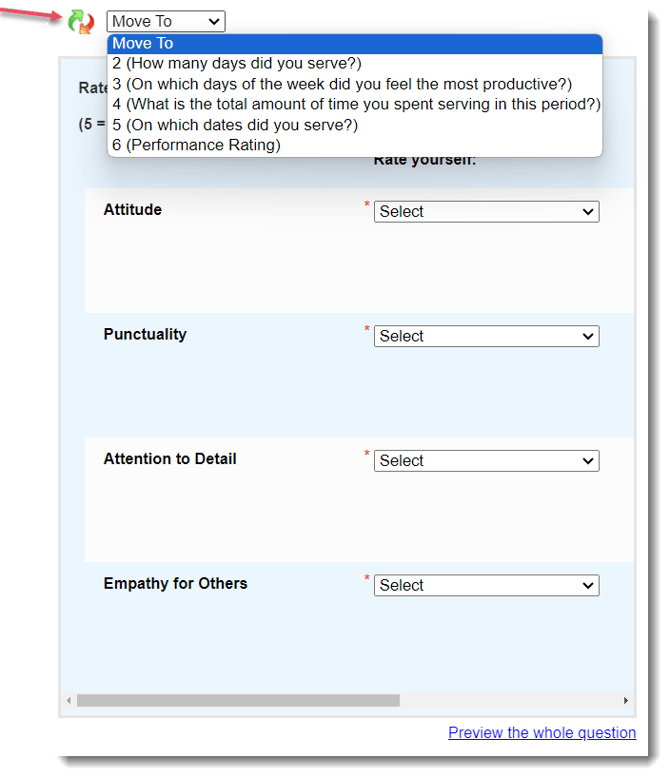
To move a subscription, use the Move To drop-down menu.