Determining Total Surveys Completed or Missed
There may be times when you will want to run a reporter profile export to determine the total number of surveys completed or missed by your reporters (for all time or for a specified period). To access this metric you’ll want to head to the Reporter Profile Exporter by following these steps:
- On the left-hand side of your Mission Control, click Reporters, Admins, & Sites.
- On the right, click Manage reporter accounts.
- On the right, use the More drop-down menu to and select Export Roster.
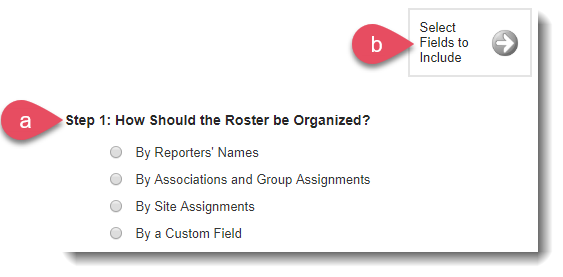
- Next, choose (a) how you’d like to organize your roster and then (b) click the Select Fields to Include button.
- Next, select any additional fields (beyond Total Surveys Completed and Total Surveys Missed), and then open the Survey Completion Rate panel.
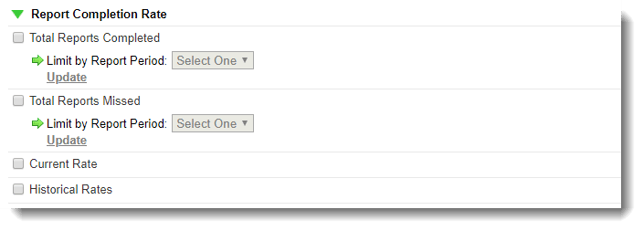 Here you can view:
- Total Surveys Completed, and
- Total Surveys Missed
Once selected, you can limit the value by reporting period, like this: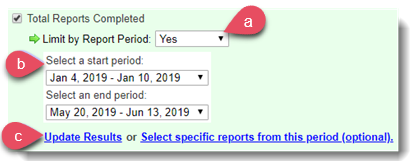 Optionally, you can choose specific surveys by using the data viewing filter by clicking Select specific surveys from this period (optional).
Clicking this link will open your filter options: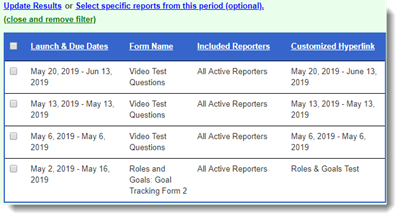
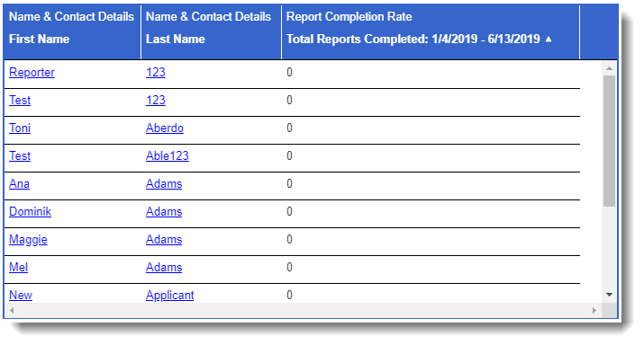
- Once you update results, the table at the bottom of the page will reflect your query. Like this:
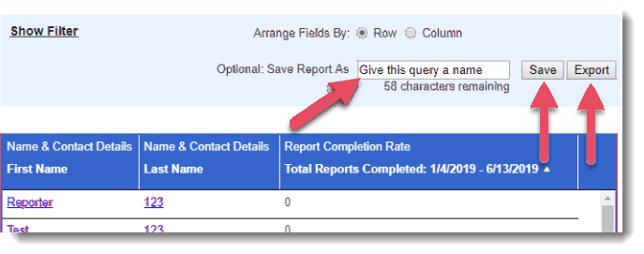
- Save and export your results here:
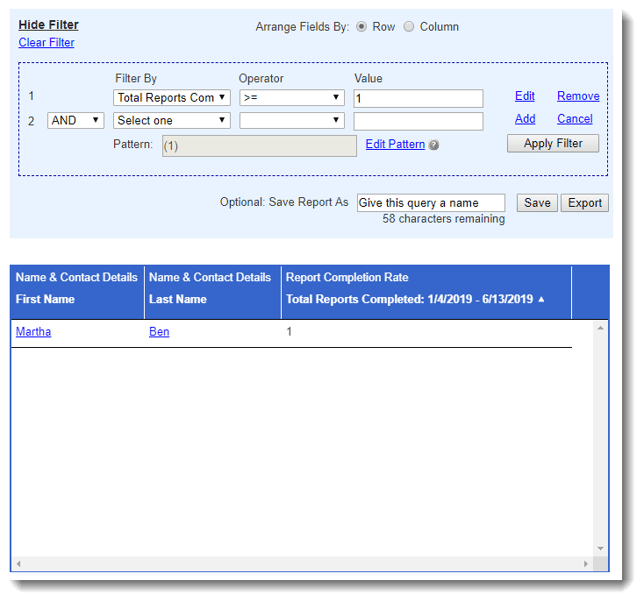
- You can even use the Show Filter options to determine which of your reporters submitted a minimum number of surveys for any given time period. Like this: