
Report Types Overview
| Report Type | Description | Data to Export Options |
ALL Report Types |
 |
The Basics
Timesheet Positions
Time Allocation Categories
Time Off Reasons
Reporter Profile Data
|
Totals Report |
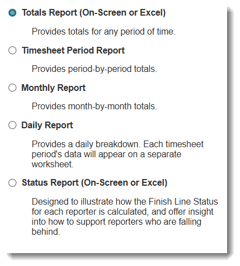
 Use this report to export summarized timesheet data either to date or for a specific time period you select. NOTE: Some fields are always calculated as totals to date, even when a specific date range is applied. This includes fields such as Finish Line Status and Daily Goal. |
The Basics
Timesheet Dashboard Metrics
Timesheet Activity
|
Timesheet Period Report |
 Use this report to export timesheet data by timesheet period. You can choose to display periods side by side on a single Excel worksheet, or place each selected period on its own tab. |
Audit Trail
|
Monthly Report |
 Use this report to export timesheet data by month. You can choose to display months side by side on a single Excel worksheet, or place each selected month on its own tab. |
No additional data toe export options exist for this report type. |
Daily Report |
 Use this report to export day-by-day timesheet details for each selected timesheet period. The system generates an Excel file with a separate tab for each timesheet period you choose to review. |
|
Status Report |
 Use this reports to understand how each reporter’s Finish Line Status is calculated and to identify reporters who may need additional support. Status Report always displays totals to date and does not allow for date range selection. |
The Basics
Status Reports 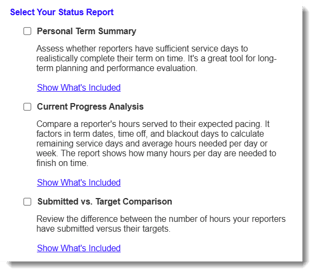 Each of these reports includes a number of relevant data points to understand how a reporter's Finish Line Status is calculated, their current standing, and actionable information to get them back on track. Each of these reports includes a number of relevant data points to understand how a reporter's Finish Line Status is calculated, their current standing, and actionable information to get them back on track. |
Creating Timesheet Reports at the program-wide and Site Levels
Follow these steps:
- On the left, in your Mission Control, click Timesheets.
-
On the right, select either View program-wide data or View site data.
- On the next page, select the Timesheet Template at issue.
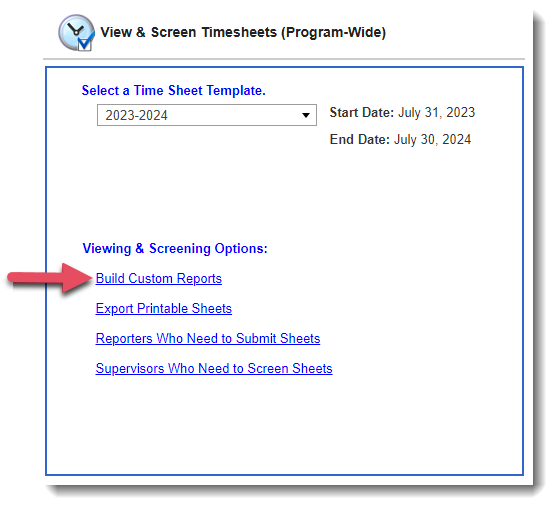
Note: After selecting the timesheet template from the drop-down, your Impact Suite will automatically pre-select this option on all relevant pages. Additionally, the system will remember your selection even after logging out and back in. - At the bottom of the page, select Build Custom Reports.
- On the next page, choose which type of report you would like to build.
-
If you have chosen View site data, you will have an option to select the site or sites you are assigned to. For Program-wide date, please go to the next step.
- On the next page, Select Data to Export. You can choose as many data points as you’d like.
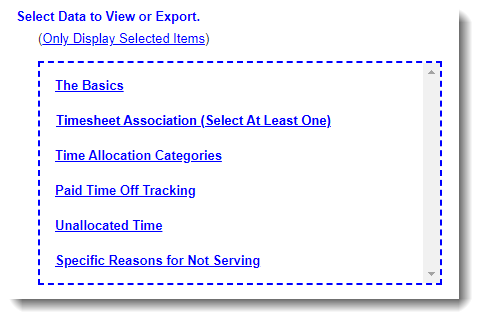
Report Type Select Data to Export
(These options are available in all report types.)
All Report TypesThe Basics
- Approved Hours
- Pending Hours
- First Date the Reporter Submitted Time to a Category or Subcategory
- Most Recent Date the Reporter Submitted Time to a Category or Subcategory
Timesheet Associations
- All associations will be available for all report types
Time Allocation Categories
- All categories and subcategories will be available for all report types
Specific Reasons for Not Service
- All reasons for not serving will be available for all report types
Unallocated Time
- Total Hours
These options will be available for all reports, such as:
|
Report Type
|
Select Data to Export
(Differing Options Available for Each Report Type) |
|
Totals Report |
The Basics
|
|
Timesheet Period Report |
The Basics
Audit Trail
|
|
Monthly Report
|
No additional options are available.
|
|
Daily Report |
Written Descriptions (if relevant)
|
- Then, use the Select Site Breakout Options, to tell the system what site data (if any) you would like on your report.
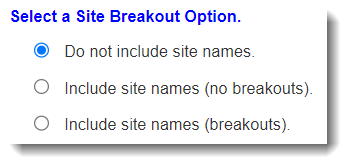
Your options are:- Do not include site names. (No column for View site data)
-
- Include site names (no breakouts). (Include all sites data for each Reporter on a single row, in a single column.)
-
- Include site names (breakouts). (Data for each site is separated onto a new row for each Reporter.)
- Include site names (breakouts). (Data for each site is separated onto a new row for each Reporter.)
- Next, Select One or More Reporters.
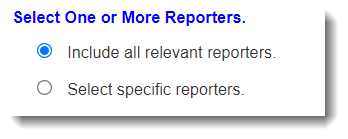
Your options are:- Include all relevant reporters.
- Select specific reporters.
- Include all relevant reporters.
- Next, Add Reporter Profile Data to the Report.
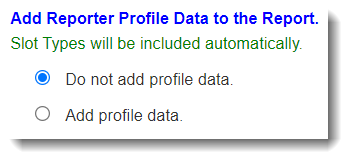
Your options are:- Do not add profile data.
- Add profile data.
Find out more about this option here.
- Do not add profile data.
- Use the Select a Time Period section to select the time period that the report should include.
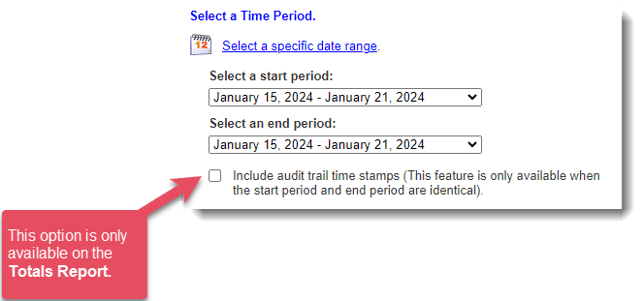
For the Totals, Timesheet Period and Daily reports, each date range in the drop-down menu (e.g., May 9, 2019 – May 15, 2019) represents a single timesheet period.
For the Monthly Report you will only see each month listed. - Choose your report format by clicking View Data or Export Excel. Note: View Data will only be available for the Totals Report.
IMPORTANT: Special Options for the Totals & Timesheet Period Reports
At the bottom of the pages, you may see additional checkboxes.
Here's what they mean:
(Totals Report) "Include timestamps of the most recent submission and approval activity” means that your report will include the status, date and timestamp of when each reporter last submitted the sheet at issue and of when the most recent supervisor or admin approved or partially approved the sheet.
Timesheet Period Report
“Display each period on a separate tab (only available when two or more timesheet periods are included in your date range)” means you can choose to break out your data onto separate tabs based on time periods, if you’d like.