
Creating Questions with Embedded Questions
Here are the steps for creating a survey question with an embedded video:
- On the left, in your Mission Control, click Survey Management.
- On the right, under Question Management, click Create and manage questions.
- To build questions, click Create a New Question.
- Next, you'll complete the form to create your question. Use this screenshot to help you understand the anatomy of the question:
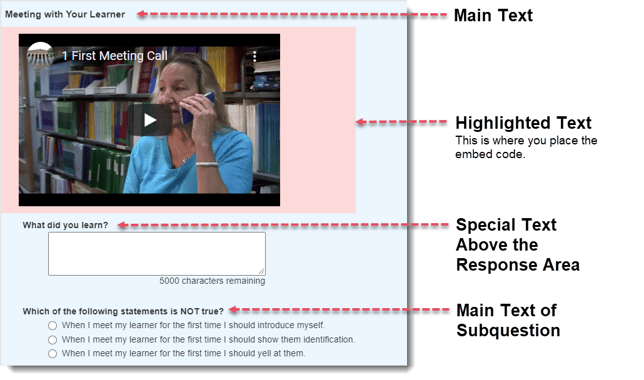
Guidance for the Highlighted Text Box (Embed Code)
Once you've created a question, use the following guidance:
- When possible, find and copy the embed code from the video's host (i.e. youtube or Vimeo). The only thing you'll need to change is width ("380") and height ("251").
For example, if this is the embed code you copied for your video:
<iframe width="560" height="315" src="https://www.youtube.com/embed/kdqhyXYnpxs?start=11" frameborder="0" allow="accelerometer; autoplay; clipboard-write; encrypted-media; gyroscope; picture-in-picture" allowfullscreen></iframe>
You will change it to:
<iframe width="380" height="251" src="https://www.youtube.com/embed/kdqhyXYnpxs?start=11" frameborder="0" allow="accelerometer; autoplay; clipboard-write; encrypted-media; gyroscope; picture-in-picture" allowfullscreen></iframe>
-
If you can't find the embed code, you can use this one:
<iframe src="https://replace_with_your_video_link" width="380" height="251" frameborder="0" allow="autoplay; fullscreen" allowfullscreen></iframe>
You'll just swap out the highlighted web address with the address of your video.