
Video Resource
Create a Context Block
Context Blocks are text-based sections where you can add context (just as the name suggests) and where you upload documents that can be accessed by your reporters.
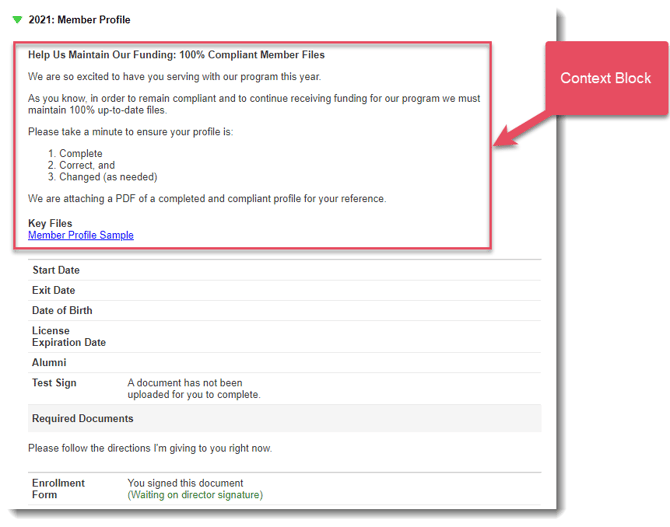
To create a Context Block:
- On the left, in your Mission Control, click Reporters, Admins, & Sites.
- On the right, click Manage reporter accounts.
- On further right, use the More drop-down menu and select Manage Fields and Profile Layout.
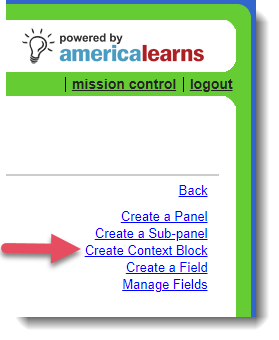
- On the right, click the Create a Context Block link.
- A window will open:
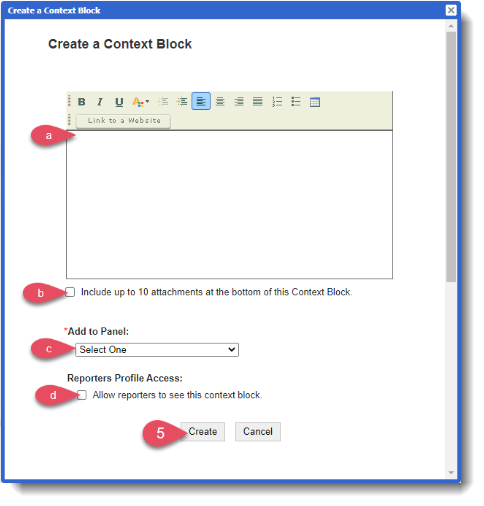
- Use the text field and formatting options to create context for your reporters.
- Use this checkbox to attach up to 10 documents.
- Use the drop-down to decide in which Panel (and, if relevant, which Subpanel) you'd like to place your Context Block.
- Show the Context Blocks to reporters by checking this box.
- Use the text field and formatting options to create context for your reporters.
- Click Create.
Edit or Delete a Context Block
To edit or delete a context block:
- On the left, in your Mission Control, click Reporters, Admins, & Sites.
- .On the right, click Manage reporter accounts.
- On further right, use the More drop-down menu and select Manage Fields and Profile Layout.
- Open the panel that holds the Context Block you would like to edit.
- On the right you'll see two links:
- Edit Context Block
- Delete Context Block