Walkthrough
What is a Timesheet Position?
Before you can create a Timesheet Template, you’ll need to set up at least one Timesheet Position.
Here’s what you need to know:
-
Each reporter must be assigned both a Timesheet Position and a Timesheet Template to begin submitting timesheets.
-
A Timesheet Position primarily defines the Goal Hours a reporter must complete during their term. (If a reporter doesn’t have a set Goal Hours requirement, you can create Timesheet Positions with the goal of 0 hours.)
NOTE: Along with other Timesheet Settings, Goal Hours are essential for calculating a reporter’s Finish Line Status — whether they are Ahead, On Track, Behind, or Really Behind in their progress toward completing their term by their Personal End Date. Check out this article for more information on Finish Line Status. -
Timesheet Positions can also be used in other parts of the system to categorize and organize reporters.
Example Uses: 1) Target profile panels and survey questions; 2) Send messages through the communications portal; 3) Export data filtered by specific Timesheet Positions. -
You can create an unlimited number of Timesheet Positions to fit the needs of your program.
Create a New Timesheet Position
Steps to follow:
- On the left, in your Mission Control, click Timesheets.
-
On the right, under Settings, click Manage timesheet positions.
-
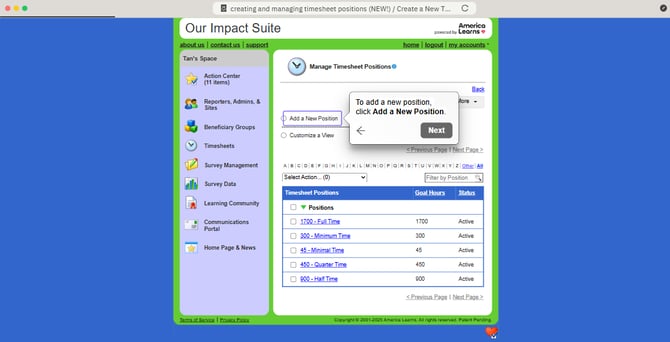
To add a new position, click Add a New Position.
-
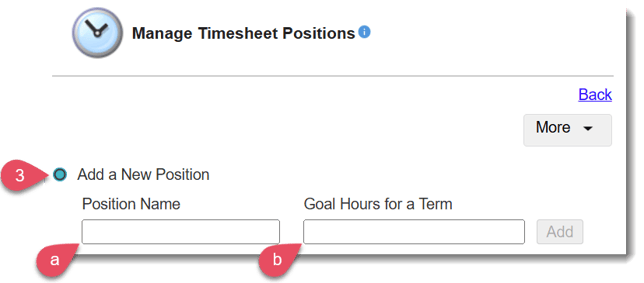
Next, a) create a Position Name, and b) enter the Goal Hours for a Term.
-
Click Add.
NOTE: You may create an unlimited number of Timesheet Positions.
Manage and Update Timesheet Positions
You can update your Timesheet Positions at any time. You’ll want to do this if:
-
New positions with new Goal Hours are required (Add a New Position);
-
Your program no longer uses a particular position (Archive); or
-
You need to reactivate an archived position (Restore).
Steps for updating your Timesheet Position:
- On the left, in your Mission Control, click Timesheets.
- On the right, under Settings, click Manage timesheet positions.
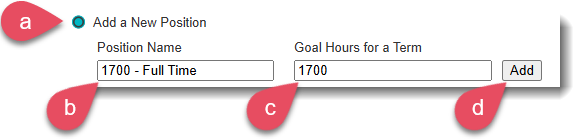
- Add a New Position
- Click Add a New Position.
- Create an Position Name.
- Enter the Goal Hours for a Term.
- Click Add.
- Click Add a New Position.
-
Edit an Existing Position
To modify an existing position, click the one you want to change. A window will open.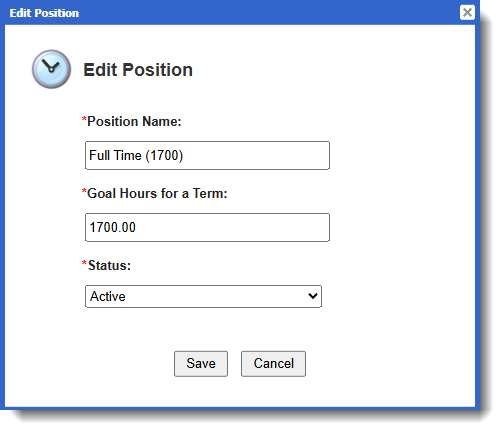 Make any required changes and click Save.
-
Archive a Position
- Check the box next to the position you want to archive.
- Use the Select Action drop-down menu and choose Archive Selected (#).
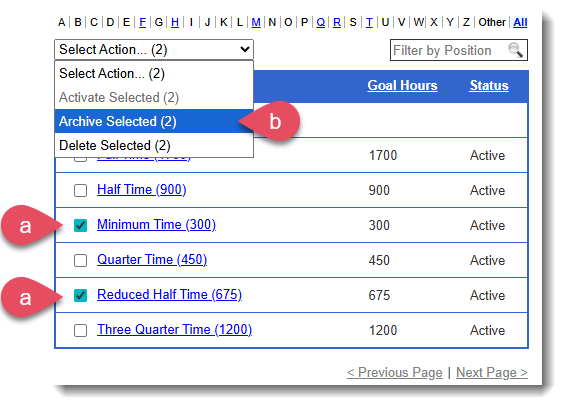
If reporters are assigned to the position you wish to archive, you'll get a message like this one: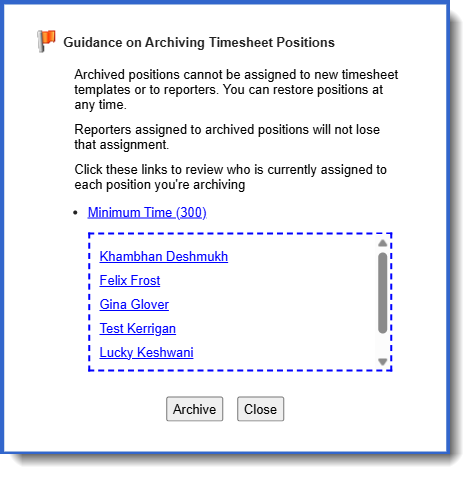
-
Restore a Position
- At the top of the page, select Customize a View.
- Select Archived Positions.
- Click View.
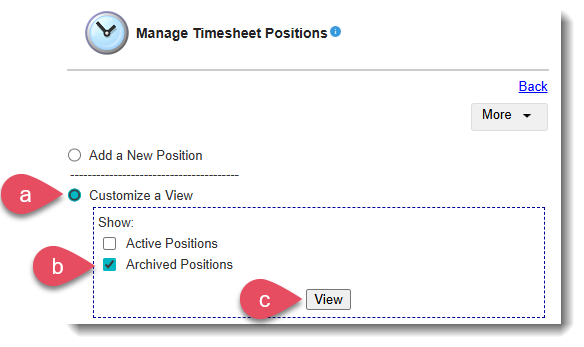
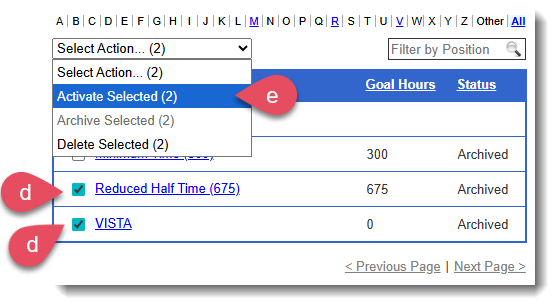
- Archived positions will now appear in the table. Check the box next to the position you want to restore.
- Use the Select Action drop-down menu and choose Activate Selected (#).