Accessing the Identifier Importer
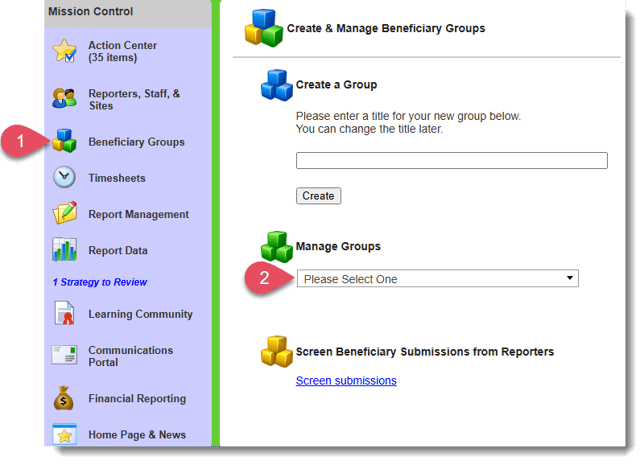
- On the left, in your Mission Control, click Identifier Groups.
- Under the Manage Groups section, use the drop-down menu to choose a Group.
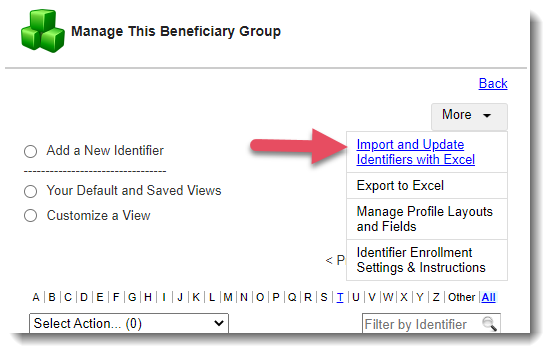
- Use the More menu and select Import and Update Identifiers with Excel.
Creating a Custom Template
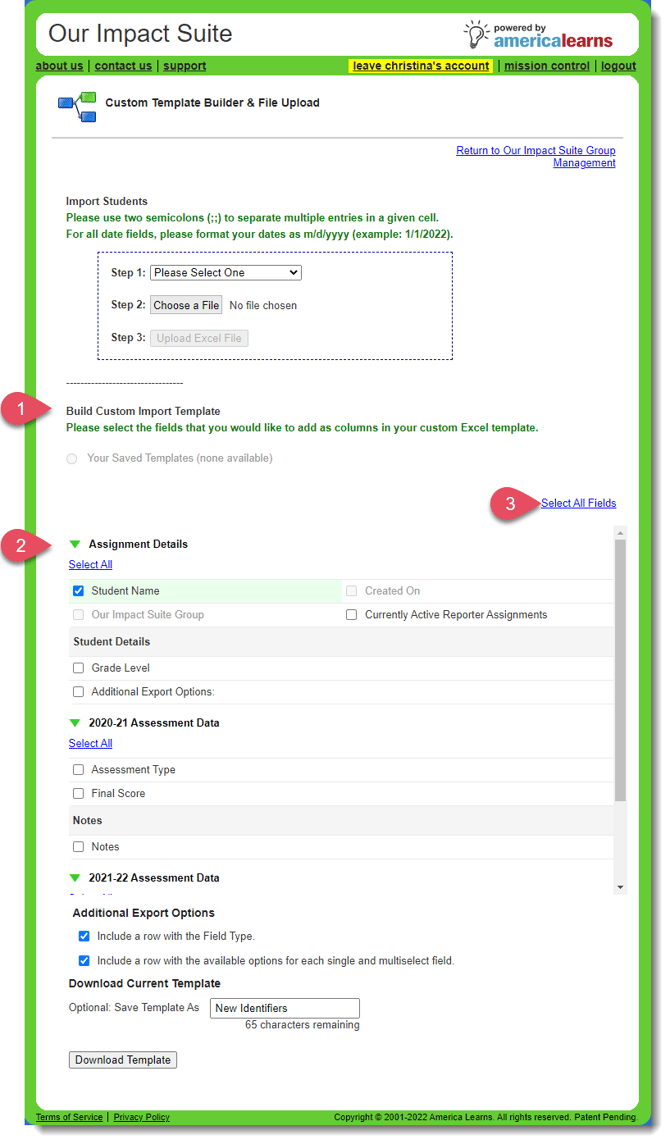
- Find the section called Build Custom Import Template.
- Open your panels to choose the fields you’d like included in your custom template, or
- Use the Select All option on the right.
Note: At a minimum, in the Name & Contact Details panel, you must include First Name, Last Name, and Email. - Additional Export Options.
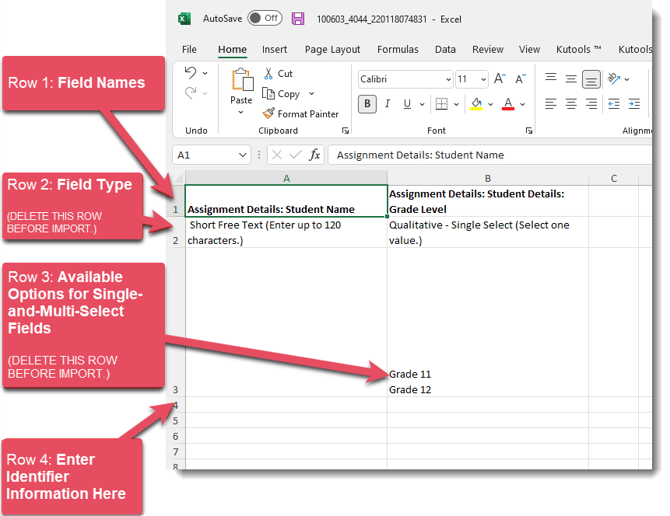
To make importing reporters as simple as possible, we've included a way for you to export the Field Type (for each field) and the available options for any single-and-multi-select fields you include in your template.
IMPORTANT: If included, delete these rows before you import your file. - (Optional) Save Template As.
To save your template for later use, use the Save Template As section to give it a name. - Click Download Template.
IMPORTANT: Use Double Semi-Colons for Multiple Selections Per Cell
When you need to include more than one option in a cell for an Identifier, please use a double semi-colon.
Example: Say you need to include two sites for an Identifier: Asteroid Place and Moonstar Center.
In your Excel document, in the column and cell marked for Site value type: Asteroid Place;; Moonstar Center
Excel Worksheet Anatomy