
Use this article to manually enroll your folks into SMS text messaging alerts & reminders.
Remember: You must have the express written consent of your people to enable SMS text messaging on their behalf.
GENERIC TERM ALERT: Some of the words used in this article will be different in your Impact Suite.
Ex. Reporter might be: Member, Tutor, Volunteer, etc.
Admin might be Staff & Supervisors, etc.
Group Identifiers might be: Clients, Students, Volunteers, Activities, Events, etc.
SMS Enrollment for Your Group Identifiers
This video has no audio.
To enroll your Group Identifiers into SMS messaging, follow these steps:
- On the left, in your Mission Control, click Groups.
- Under the Manage Our Groups section, use the drop-down menu to choose a Group.
- Use the More menu and select Export to Excel.
- At a minimum, you'll need to include your "Identifier" Name (this will be pre-selected), and any mobile number field you've created.
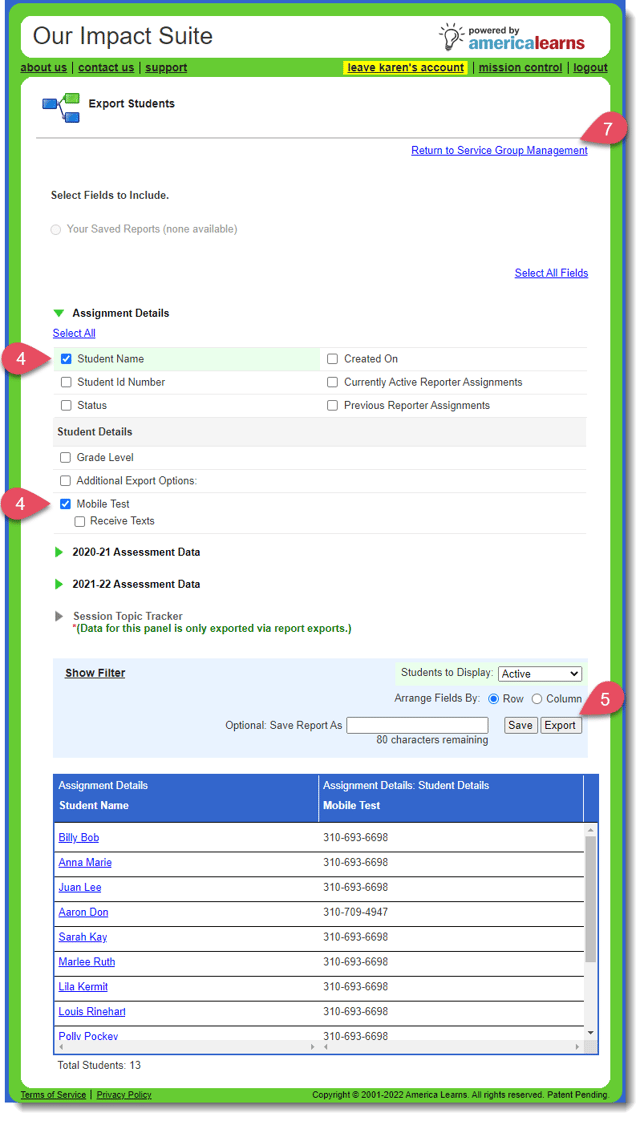
- Click Export to push the data to Excel.
- Clean up the Excel export by (see the video, time stamp: 00:27):
- Deleting rows 1 & 2
- Deleting the "Total" row at the bottom of the worksheet
- Save your changes
- Click Return to Group Management.
- At the top of the page, use the More drop-down, select Import Identifiers, and then follow the steps to update your identifiers.
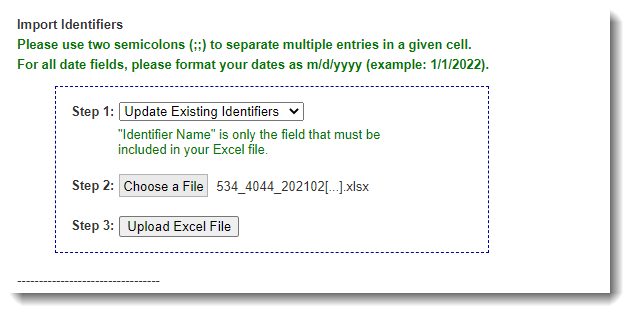
- Step 1: Use the drop-down menu to choose Update Existing Identifiers.
- Step 2: Click the Choose a File button to select your saved Excel file.
- Step 3: Then click Upload Excel File.
- Step 1: Use the drop-down menu to choose Update Existing Identifiers.
- Follow the steps to map your fields, correct any errors, and Preview Import.
- On the Preview Import page, you'll have the opportunity to make sure you properly mapped your template. If you find issues you can use the Map Fields back button to correct any mistakes.
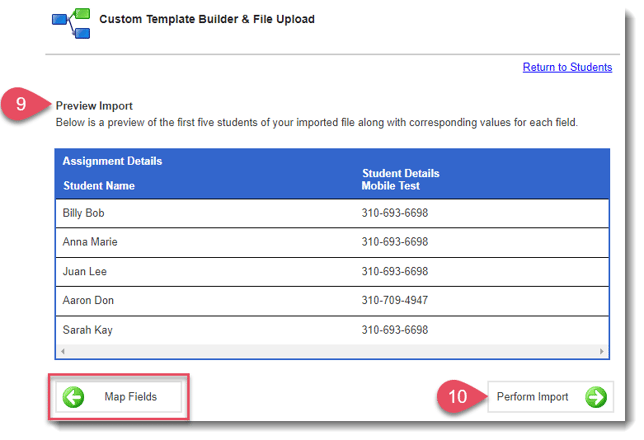
- Once you’re satisfied with your preview, proceed to Perform Import.
- When the import is complete you’ll get an Import Confirmation, like this:
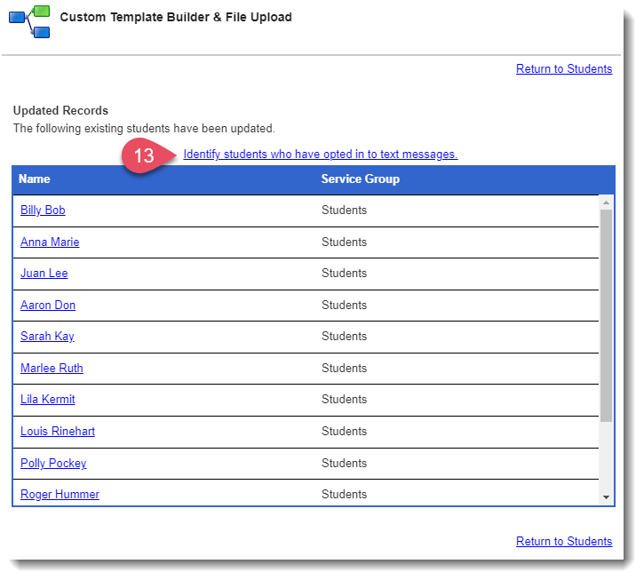
- Now, you'll have the opportunity to manually enroll group identifiers into text messaging.
Remember: you must have their express written permission to enable SMS text messaging.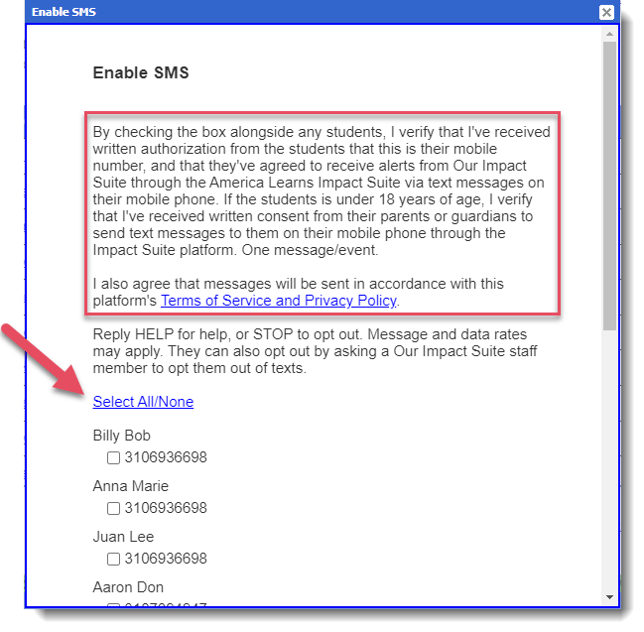
- To enroll group identifiers into SMS messaging, click Submit.
SMS Enrollment for Your Reporters
Keep in mind that when reporters create their passwords for their accounts they'll have an opportunity to self-opt into text messaging. Likewise, reporters can opt-in or out at any time by accessing their profiles.
This video has no audio.
To enroll your Reporters into SMS messaging, follow these steps:
- On the left, in your Mission Control, click Reporters, Admin, & Sites.
- Under the Manage Reporters section, click Manage reporter accounts.
- Use the More menu and select Export Reporters.
- For Step 1: How Should the Roster be Organized? click By Reporters' Name and select the reporters you'd like to include.
- Click Select Fields to Include.
- At a minimum, you'll need to include your First Name, Last Name (these will be pre-selected), E-mail, and the Mobile field.
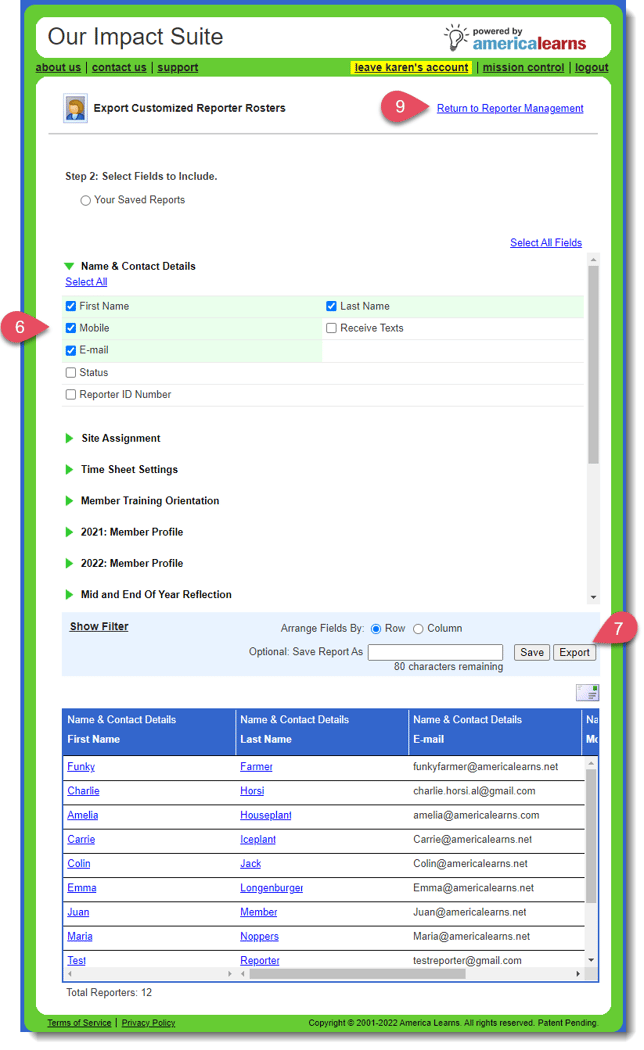
- Click Export to push the data to Excel.
- Clean up the Excel export by (see the video, time stamp: 00:27):
- Deleting rows 1 & 2
- Deleting the "Total" row at the bottom of the worksheet
- Save your changes
- Click Return to Reporter Management. (In the pop-up select Yes, Cancel Export.)
- At the top of the page, use the More drop-down, select Import Reporters, and then follow the steps to update your reporters.
- Step 1: Click the Choose a File button to select your saved Excel file.
- Step 2: Then click Upload Excel File.
- Step 1: Click the Choose a File button to select your saved Excel file.
- Follow the steps to map your fields, correct any errors, and Preview Import.
- On the Preview Import page, you'll have the opportunity to make sure you properly mapped your template. If you find issues you can use the Map Fields back button to correct any mistakes.
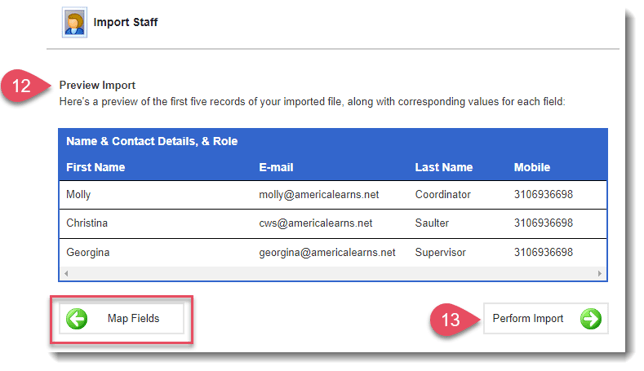
- Once you’re satisfied with your preview, proceed to Perform Import.
- As the admin you are updating already have accounts and profiles, you'll need to tell the system to update their accounts with the new information in the Excel document by selecting Update duplicates with Excel data, like this:
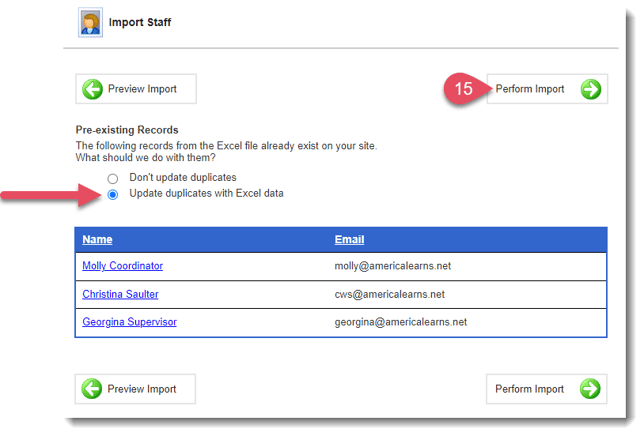
- Click Perform Import once more.
- When the import is complete you’ll get an Import Confirmation, like this:
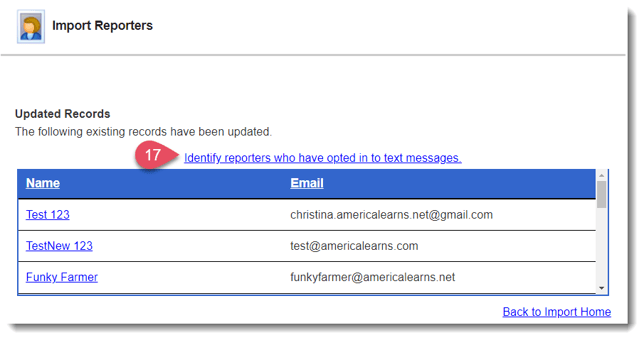
- Now, you'll have the opportunity to manually enroll reporters into text messaging.
Remember: you must have their express written permission to enable SMS text messaging.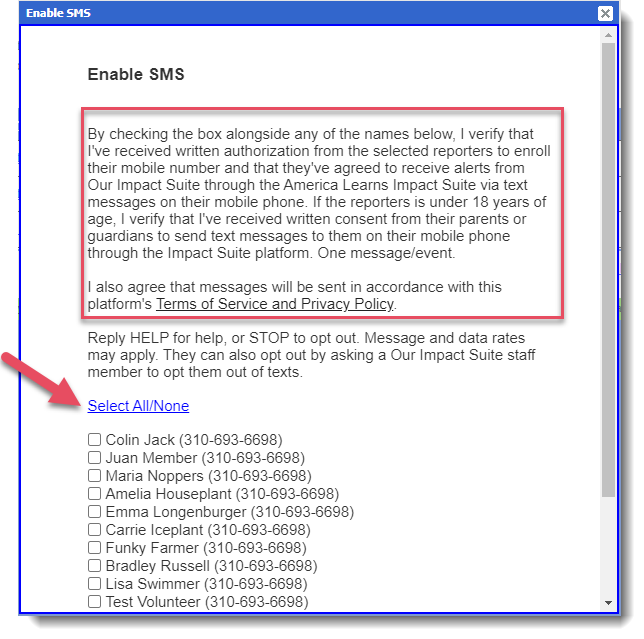
- To enroll reporters into SMS messaging, click Submit.
SMS Enrollment for Your Admin
Keep in mind that when admin create their passwords for their accounts they'll have an opportunity to self-opt into text messaging. Likewise, reporters can opt-in or out at any time by accessing their profiles.
To enroll your Admin into SMS messaging, follow these steps:
- On the left, in your Mission Control, click Reporters, Admin, & Sites.
- Under the Manage Admin section, click Manage admin accounts.
- Use the More menu and select Export Admin.
- For Step 1: How Should the Roster be Organized? click By Admin's Name and select the admin reporters you'd like to include.
- Click Select Fields to Include.
- At a minimum, you'll need to include your First Name, Last Name (these will be pre-selected), E-mail, and the Mobile field.
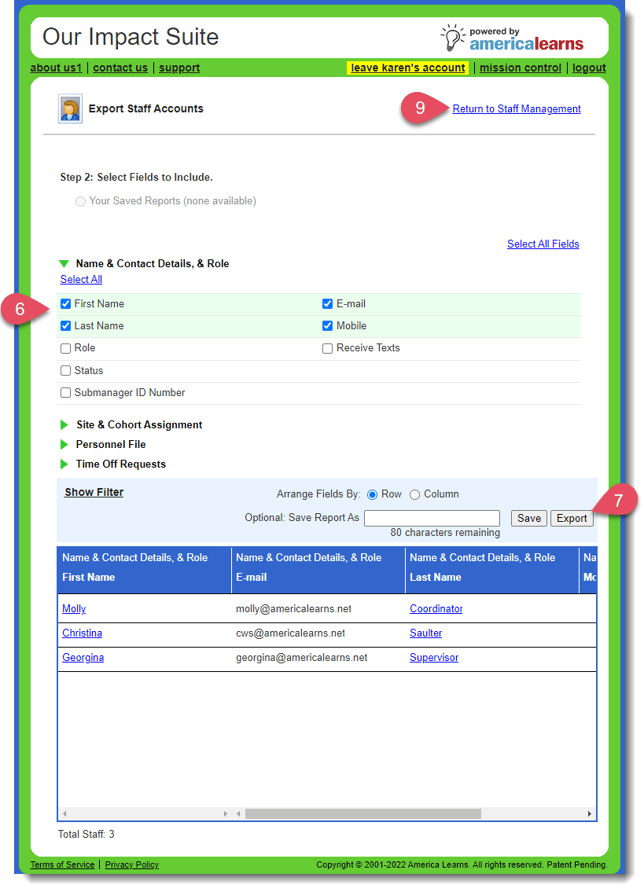
- Click Export to push the data to Excel.
- Clean up the Excel export by:
- Deleting rows 1 & 2
- Deleting the "Total" row at the bottom of the worksheet
- Click Return to Admin Management. (In the pop-up select Yes, Cancel Export.)
- At the top of the page, under the section called Import Admin, follow the steps to update your admin.
- Step 1: Click the Choose a File button to select your saved Excel file.
- Step 2: Then click Upload Excel File.
- Step 1: Click the Choose a File button to select your saved Excel file.
- Follow the steps to map your fields, correct any errors, and Preview Import.
- On the Preview Import page, you'll have the opportunity to make sure you properly mapped your template. If you find issues you can use the Map Fields back button to correct any mistakes.
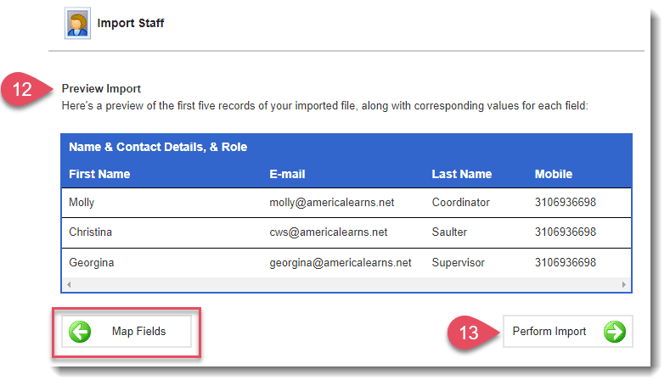
- Once you’re satisfied with your preview, proceed to Perform Import.
- As the admin you are updating already have accounts and profiles, you'll need to tell the system to update their accounts with the new information in the Excel document by selecting Update duplicates with Excel data, like this:

- Click Perform Import once more.
- When the import is complete you’ll get an Import Confirmation.
- Now, you'll have the opportunity to manually enroll admin into text messaging.
Remember: you must have their express written permission to enable SMS text messaging.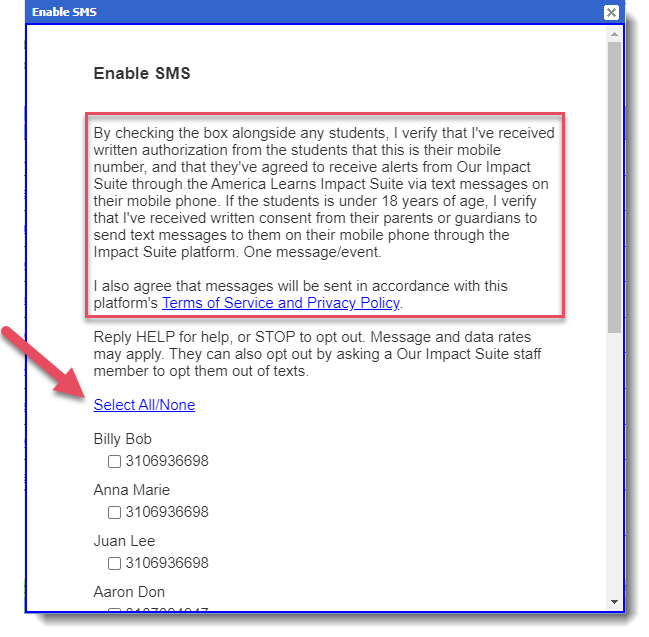
- To enroll admin into SMS messaging, click Submit.