
Setting Up Unexpended Funds Tracking (Commission Staff)
The Planned Expenses & Unexpended Funds tracker is designed to support financial monitoring by helping commissions and subgrantees better understand what funds are expected to remain after planned expenses are accounted for.
For selected expense reports, subgrantees can document planned expenses by line item, and the system will automatically calculate projected unexpended funds.
Commission staff can review this information directly inside expense reports, export the data to Excel or PDF, and include it in play-by-play reports when needed.
Please note: this is not a budget modification workflow. It is a monitoring tool only.
Here’s how to set it up:
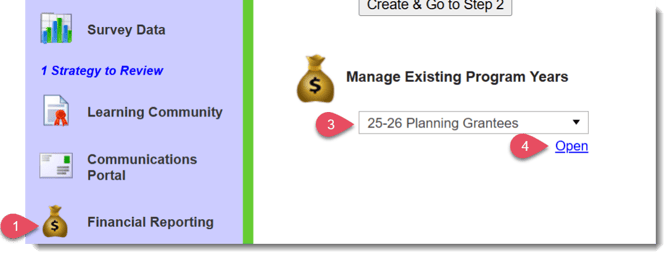
- On the left, in Mission Control, click Financial Reporting.
- Under Settings, head to Create and Manage Program Years.
- Within the Section, Manage Existing Program Years, click on the Program Year you wish to edit.
- Click Open.
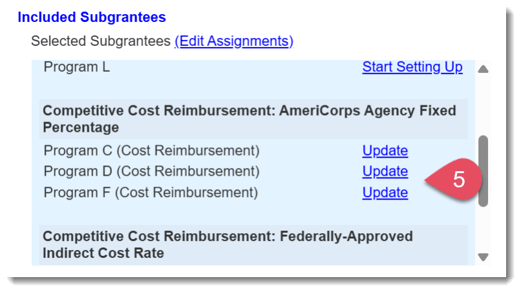
- Scroll to the bottom section Included Subgrantees and click Update next to the subgrantee you wish to edit.
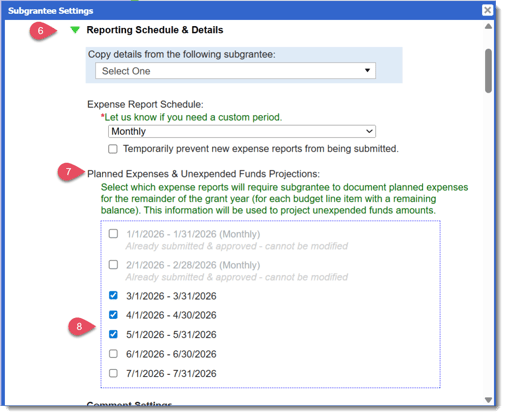
- A pop-up will appear. In the pop-up, open the Reporting Schedule and Details section.
- Below the expense report schedule area, you’ll see a new Unexpended Funds Tracking section.
- Select the expense reports that should include the Unexpended Funds tracker.
- Scroll to the bottom and click Save.
Once selected, subgrantees will be required to enter projected expenses and their resulting Unexpended Funds as part of the expense report submission process for those reporting periods.
Video Guidance
Entering Planned Expenses and Unexpended Funds (Subgrantees)
This section guides you through documenting planned expenses and projected unexpended funds for the remainder of the program year.
- On the left, in Mission Control, click Financial Reporting.
- Scroll to the bottom of the page in the Section Submit & Update Expense Reports, and open the expense report you need to complete.
- Enter any expenses already incurred.
- Scroll down to the section labeled Planned Expenses & Unexpended Funds Projections.
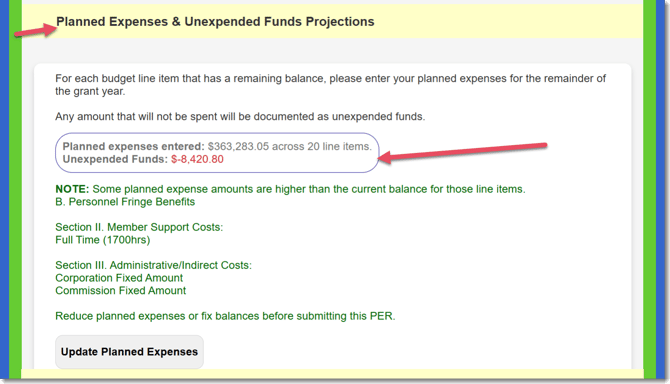
The system will display:
- your current planned expenses, and
- your projected unexpended funds for the remainder of the year.
These calculations already include any expenses entered on the current report.
Updating Planned Expenses
- Click Update Planned Expenses.
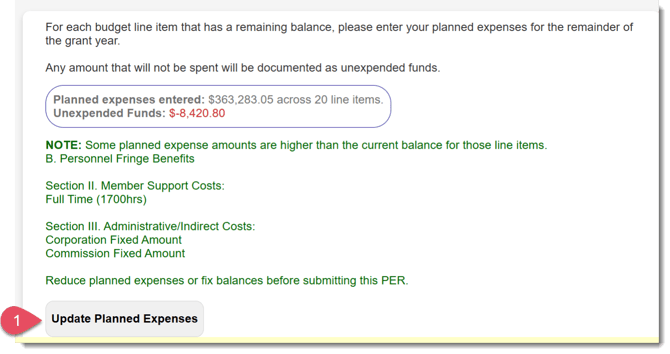
- The Planned Expenses & Unexpended Funds tracker will open.
- Within each relevant section, adjust budget line item individually and respond to the text box when required.
- As you enter updates, the system will automatically recalculate the projected unexpended funds.
Note: Even if a line item is not changing, you must still review the item and respond to the prompt provided.
Remember: this is not a formal budget modification request. It is documentation of planned expenses.
Saving & Submitting
You can save your work at any time and return later if needed. When you are finished reviewing and updating planned expenses:
- Save changes made and close the pop-up window.
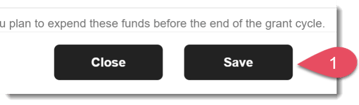
- Review the calculated Total Unexpended Funds amount displayed by the system.
- After reviewing the projected unexpended funds totals, scroll to the bottom and click Submit for Approval.
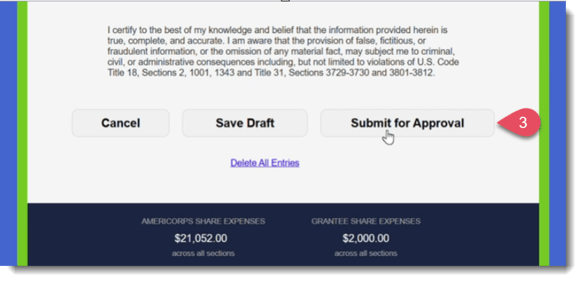
The report will then move into the normal approval workflow.
Exporting Unexpended Funds Data
To export the unexpended funds:
- In the Section View Submitted Budgets & Reports under Expense Reports, click View next to the expense report you want to export.
- In the top-right corner, click Budgets, Expense Reports & Exports.
- In the drop-down menu, choose your preferred format.
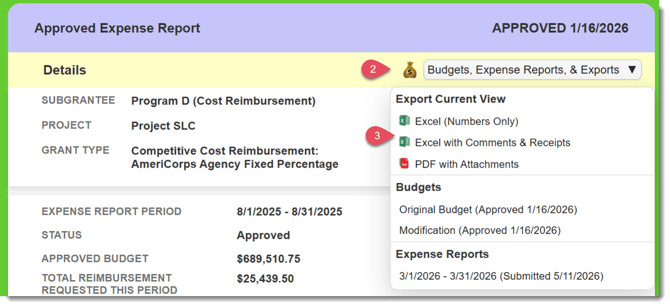
Note on Excel Exports: If you select Excel, the exported file will include two worksheets: the Expense Report worksheet, containing the exponse report, and the Unexpended Funds worksheet, containing the detailed Unexpended Funds iformation.
Planned expenses that differ from the current balance will be highlighted in yellow to make review easier.Video Guidance
Reviewing Planned Expenses and Unexpended Funds (Commission)
The review process allows you to see projected unexpended funds by line item, export the information for additional review, and include the data in play-by-play reports when needed.
Here's how:
- On the left, in Mission Control, click Financial Reporting.
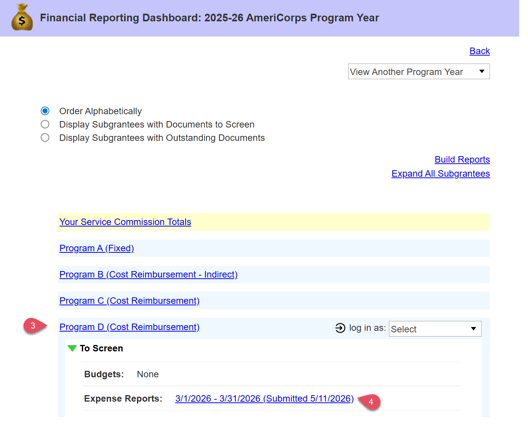
- In the section Dashboards, Approvals & Reports, select the program year you want to review and click View Dashboard.
- Click the hyperlink for the Subgrantee you are reviewing.
- Under the panel To Screen, click the relevant link next to Expense Reports.
- Expand the available sections to review both planned expenses and projected unexpended funds per line item.
- After review, close the window.
- Complete the workflow by approving or rejected the epense report as needed.
Video Guidance