

Walkthrough
Archive Service Sites (One-by-One)
When a service site no longer hosts participants, it's time to archive it. Here are the steps for archiving service sites one-by-one:
- On the left, in your Mission Control, click Participants, Staff, & Service Sites.
- On the right, under Manage Service Sites & Grantees, select Manage service sites & grantees.
- Click on the site where you want to make an update.
- The Service Site Profile will open.
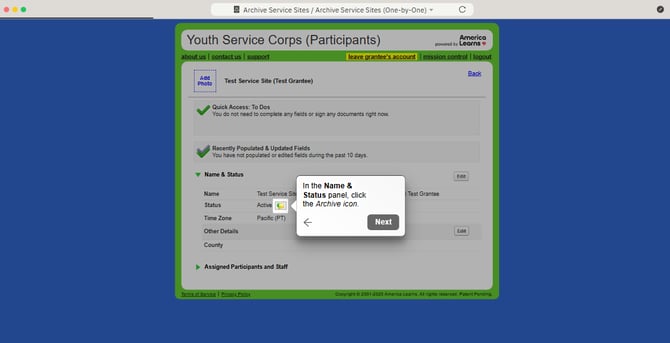
- In the Name & Status panel, click the Archive icon.
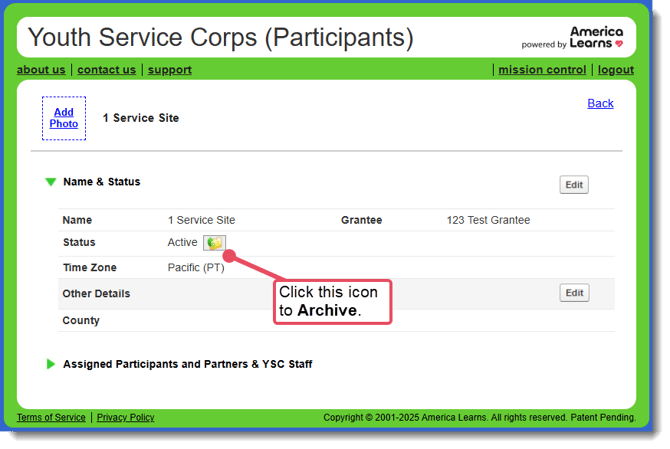
- The Status will change from Active to Archived.
Archive Service Sites (En Masse)
When a group of service sites no longer hosts participants, it's time to archive them. Here are the steps for archiving service sites en masse:
- On the left, in your Mission Control, click Participants, Staff, & Service Sites.
- On the right, under Manage Service Sites & Grantees, select Manage service sites & grantees.
- Scroll down to see your list of sites.
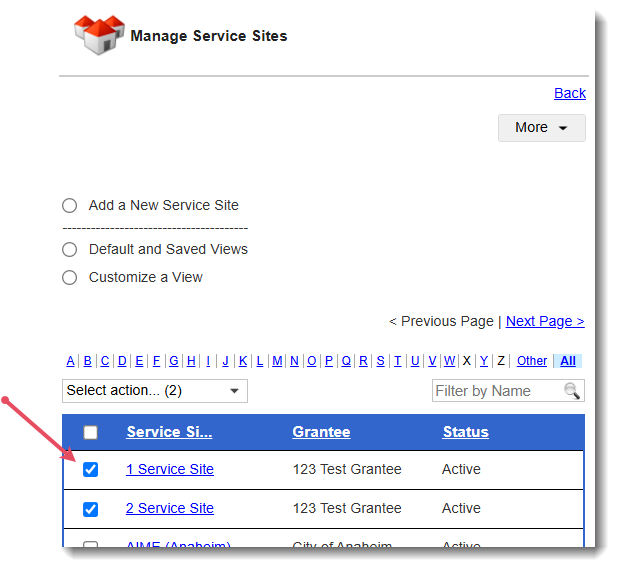
- Select the checkboxes alongside those service sites you would like to archive.
- Use the “Select action” drop-down menu and select Archive (#).
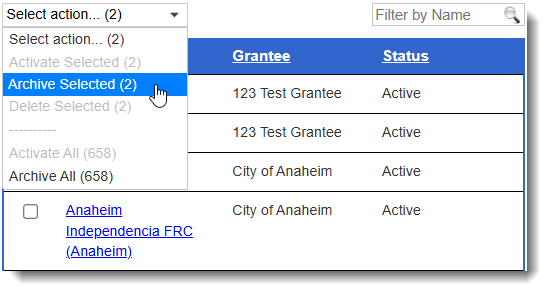 The number next to the action confirms the total number of service sites that you have selected.
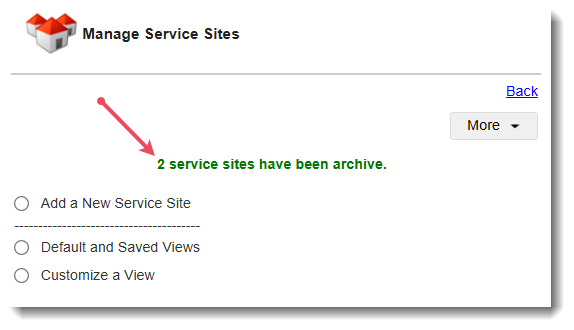
 - Once archived, you'll see a confirmation at the top of the page, like this:
REMEMBER: Archiving a site will not remove any data associated with that site, and the archived site can be restored at any time.
Reactivating Archived Sites
If a site is archived, you can always reactivate it by following these steps.
- On the left, in your Mission Control, click Participants, Staff, & Service Sites.
- On the right, under Manage Service Sites & Grantees, select Manage service sites & grantees.
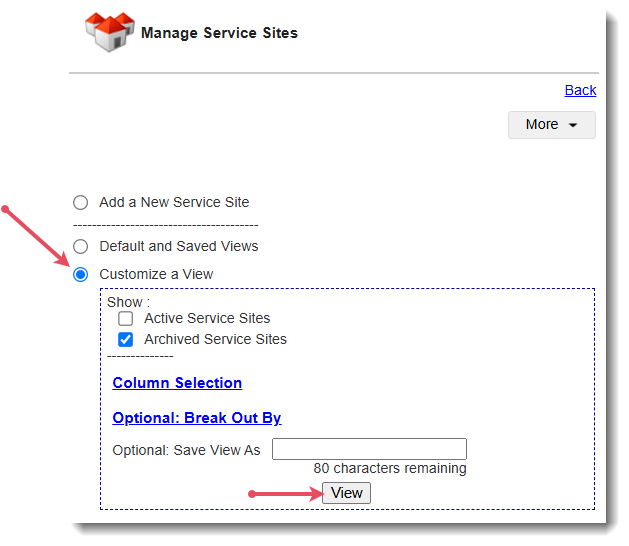
- Use the Customize a View option to select Archived Service Sites and click View.
- Click on the site you would like to restore.
- The Service Site Profile will open.
- In the Name & Status panel, click the Restore icon.
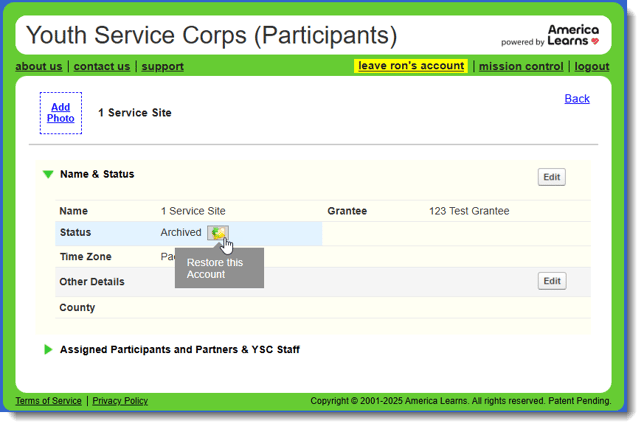
- The Status will change from Archived to Active.
WARNING: Never overwrite the name of a site, even if it is being ‘replaced’ by a new site. Overwriting site names will result in previously entered data appearing with the new name. Create new sites, and only use the editing feature to clarify or correct name.