
Updating the Commission-Level Reviewer Staff Role
If you receive notice that your State Commission would like to perform a desk audit on one or more of your reporters, here are the steps for updating the Commission-Level Review Staff role to grant permission.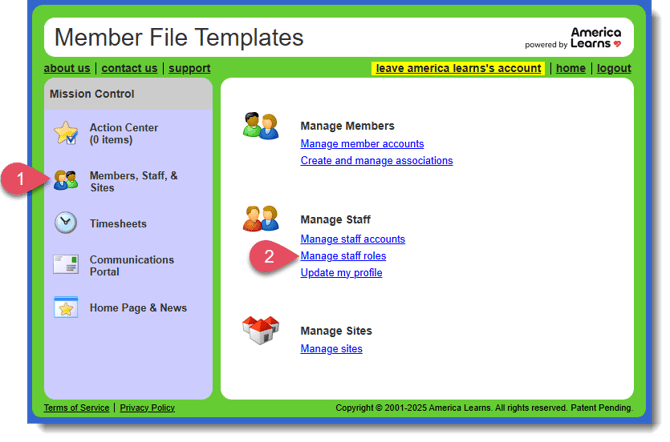
- On the left-hand side of your Mission Control, click Reporters, Staff, & Sites.
- On the right, click Manage staff roles.
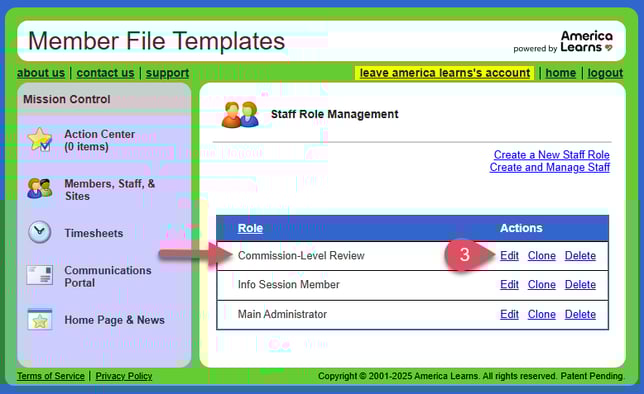
- Find the auditor role (usually called Commission-Level Reviewer) and click Edit.
- When the window pops up, make any changes to the Staff Role.
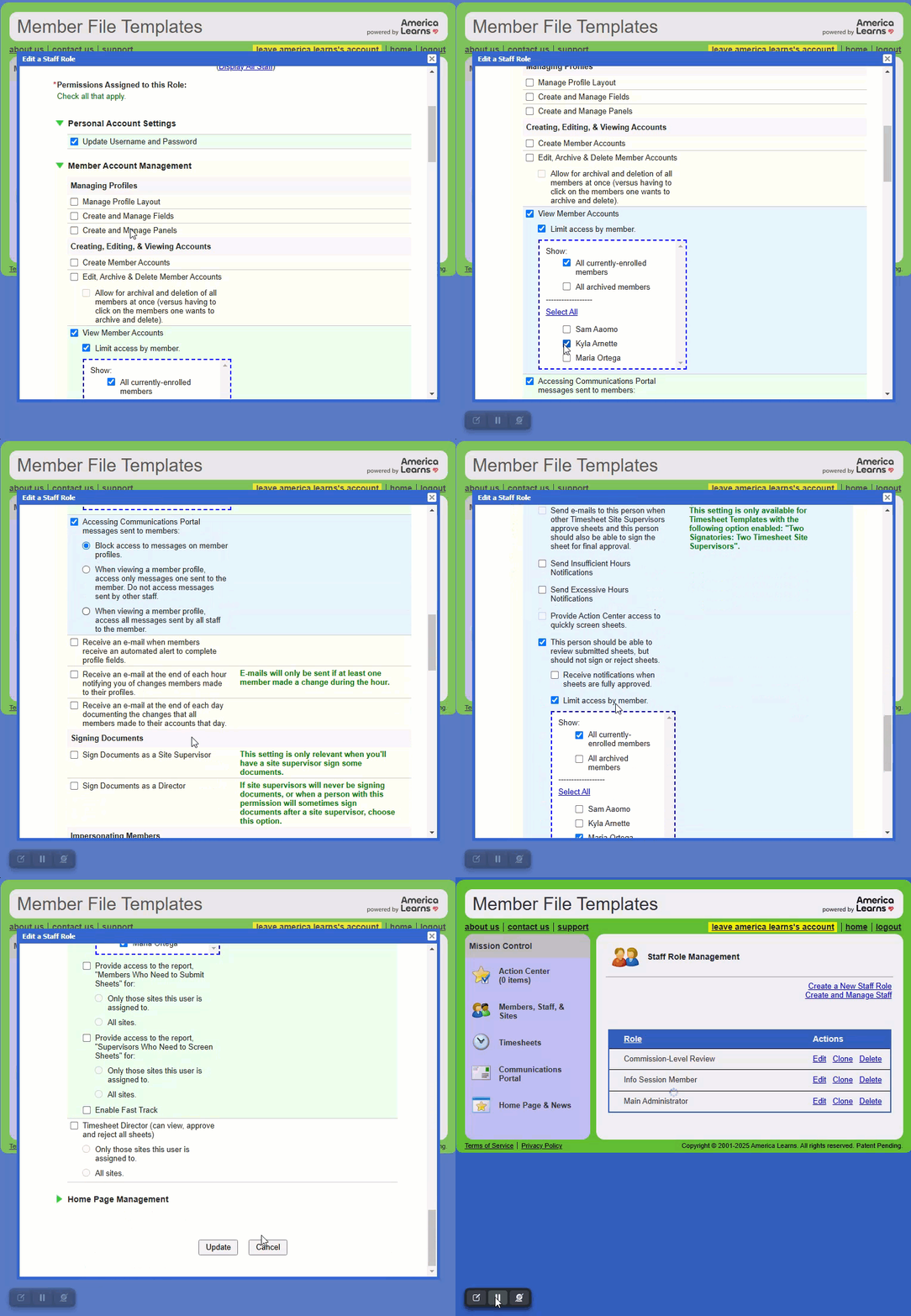 This may include some of the following permissions:
Personal Account Settings
- Update Username and Password
Reporter Account Management (if member files will be reviewed)
- View Member Accounts > Limit access by reporter.
- Select the reporters to whom the reviewer(s) will have access. You’ll update this list during each desk audit/file review session.
Timesheets (if timesheets will be reviewed)
- Timesheet Site Supervisor
- This person should be able to VIEW submitted sheets, but should not sign or reject sheets > Limit access by reporter.
- Select the reporters to whom the reviewer(s) will have access. You’ll update this list during each desk audit/file review session.
4. On the right, find the auditor role and click Edit.
5. To save your changes, scroll to the bottom of the window and click Update.
Once your review is complete, you can return to these settings to remove access to reporter accounts for the Commission-Level Reviewer.