
Office of Monitoring Email
The Office of Monitoring for AmeriCorps provided helpful guidance on admin timesheet requirements at the 2024 ASN Symposium. Below is confirmation of these items in writing.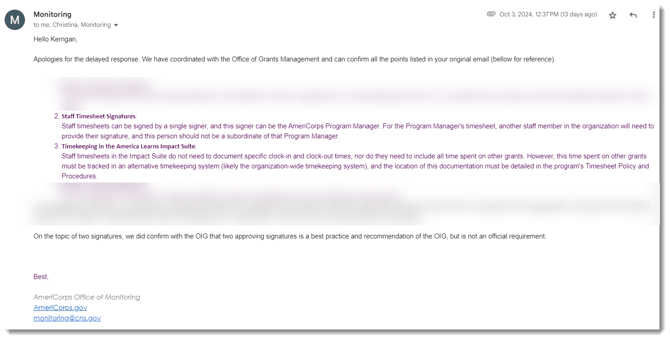
Admin Timesheet Compliance Items
The two core compliance items relevant to admin timekeeping are below:
- Admin Timesheet Signatures:
A single signer can sign admin timesheets, and this signer can be the AmeriCorps Program Manager.
For the Program Manager's timesheet, another admin in the organization needs to provide their signature, and this person should not be a subordinate of that Program Manager.
NOTE: Two signatures are still the best practice and recommendation on reporter timesheets. - Timekeeping in the Impact Suite:
Admin timesheets in the Impact Suite do not need to document specific time-in and time-out, nor do they need to include all time spent on other grants.
However, this time spent on other grants must be tracked in an alternative timekeeping system (likely the organization-wide timekeeping system), and the location of this documentation must be detailed in the program's Timesheet Policy and Procedures.
Implementing These Changes
Check out our article with full guidance on admin timesheets: creating timesheet templates for admin
Below is additional guidance on how to make updates to relevant items from the Office of Monitoring email. If you'd like additional help in the process, please email support@americalearns.net.
Changing the Number of Timesheet Signers:
- On the left, in your Mission Control, click Timesheets.
- On the right, click Create & manage timesheet templates.
- Select the admin template that you’d like to edit.
- Expand the section of the template called The Basics.
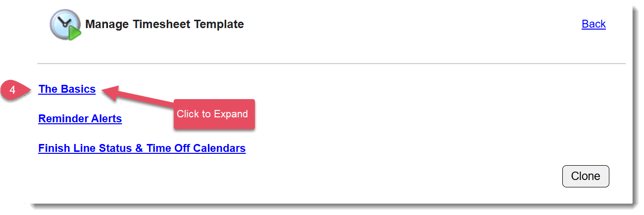
- Scroll down until you see the panel Number of Signers and click Edit.
- Use the radio button to select the first option for One Signer and click Save:
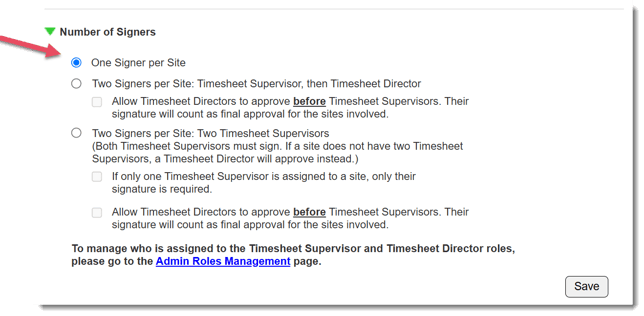 NOTE: This will go into effect immediately.
Adding Admin to the Impact Suite:
Here's an article that reviews creating reporter accounts using Excel.
NOTE: If you want the AmeriCorps Program Manager to have a separate signer from the rest of the admins, please create an Admin Site specifically for that program manager and assign the supervisor signer for that person to only that site. This will make sure the correct timesheets are routed to the correct signers.
Removing Time In and Time Out on Timesheets:
- On the left, in your Mission Control, click Timesheets.
- On the right, click Create & manage timesheet templates.
- Select the admin template that you’d like to edit.
- Expand the section of the template called The Basics.
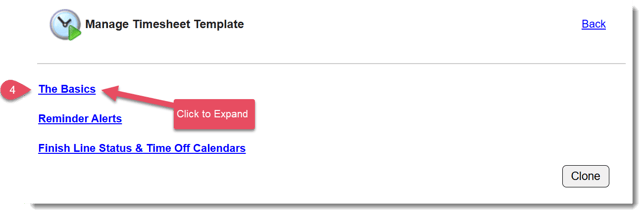
- Scroll down until you see the panel Time In and Time Out Functionality and click Edit.
- Use the radio button to select the bottom option and click to Save.
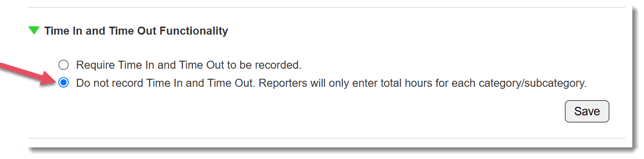
NOTE: This will update all future timesheets beginning at the next launch. Already launched timesheets will continue to have time in and time out functionality.
Updating your Policies and Procedures Document:
This is a critical step in maintaining compliance.
Your Policies and Procedures Document MUST include information detailing where non-AmeriCorps admin time is kept. Here is a sample Policies and Procedures document for you to use as a template if you don't currently have one: AmeriCorps Member File Policy and Procedure Template.