What is Display Logic?
Display Logic lets you control which questions appear on a survey form based on how a reporter answers a previous question.
Instead of showing every reporter the same set of questions, you can personalize the form so that each reporter only sees the questions that are relevant to them.
Examples:
-
AmeriCorps tutoring programs: If a reporter selects After-School Program, you can show a follow-up about grade levels. If they select In-School Program, you can show a question about the number of classrooms supported.
-
Adult literacy programs: If a tutor selects Reading Comprehension, you might display a follow-up about materials used (books, newspapers, digital texts). If they select Writing Skills, you can instead ask about feedback frequency on written assignments.
Question Types Supported
Display Logic can be added to and triggered by the following question types:
-
Single Select (radio buttons, dropdowns)
-
One Date
-
Any Date and Date Range
-
Time (radio buttons, dropdowns)
-
Single Number & Number Series (radio buttons, dropdowns)
-
Number Series w/Other
-
Non-Number Series w/Other
-
Number Series Text Box
-
Media Upload
You can add Display Logic while creating a new form or by editing an existing one.
Adding Display Logic When Creating a New Form
Following the steps to create a new form (checkout this article for information) and then follow these steps:
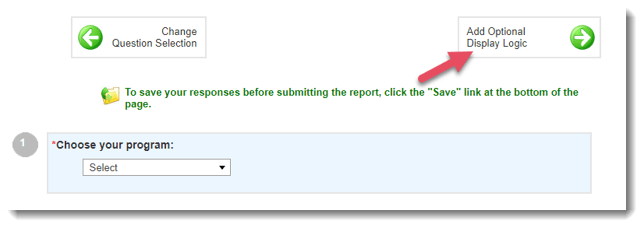
- Once you are happy with the order of your questions and if you have any questions for which logic may be applied, click Add Optional Display Logic.
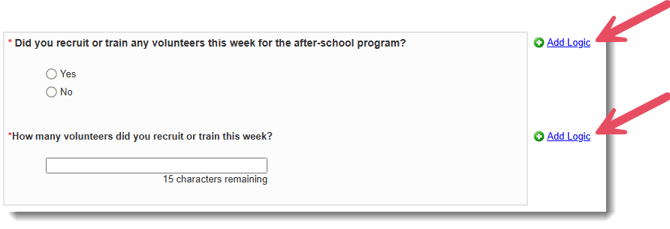
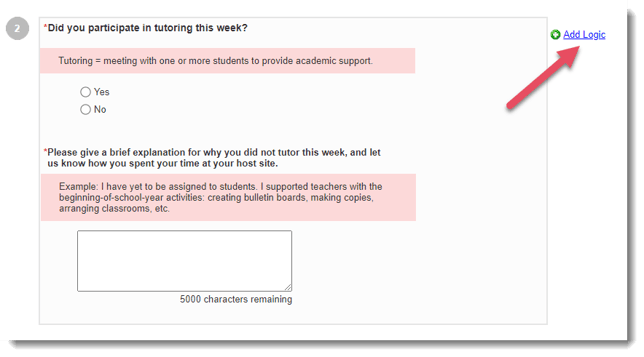
- Use the Add Logic links to add or hide subsequent questions in your form based on your reporter's responses.
- A pop-up window will appear.
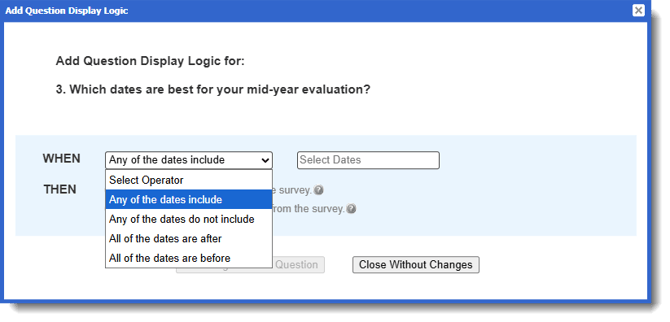
- Complete the WHEN statement.
First begin your logic statement by clicking Select Answer(s), select the options, and click Apply.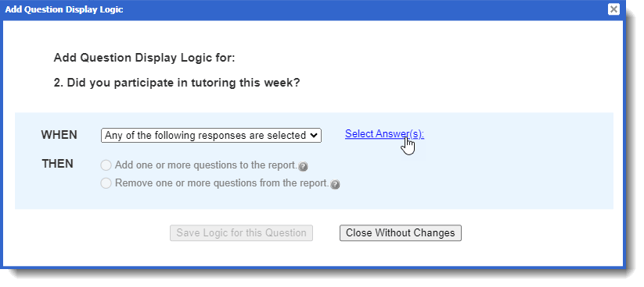
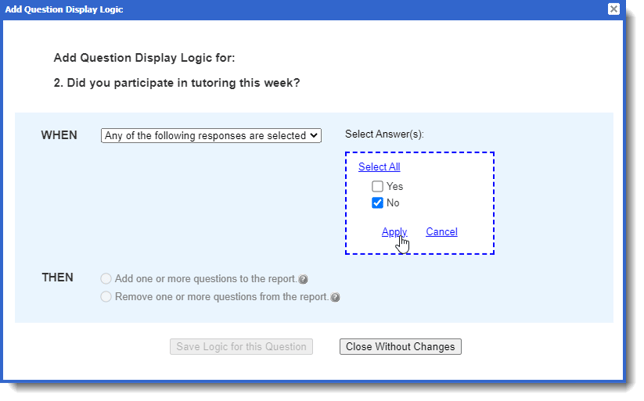 Example: WHEN any of the following responses are selected: No
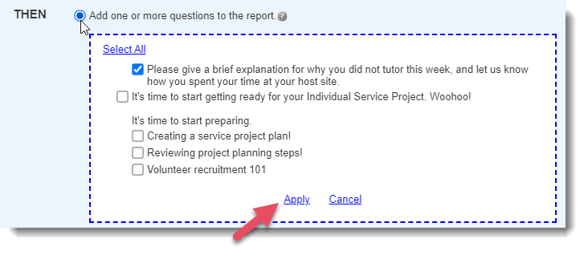
 - Complete the THEN statement.
Choose either to:- Add one or more questions to the survey and click Apply.
- Or, remove one or more questions to the survey and click Apply.
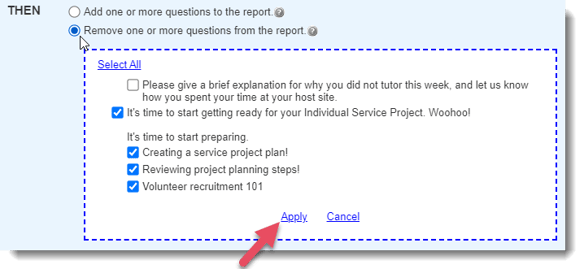 Example: THEN remove one or more questions from the survey: Select questions to remove.
- Add one or more questions to the survey and click Apply.
- If you need to add additional logic, click the Add More Logic link.
- Once you are happy with your display logic for this question, click Save Logic for this Question.
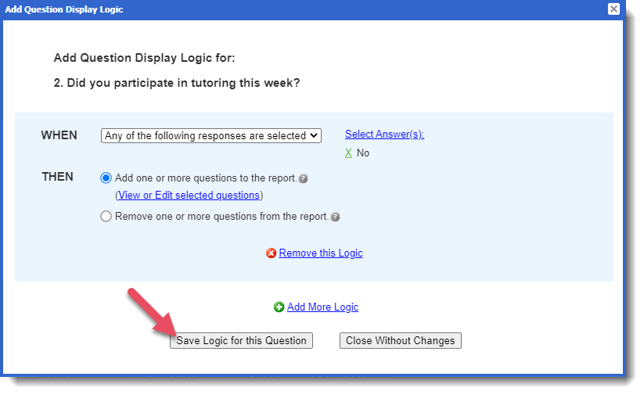 To delete the any logic, click Close Without Changes.
 - Once logic is applied to a question, you'll see this banner.
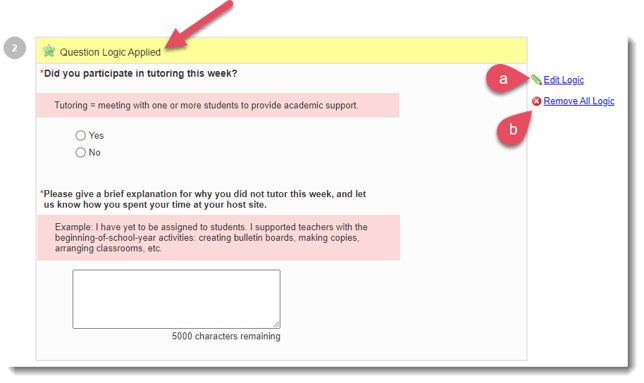 a) To edit your display logic, click Edit Logic.
b) To delete your display logic, click Remove All Logic. - Continue adding logic by clicking Add Logic to any eligible questions.
- Once you are happy with the applied logic (optional), click the Name This Survey button at the top or bottom of the page.
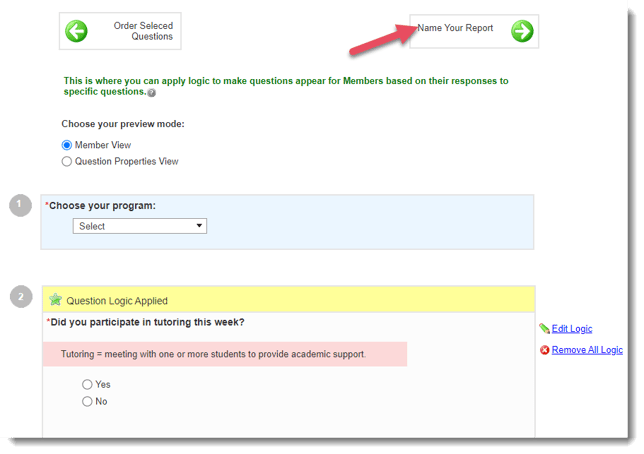
- Type the name of your form and click either Create or Create Form and Schedule Launch.
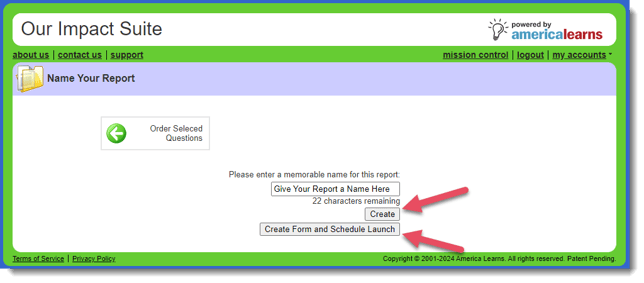 If you click Create, you'll be taken to a page that lists all of the forms you've ever created. (See this article for more on managing forms.)
If you click Create Form and Scheduled Launch, you can begin scheduling your launch. (See this article for more information on scheduling launches.)
Adding or Editing Display Logic on an Existing Form
Following the steps to add Display Logic on a form you've already created:
- On the left, in your Mission Control, click Survey Management.
- On the right, click Manage forms.
- Find the form on which you would like to add or edit display logic and use the Add Display Logic or Edit Display Logic links.
- Next, Use the Add Logic to create new logic or Edit Logic links to edit logic previously applied.
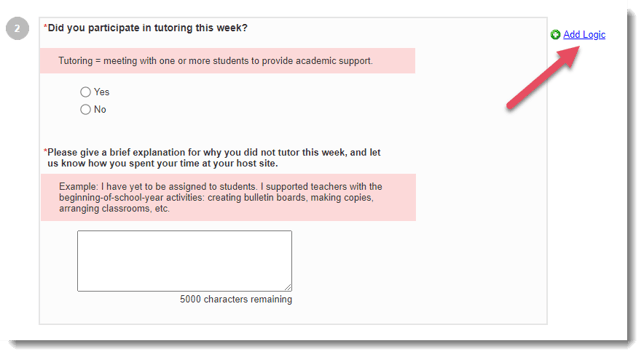 You can also delete previously applied logic by clicking Remove All Logic.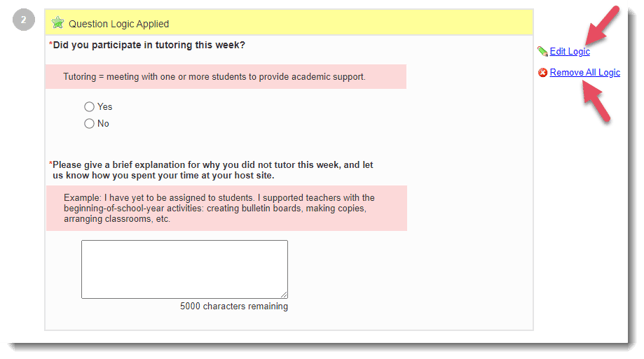
- A pop-up window will appear.
- Complete the WHEN statement.
First begin your logic statement by clicking Selected Answer(s), select the options, and click Apply.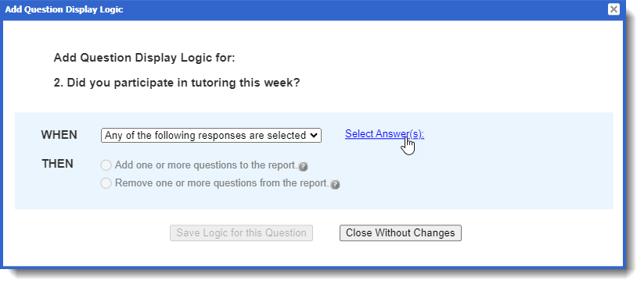
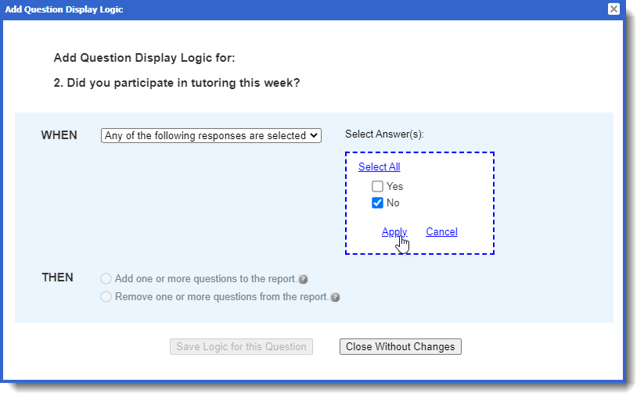 Example: WHEN any of the following responses are selected: No
 - Complete the THEN statement.
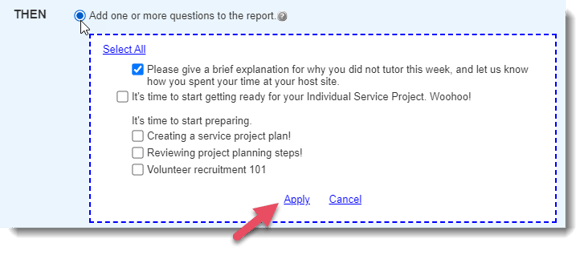
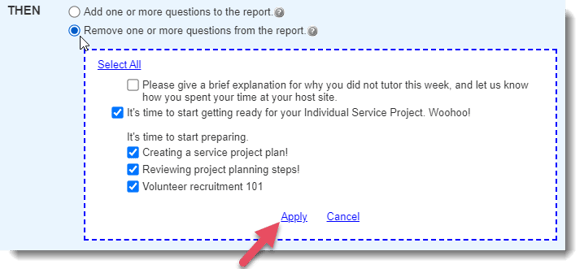
Choose either to:- Add one or more questions to the survey and click Apply.
- Or, remove one or more questions to the survey and click Apply.
- Add one or more questions to the survey and click Apply.
- If you need to add additional logic, click the Add More Logic link.
- Once you are happy with your display logic for this question, click Save Logic for this Question.
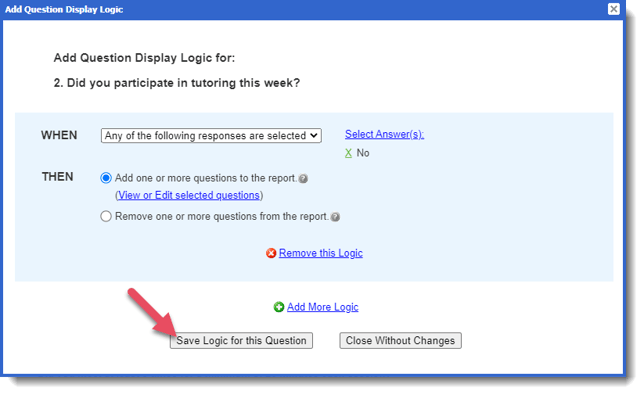 To delete the any logic, click Close Without Changes.
 - Once logic is applied to a question, you'll see this banner.
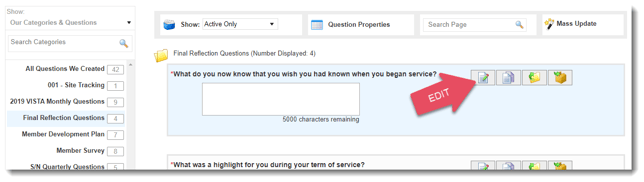 a) To edit your display logic, click Edit Logic.
b) To delete your display logic, click Remove All Logic. - Continue adding logic by clicking Add Logic to any eligible questions.
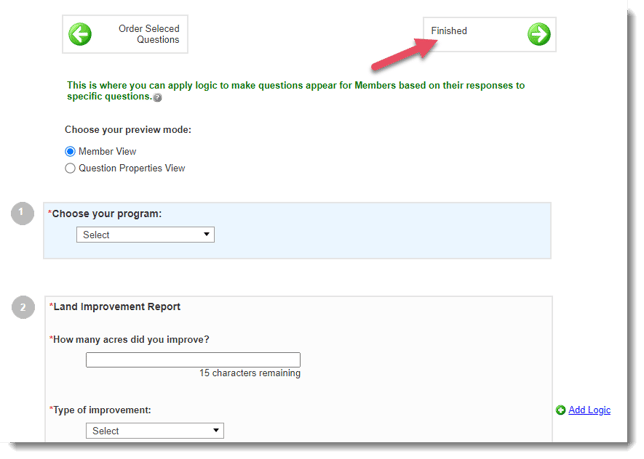
- Once you are happy with the applied logic, click the Finished button at the top or bottom of the page.
Operators by Question Type
Below are the available WHEN operators for each question type, with notes on how they behave.
Single Select (Radio / Dropdown)
-
Any of the following responses are selected
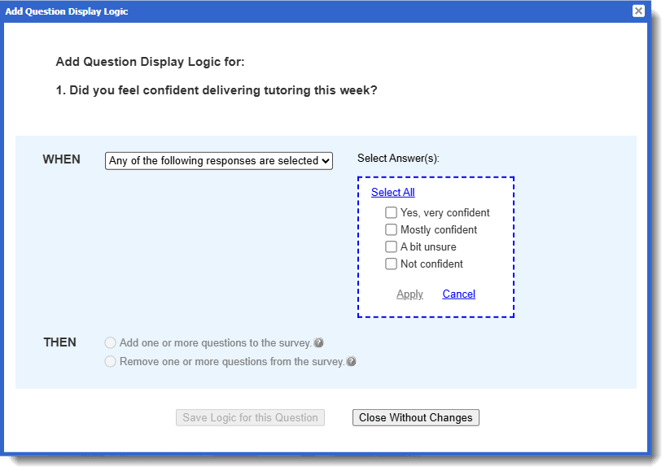
One Date
-
The entered date is
-
The entered date is not
-
The entered date is before
-
The entered date is after
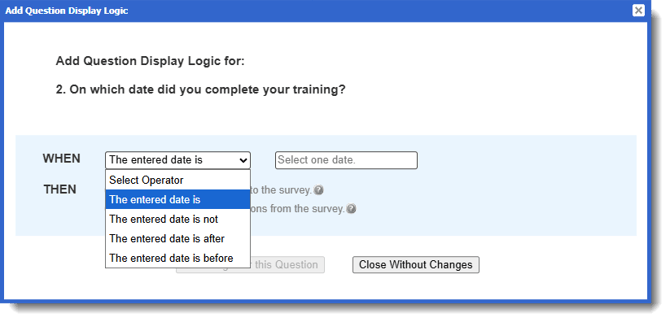
Any Date and Date Range
-
Any of the dates include
-
Any of the dates do not include
-
All of the dates are before
-
All of the dates are after
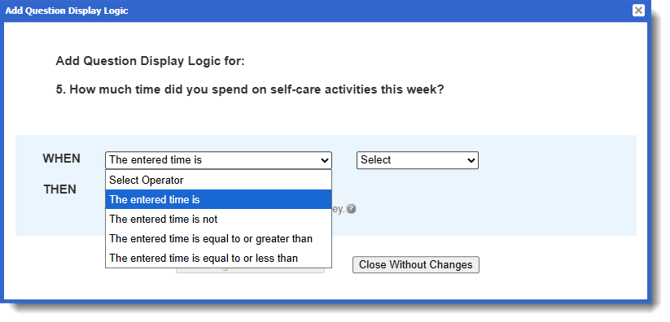
Time Questions (Dropdown)
-
The entered time is
-
The entered time is not
-
The entered time is equal to or greater than
-
The entered time is equal to or less than
Single Number & Number Series (Radio / Dropdown)
-
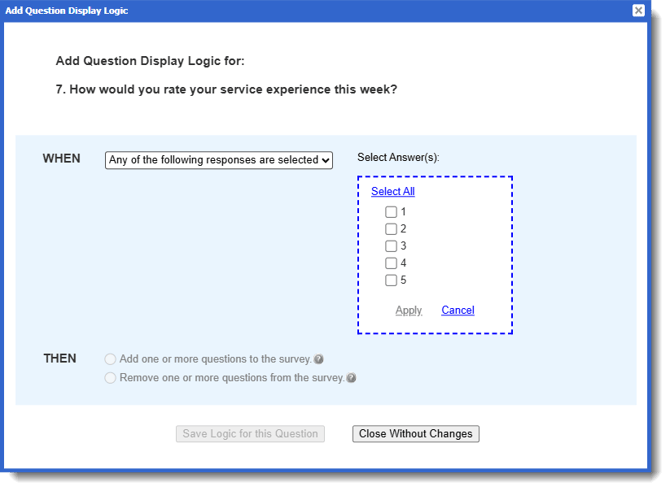
Any of the following responses are selected
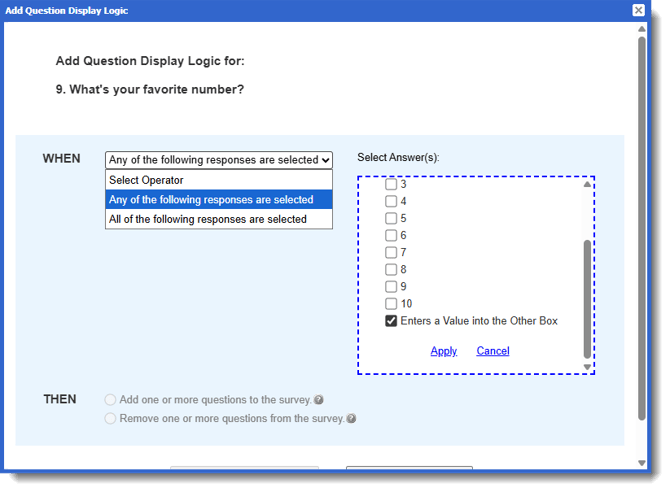
Number Series w/Other
-
Any of the following responses are selected
-
All of the following responses are selected
-
If an “Other” value is entered
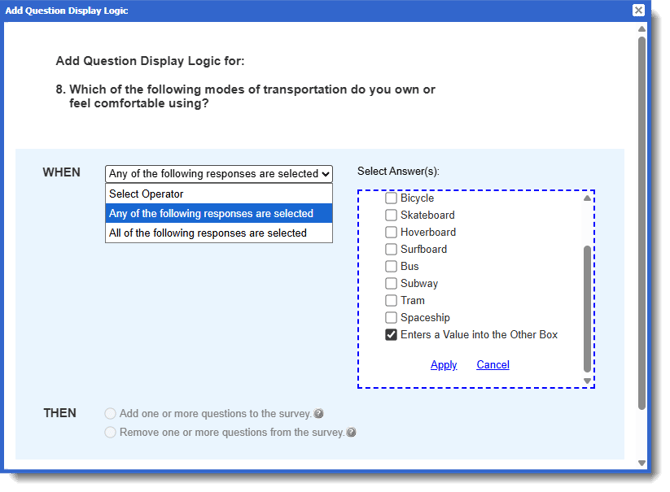
Non-Number Series w/Other
-
Any of the following responses are selected
-
All of the following responses are selected
-
If an “Other” value is entered
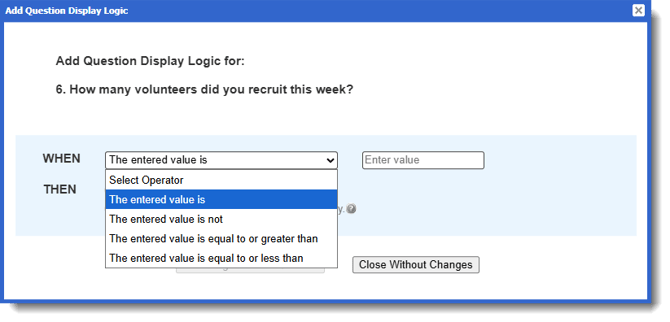
Number Series Text Box
-
The entered value is
-
The entered value is not
-
The entered value is equal to or greater than
-
The entered value is equal to or less than
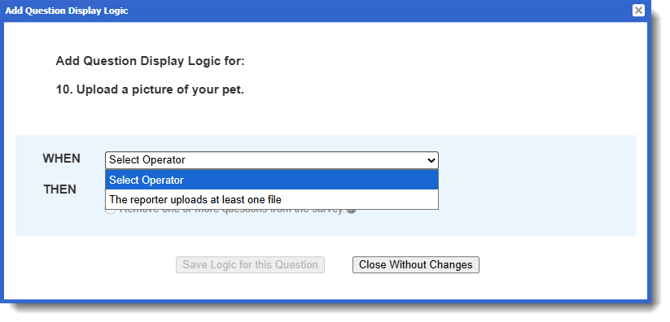
Media Upload
-
Reporter uploads at least one file