Step 1: Open Your Welcome Email
When it's time to create your password, you will receive a Welcome Email like this one: 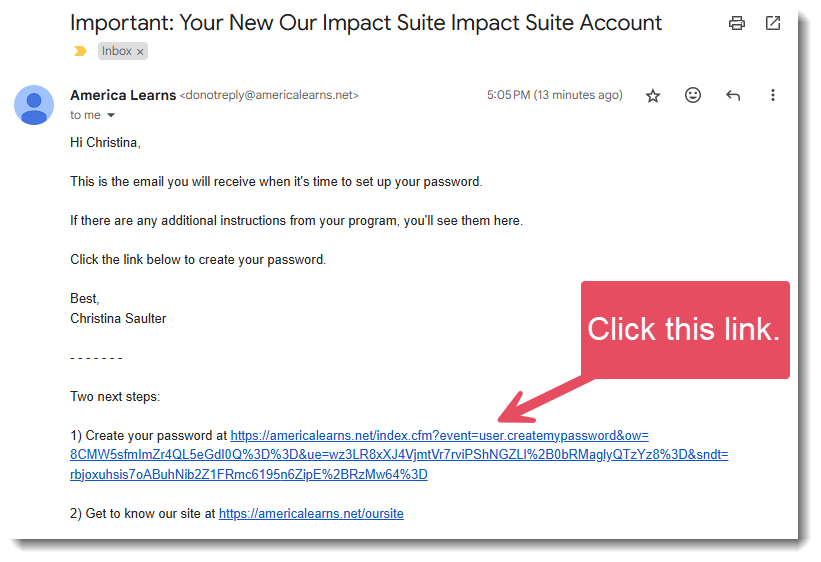 If you did not get this e-mail, please contact us at support@americalearns.net.
Step 2: Create Your Password
After clicking the link, a new window will open.
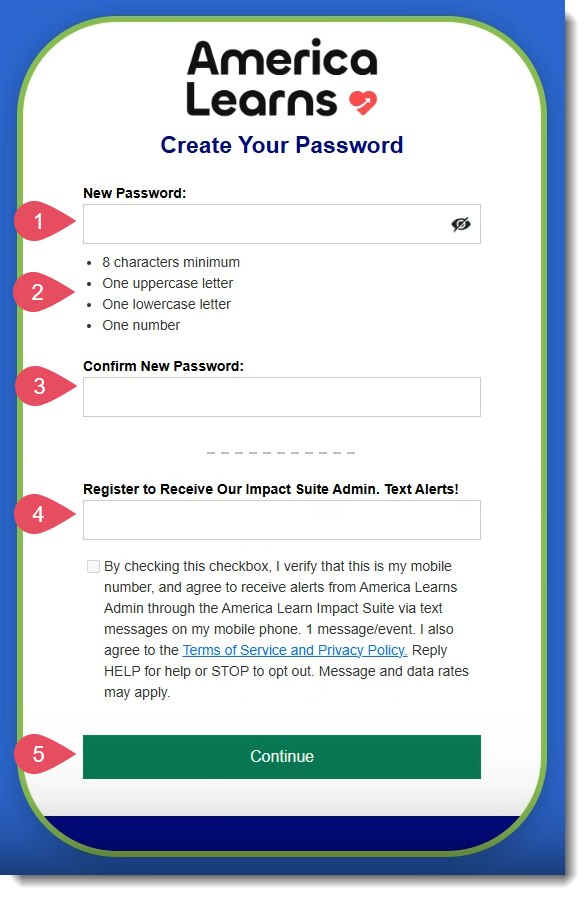
- Create a strong password.
- Use at least 8 characters, at least one uppercase letter, at least one lowercase letter, and at least one number.
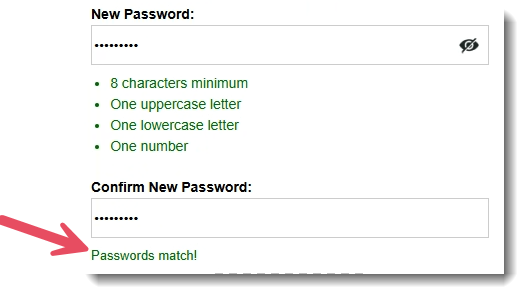
- Confirm your password. Once the initial and confirmation passwords match, you will see a message like this:
- To opt into text messaging alerts, enter your mobile number. (You will only recieve alerts, reminders, and messages from your program. America Learns will never spam you or sell your number.)
You can always change your mind later! - Click Continue.
Step 3: Log In To Your Impact Suite
You will find the direct link to your Impact Suite in the Welcome Email.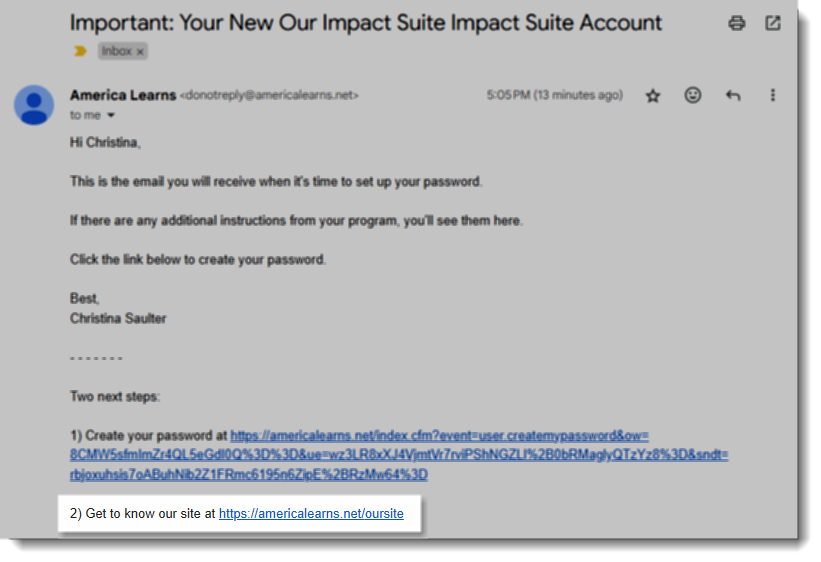
Or, use our generic login page, found here. 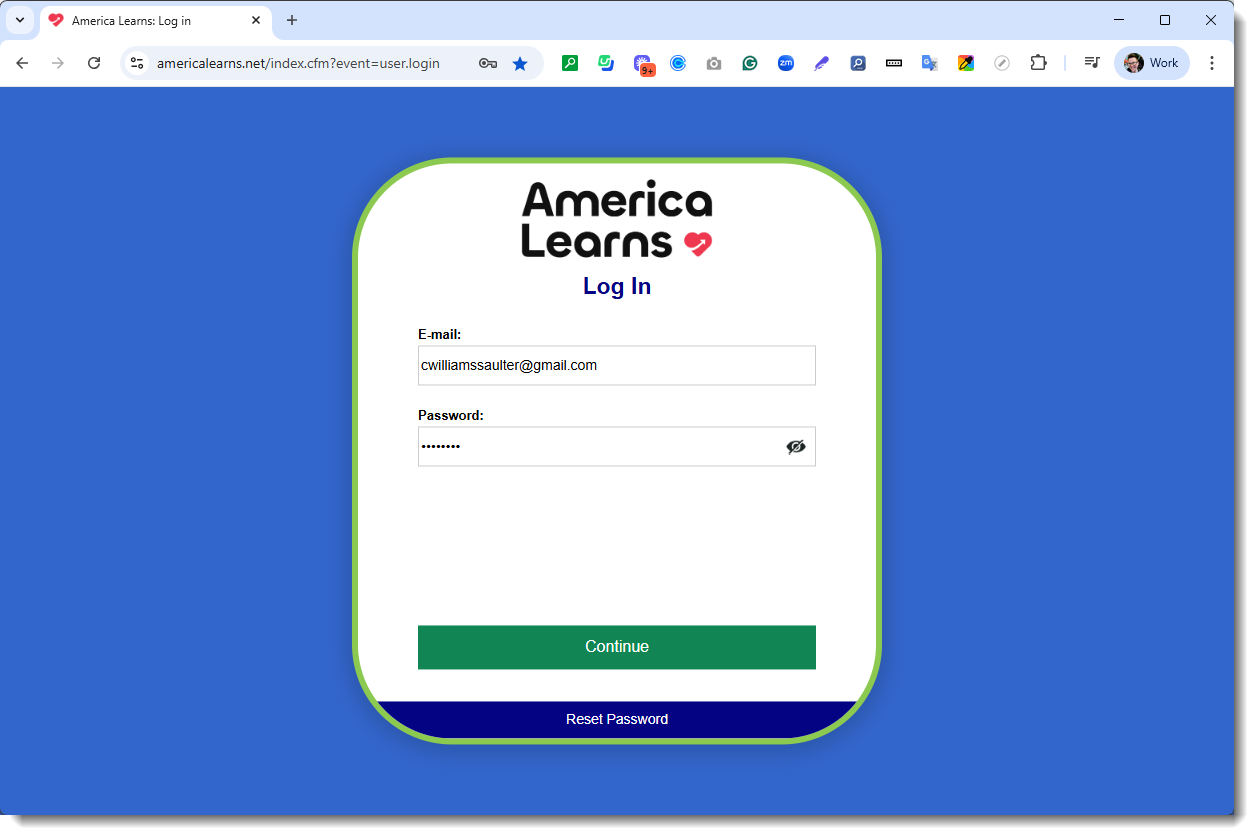
Turn On or Turn Off Text Message Reminders (Anytime!)
Once you're logged in, you can turn text messaging on or off at anytime.
- If your Profile doesn't automatically load. You can find it on the left, in the navigation bar. Just click View and Update My Profile.
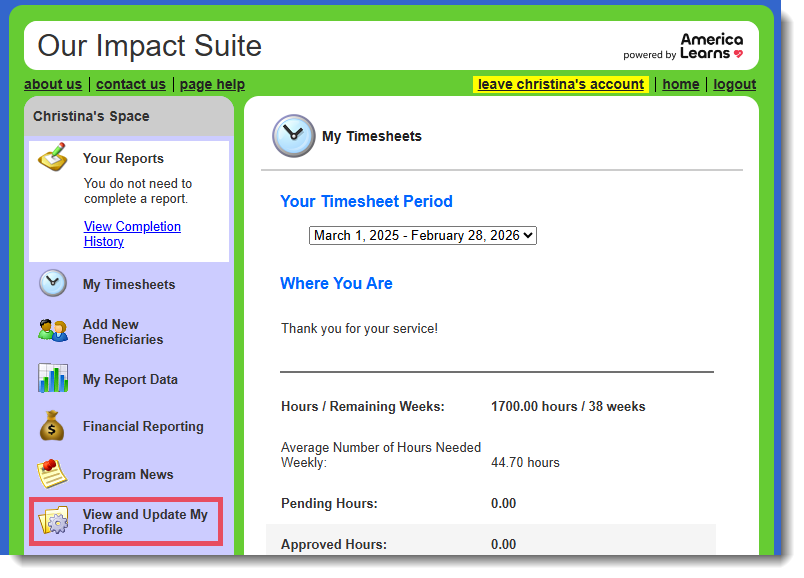
- When your profile loads, open the Name and Contact Details panel.
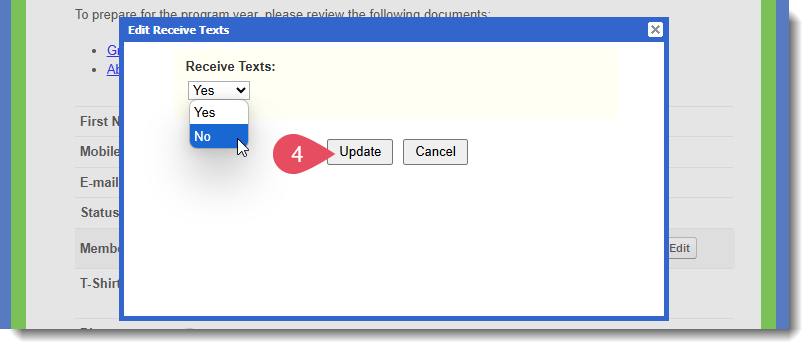
- Find the field called Recieve Texts and click on the pencil icon.
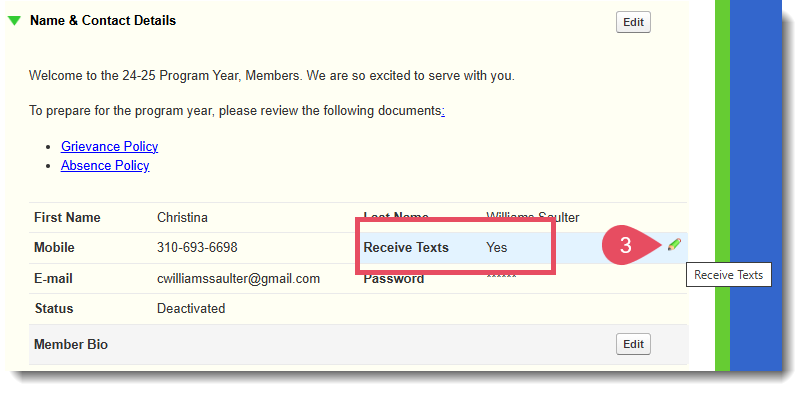
- A window will open. Update your response (either Yes - to turn on messaging, or No - turn messaging off) and click Update.