
Video Support: Admin Management
Accessing the Admin Manager
- On the left, in your Mission Control, select Reporters, Admins, & Sites.
- On the right, select Manage admin accounts.
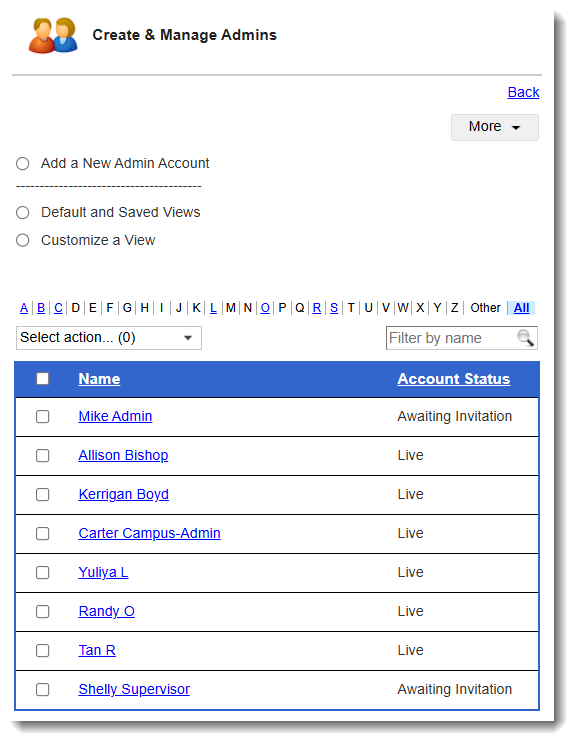
- When the page is displayed, you’ll see a roster of all of your currently-enrolled admin reporters.
-
Here you'll find Admins listed in alpha-order by last name, and you'll also be able to see their Account Status:
-
Awaiting Invitation - Admins to whom you have not sent the Welcome/Password Set Up Email.
-
Invited - Admins to whom you've sent the Welcome/Password Setup Email, but have not yet established a password.
-
Live - Admins with active passwords.
-
-
The Admin Manager: Customize A View
- On the left, in your Mission Control, select Reporters, Admins, & Sites.
- On the right, select Manage admin accounts
- At the top of the page, you’ll see a section called Customize a View.
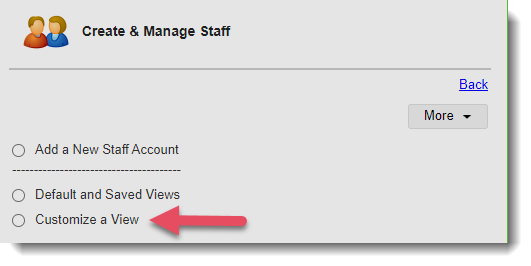 .
. - Select this option to create a specific view of your admin account settings.
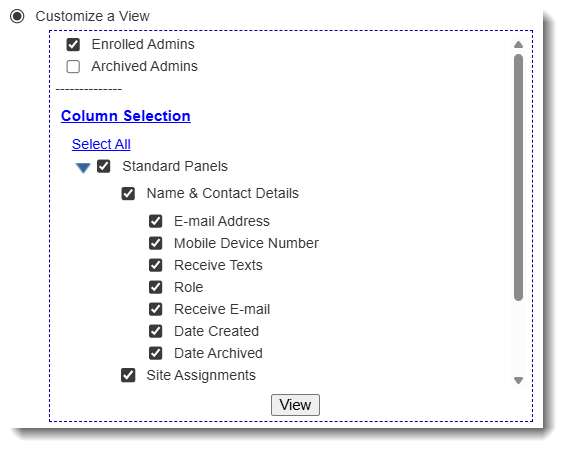
At the top of the table, select whether you’d like to only see one or both of the following groups:- Enrolled Admins
- Archived Admins
- Select the options that you would like to see in the table:
- Enrollment Status
- Site Assignments
- Role
- E-mail Address
- Mobile Device Number
- Enrollment Date
You can also use the Optional: Break Out By options to see your admin reporters nested under selected assignments in alphabetical order.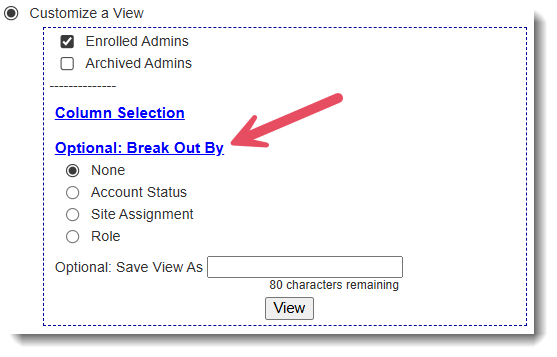
- Click the View button to update the table with your selections.