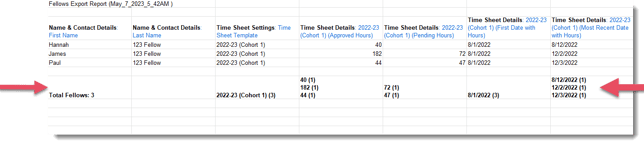
You can access key year-to-date timesheet data in the reporter profile export area. This makes it easier to segment reporters based on their timesheet activity and to quickly reference timesheet statistics while you’re reviewing reporter profiles.
To access timesheet data in the reporter export space, follow these steps:
-
On the left-hand side of your Mission Control, click Reporters, Admins, & Sites.
-
On the right, click Manage reporter accounts.
-
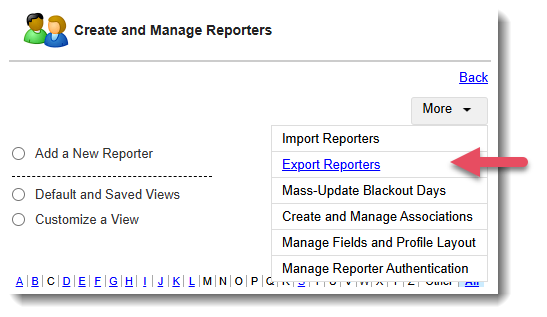
Towards the top-right, use the More drop-down menu to select Export Reporters.
-
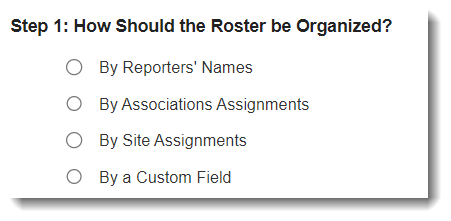
Choose how you’d like to organize your roster:
- On the right, click the Select Fields to Include button.
- Next, click the green triangle next to Timesheet Settings to expand the panel.
- Choose which timesheet data points to include:
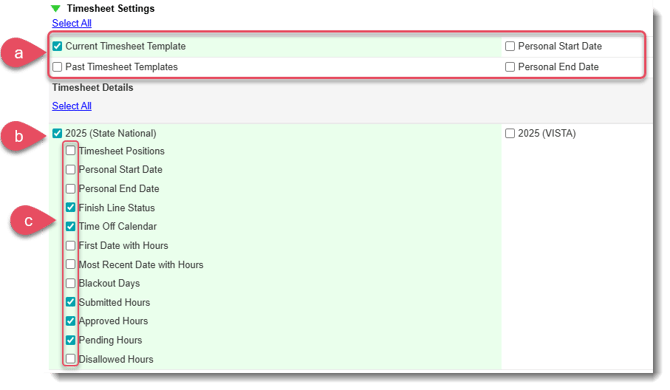
- The Personal Start Date and Personal End Date fields in this section will reflect the dates from the reporter’s most recent Timesheet Template assignment.
- Click the name of a specific Timesheet Template to open a menu of additional data points you can include.
- Select the template-specific data points you want to add to your export.
- Scroll down to the table at the bottom of the screen. It will show a report of the timesheet data points you selected.
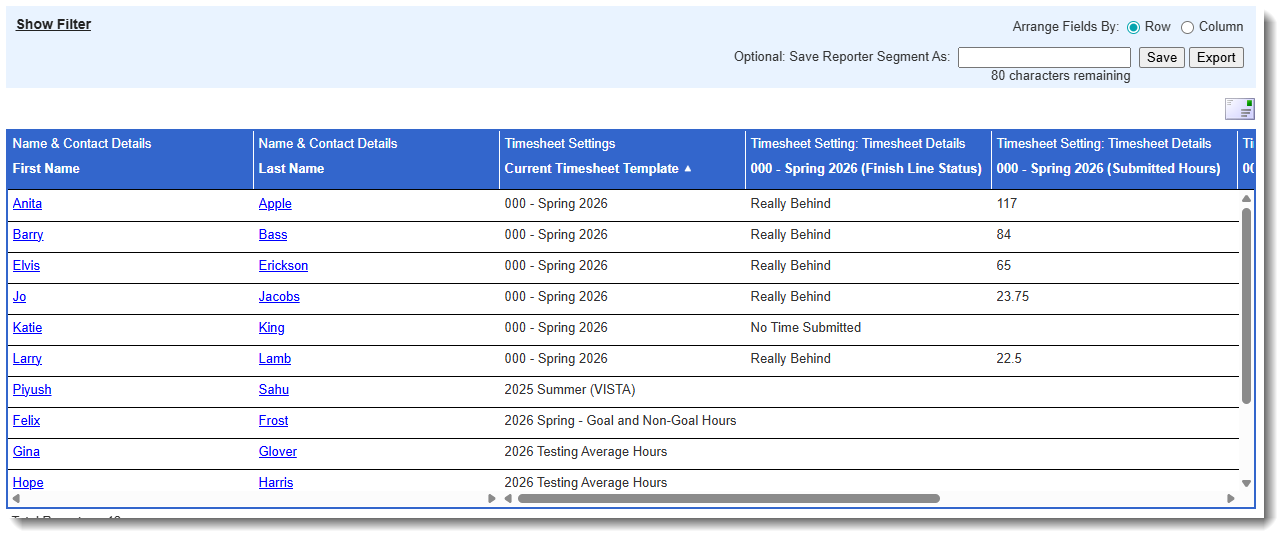
- To export this data to Excel, click the Export button:
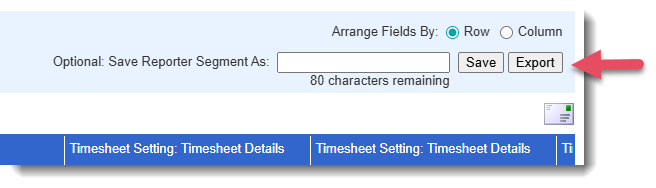
- When you Export to Excel your worksheet will include a totals row. This row will be extremely useful when you need a quick stats view.