
Access a Reporter's Timesheet Dashboard
The Timesheet Dashboard is a visual tool that shows a reporter’s progress toward their Goal Hours, their timesheet submission history, and their Finish Line Status (if enabled). It also provides quick access to key actions, such as reporters submitting timesheets and admins reviewing them. Both reporters and admins can view this dashboard.
To access the reporter's timesheet dashboard, follow these steps:
-
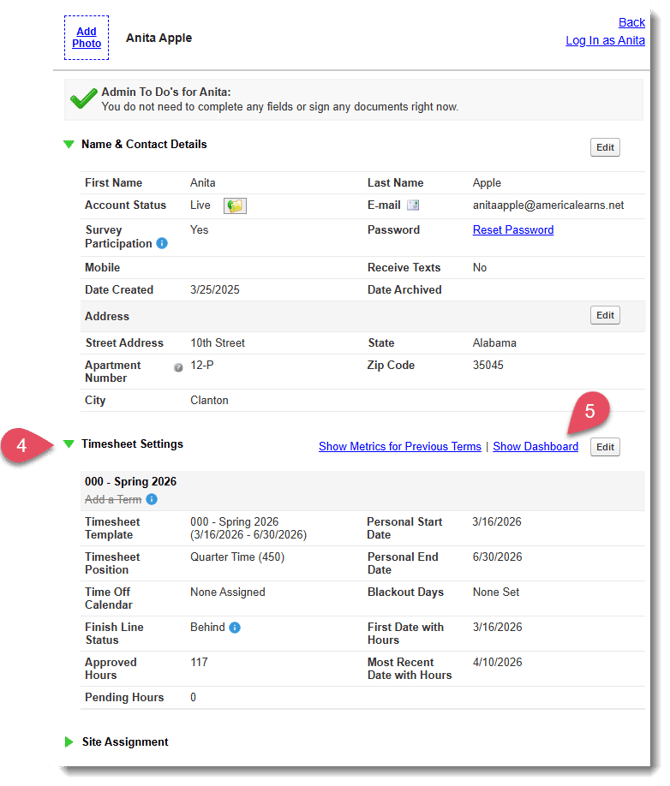
On the left, in your Mission Control, click Reporters, Admins, & Sites.
-
On the right, click Manage reporter accounts.
-
Click the relevant reporter’s name.
-
Open the Timesheet Settings panel.
-
Click the Show Dashboard link.
Components of the Timesheet Dashboard
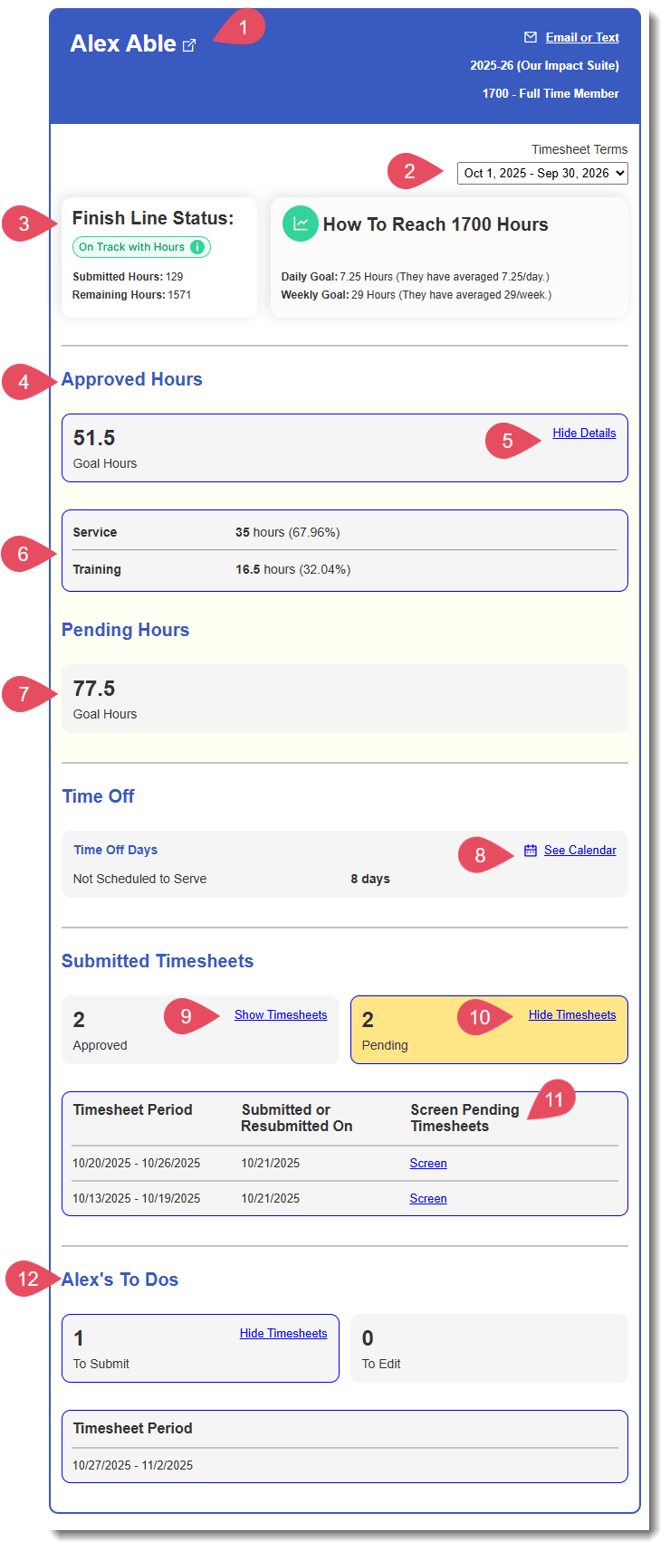
The Timesheet Dashboard is an essential tool for admins to understand what’s happening with a reporter’s timesheets, and it provides access to key actions related to those timesheets.
Here's a quick review of the Timesheet Dashboard components:
| Component | Description |
| 1) Reporter Profile Link | Click this icon to head back to the reporter's profile. |
| 2) Timesheet Terms | Use this drop-down menu to toggle between Timesheet terms (if relevant). |
| 3) Finish Line Status | (Available when Finish Line is enabled for the assigned timesheet template.) Possible Statuses as they relate to Daily Target Hours toward Goal Hours:
These two cards work together to help you and reporters understand what they need to do to complete their Goal Hours on time. |
| 4) Approved Hours | This section shows the number of Goal Hours completed and approved to date. |
| 5) Show/Hide Details | Use this toggle to show or hide details around the distribution of allocated hours to Categories and Subcategories on the reporter's timesheets. |
| 6) Category/Subcategory Details | This section shows the number of hours as allocated by the reporter to time allocation categories and subcategories on their timesheets. |
| 7) Pending Hours | This section shows the number of hours submitted, but not yet approved by all signing parties. |
| 8) Time Off | This section allows you to see a breakout of all Time Off Reasons, and a link to a pop-up of their Time Off Calendar (if enabled on the timesheet template and assigned to the reporter). |
| 9) Approved Timesheets | Show or hide approved timesheets here. |
| 10) Pending Timesheets | Show or hide pending timesheets (needing signature) here. If there are timesheets waiting for your approval this section will be highlighted yellow. |
| 11) Screen Timesheets | Click Screen to review the timesheet. |
| 12) Reporter To Dos | This section will show any outstanding timesheets available to the reporter. |